
Connect Claude to Ronja
When you connect Claude to Ronja, Claude can answer questions from your company’s data. It finds the right table, reads your organization’s definitions, runs the query, and can tell you which tables it used.
How it works
Section titled “How it works”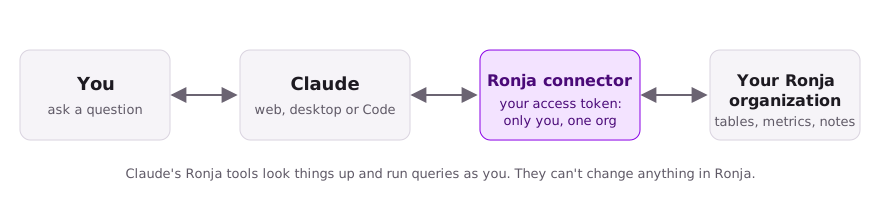 You ask Claude; Claude asks Ronja for you, with a key that works only as you.
- A Claude connector is how Claude reaches another service. You add Ronja as a connector in Claude once.
- When you connect, Ronja asks you to sign in and click Allow. This gives Claude a key, called an access token, that works only as you and only in the organization you choose.
- Through the connector, Claude can only look things up and run queries; it can’t change anything in Ronja. It sees only what you can see, and so does the key itself, so treat it like a password.
- You can take the key back at any time in Ronja. Removing Ronja from Claude only stops Claude from using it.
Before you start
Section titled “Before you start”You need one address, your Ronja connector address. It is the address you open Ronja at, followed by /api/v2/mcp, and it must include that ending. For most organizations that is:
https://cloud.ronja.tech/api/v2/mcpConnect Claude on the web or in the desktop app
Section titled “Connect Claude on the web or in the desktop app”Claude on the web (claude.ai) and the Claude desktop app for Mac and Windows share one list of connectors. Connect in one, and it works in both.
If your company’s Claude admin has already added Ronja:
- In Claude, go to Customize → Connectors.
- Find Ronja in the list. Your admin’s connectors usually carry a Custom label.
- Click Connect. Ronja opens in your browser; continue with Allow Claude in Ronja.
If you add Ronja yourself (on a Free, Pro or Max plan; Free plans allow one custom connector):
- In Claude, go to Customize → Connectors.
- Click + Add, then Add custom connector.
- Give it the name
Ronja, paste your Ronja connector address, and click Continue. - Leave the sign-in settings Claude detects as they are, click Continue, then Add.
- Click Connect next to Ronja. Ronja opens in your browser; continue with Allow Claude in Ronja.
You’re done when Ronja shows as connected under Customize → Connectors.
Turn Ronja on in a chat. Click + at the bottom left of the message box, point at Connectors, and make sure Ronja is switched on. You can switch it off for chats that don’t need it.
Connect Claude Code
Section titled “Connect Claude Code”Claude Code is Anthropic’s assistant for the terminal. If you don’t have it yet, install it from Anthropic’s setup page.
-
Open a terminal.
On a Mac On Windows Open Terminal. Open PowerShell. -
Add Ronja, with your Ronja connector address at the end:
Terminal window claude mcp add --transport http --scope user ronja https://cloud.ronja.tech/api/v2/mcp--scope usermakes Ronja available in every folder you use Claude Code in, not just this one. -
Sign in:
Terminal window claude mcp login ronjaYour browser opens Ronja. Continue with Allow Claude in Ronja. (Inside Claude Code you can do the same with
/mcp: choose ronja, then authenticate. Ifclaude mcp loginisn’t recognized, runclaude updatefirst.) -
After you click Allow, your browser says Authentication successful, and the terminal says:
Authenticated with "ronja". Its tools are now available in Claude Code.
 After you allow, the browser hands you back to Claude Code.
You’re done when claude mcp list shows ronja as ✔ Connected. Until you sign in it says ! Needs authentication.
If the browser doesn’t open, or doesn’t return to Claude Code, copy the link the terminal prints into your browser. After you allow, paste the address your browser ends up on into the terminal, where it says Or paste the redirect URL here.
Allow Claude in Ronja
Section titled “Allow Claude in Ronja”Whichever Claude you use, connecting opens the same page in Ronja: Allow an AI assistant to use Ronja? Sign in first if Ronja asks you to.
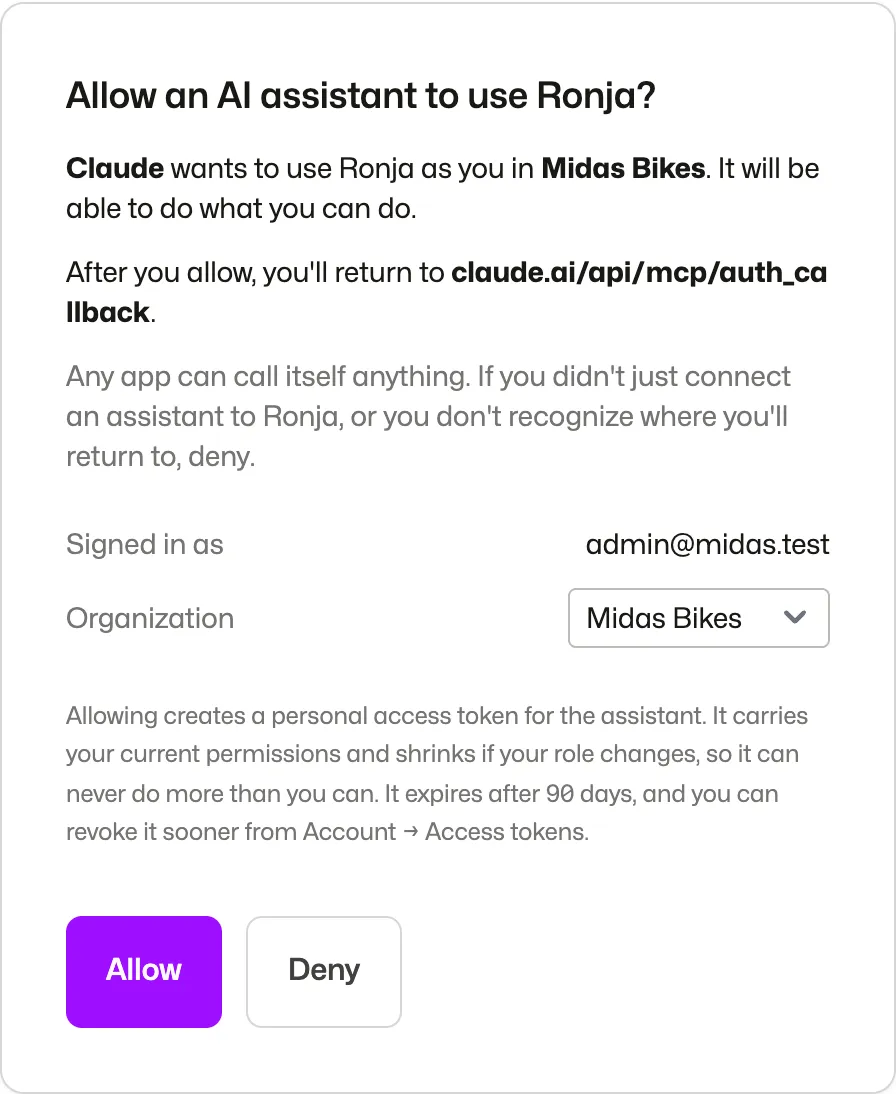 What Ronja shows when you connect from Claude on the web. From Claude Code, the assistant is named Claude Code (ronja) and you return to “an app on this computer”.
Check three things, then click Allow:
- The assistant. Claude on the web shows as Claude; Claude Code as Claude Code (ronja).
- The organization. If you belong to more than one, choose the right one under Organization, with the mouse. Changing it here also switches the organization you’re in across Ronja. Claude works only in the organization you allow.
- Where you’ll return to.
claude.ai/api/mcp/auth_callbackfor Claude on the web and the desktop app, or an app on this computer for Claude Code.
What allowing creates. Ronja creates an access token for Claude:
- It is named after Claude and ends in (MCP). It lasts 90 days, and Claude renews it while it keeps using Ronja, for up to a year; it ends after six months unused. Claude then asks you to sign in again. If you leave the organization, the token is deleted; if you are added back, connect Claude again. Revoking the token ends the sign-in at once. If an Admin changes its Expires date or clicks Clear (never expires) on its page in API Tokens (in the admin sidebar, under People & Access), the renewals stop: Claude signs in again the next time it needs to renew, and that token stays until the date set or, with no expiry, until it is revoked. Revoke it if it is no longer needed.
- It is read-only. That is what the page means by “It can read what you can read in Ronja and can’t change anything in Ronja”. It can read everything you can, so treat it like a password. If your role changes, the token follows it.
- On a database connected to Ronja, a query can do what that database’s own account allows. That is why the tip below matters.
Ask your first question
Section titled “Ask your first question”Ask Claude something about your business in plain words. Claude finds the data in Ronja, checks your organization’s definitions and runs the query.
Here is a real exchange from a demo organization, a bicycle maker:
You: Which five dealers bought the most from us in the last quarter of 2025, by revenue?
Claude: The top five dealers by revenue in Q4 2025 (October–December):
# Dealer Market Net revenue (SEK) 1 Bike Hub Odense DK 2,170,703 2 Frakt Partner Odense DK 2,152,192 3 Metro Bikes Frankfurt DE 2,095,493 4 Cykel Aarhus DK 2,042,142 5 Urban Wheels Oslo NO 1,845,407 Source:
net_seksummed from thedealer_orderstable in Ronja, for orders dated Oct 1–Dec 31, 2025. Your revenue rules count dealer revenue when it ships, but this table has no ship date, so these are order dates.
Behind that answer, Claude:
- found the
dealer_orderstable by searching Ronja; - read the organization’s note on how revenue is counted, which is why it flagged ship dates against order dates;
- queried the table, and named it as the source.
Try your own. Fill in the parts in brackets:
- “Who were our top 10 [customers / products] by [revenue / volume] in [last quarter]?”
- “How has [metric] changed month by month this year?”
- “Which tables do we have about [topic], and what does each one hold?”
The first time Claude uses each Ronja tool, it asks your permission, so your first question may bring a few prompts. Each one names the Ronja tool; allow it, once or always. A query against an outside database may ask every time unless you allow it always.
Two tips:
- Ask for a summary, not every row. A query shows Claude at most 1,000 rows by default (100 from an outside database), so “total by month” works better than “show me all orders”.
- Point Claude at the right place if it picks the wrong table: name the table or the feature it lives in.
Disconnect
Section titled “Disconnect”Disconnecting in Claude stops Claude from using Ronja. Revoking the token in Ronja makes sure the key itself no longer works. Do both when you’re done with a connection. A token belongs to the organization it was approved in, and Access tokens shows only the organization you’re in.
In Claude:
- Claude on the web and the desktop app: Customize → Connectors, then remove Ronja from its ⋯ menu.
- Claude Code: run
claude mcp remove ronja.
In Ronja:
- Click your name at the bottom left, then Settings.
- Open the Access tokens tab.
- Next to the token ending in (MCP), click the bin icon (Revoke token), then Revoke.
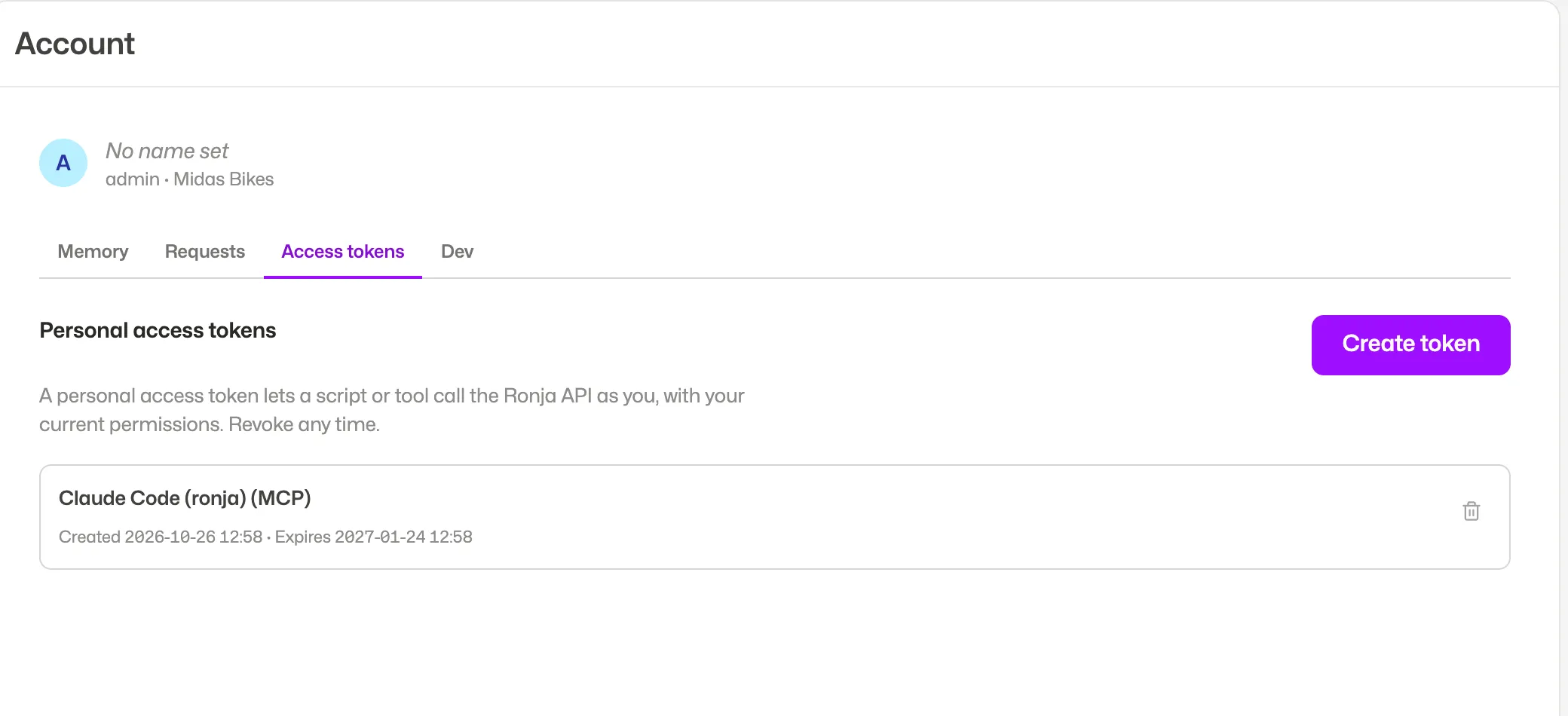 Every assistant you allow gets its own token here. Signing in again creates a new one, so revoke ones you no longer use.
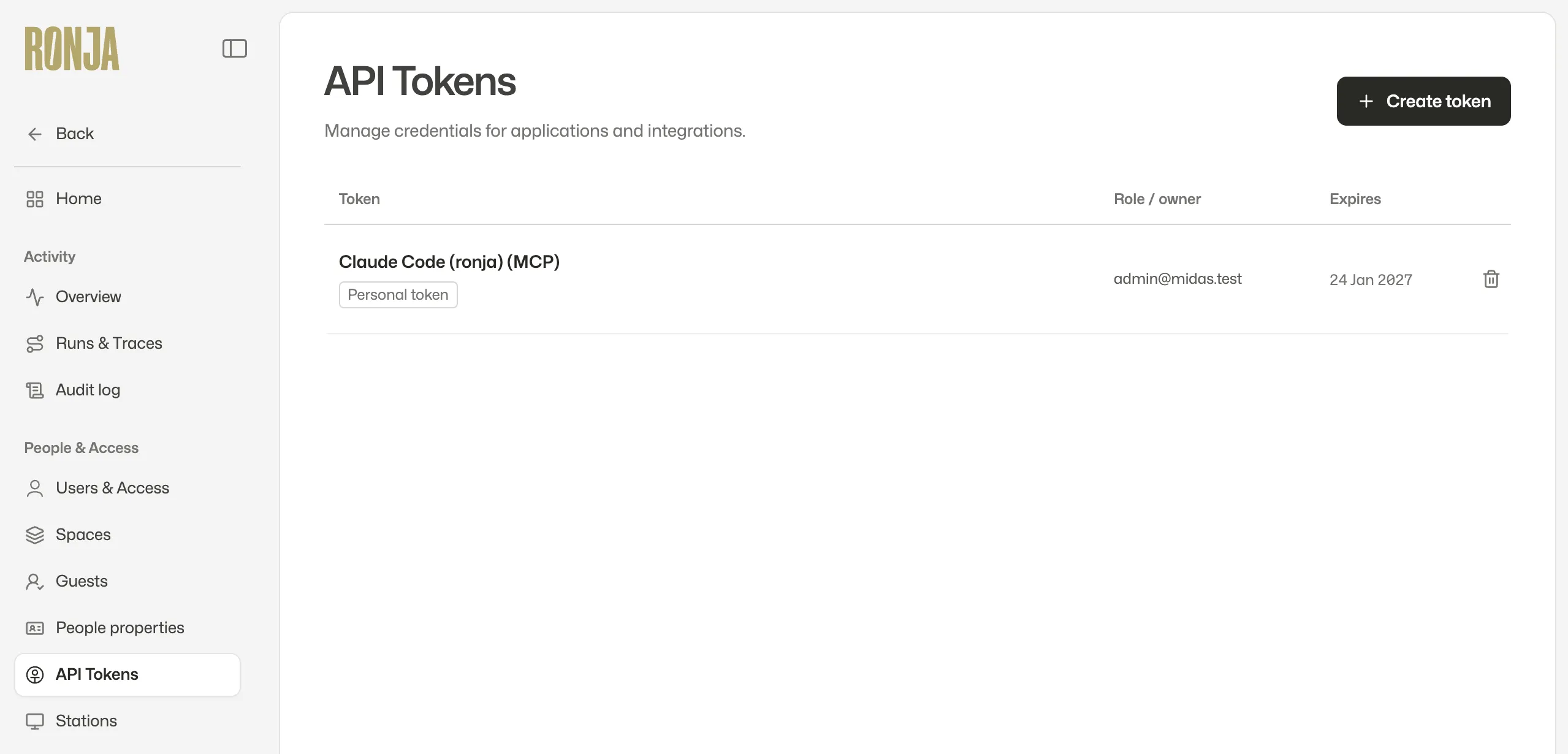 An admin sees everyone’s assistant tokens on one page.
If something goes wrong
Section titled “If something goes wrong”- Claude says it isn’t authorized, or asks you to connect again. The token expired or was revoked. Connect again: Connect in Claude, or
claude mcp login ronjain Claude Code. - Ronja says “This sign-in link can’t be used”. Read the message under it. If it asks you to sign in with an organization selected, do that and connect again. Otherwise, remove Ronja from Claude, add it again, and connect.
- Claude Code says “Protected resource … does not match expected …”. Ronja was added without the end of its address. Run
claude mcp remove ronja, then add it again with the whole address, ending in/api/v2/mcp, and sign in. - You allowed the wrong organization. In Ronja, switch to the organization you chose by mistake, and revoke its (MCP) token on Access tokens. Then switch to the right organization, and connect again.
For everything else, see Use Ronja from your AI assistant.
Related
Section titled “Related”- Use Ronja from your AI assistant: every tool, the token scopes, the limits, and other assistants.
- Build in Ronja with Claude Code: let Claude Code build apps, workflows and automations in Ronja.