
Build an app
An app is a small interactive application Ronja writes for you — filters, forms, charts, KPI tiles — that queries your tables. Every query an app runs is answered by Ronja at the time it runs. What is on screen changes the next time the app queries — when you change a filter, use a refresh the app offers, or reload the page — so a view you leave open does not update by itself. Like most resources, there is no app editor and no “new app” button anywhere: you describe what you want in a Build-mode conversation and iterate there.
If what you want is something to click inside the conversation you are already having — one view, for yourself, gone when the chat is — ask for an inline app instead. It needs no Build mode, no feature and no publishing, and it runs with each reader’s own access rather than one shared set of powers.
Ask for the app
Section titled “Ask for the app”- Click New Exploration.
- Select Build on the start screen.
- Describe the app — the product’s own suggestion: “Build an interactive app to explore our sales pipeline”.
- Approve the Create app card if Ronja pauses for your confirmation (it always does when the target feature is shared).
- Watch the side panel: a build-progress page walks through “Set up the canvas” → “Sketch the layout” → “Polish & compile” → “Ready to explore”. As soon as the app compiles cleanly, it renders right in the panel — as a preview, for you. Ronja checks her own work before she hands it over: she opens the app herself, looks at what it actually renders, and reads the queries it ran — so an app that builds cleanly but comes up blank gets caught and fixed before you’re told it’s ready.
- Publish it. Ronja asks to Publish 1 app; click Approve. Until you do, the app is an unpublished draft that only you can see.
- Read what she says next. Publishing now tells you who can open the app and what they can do in it — for example, Everyone in your organization can open “NCR register” (its feature “Quality”). Anyone who opens it can read tables “ncr”, “ncr_events” and WRITE via secret “ncr_db write role”. If that is not the audience you meant, change the app’s feature before people start using it.
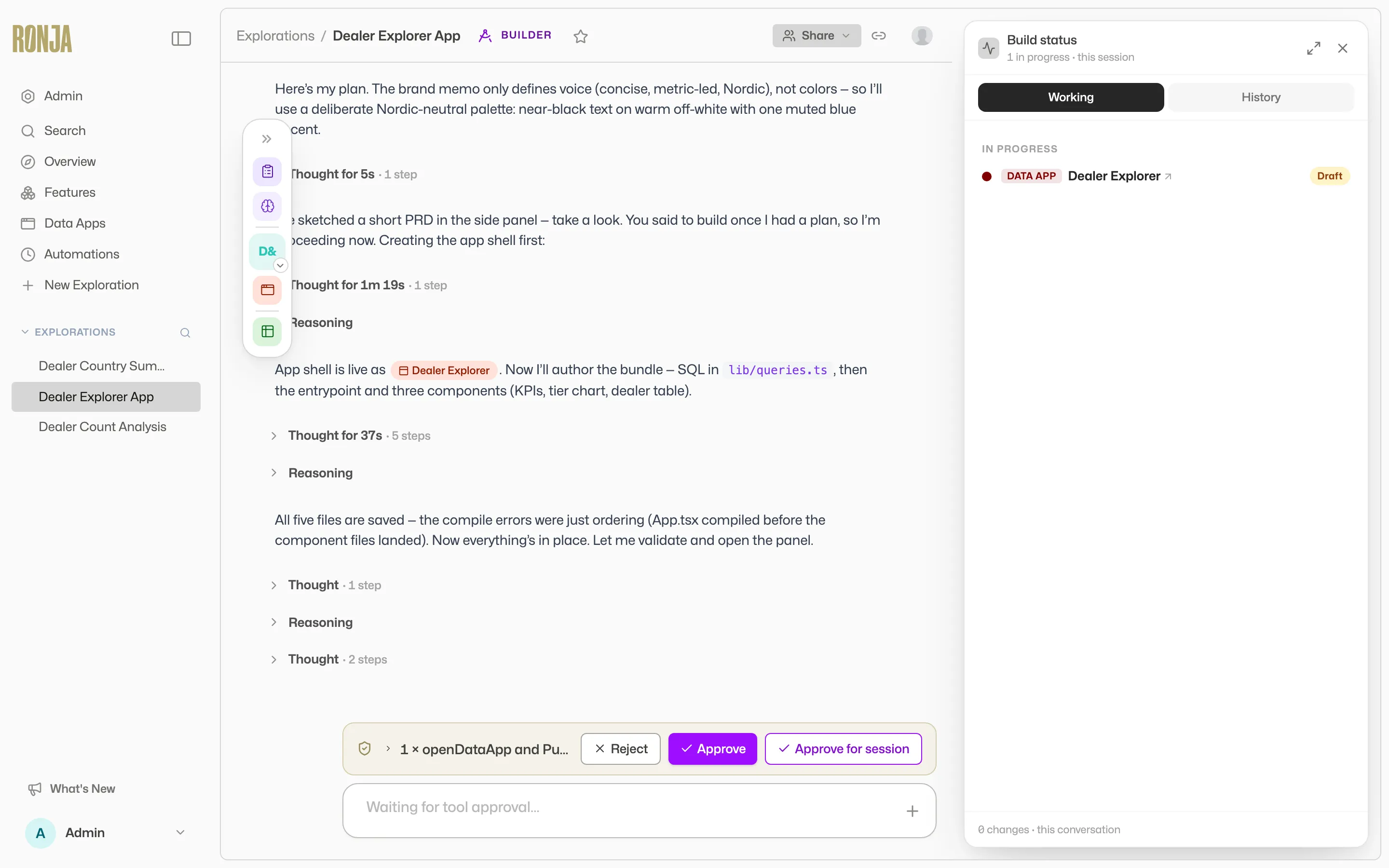 The side panel while Ronja is still drafting the app.
Ask Ronja for a table that sorts, filters, pages and exports: a search box across every column, a filter under each column, a totals row, a row count under the table, Rows per page with Previous / Next, and Export CSV, which saves the filtered rows’ visible columns (a column of buttons is left out). The row count follows the filters and the search: a table narrowed to ten of its sixty rows reads 10 rows (filtered from 60). A filter that lists a column’s values shows how many of the rows still showing have each one, and (blank) picks the rows with no value. While a filter or the search is on, Clear filters resets them all at once. In the totals row an average is marked Avg and a count Count, and an average of whole numbers shows two decimals. A row you can click to open also opens from the keyboard: Tab to it, then press Enter or Space.
A long text value is cut short with … so the other columns stay in view. Hover over it to read all of it, or click it to show that row’s text in full; click again to shorten it. Ask Ronja to wrap a column if its text should always show in full.
An app that was published earlier keeps the table it has until its next change is published.
On a chart with more than one series, clicking a legend entry hides that series and the chart rescales to what is still shown; the series stays hidden when the data refreshes.
Iterate
Section titled “Iterate”- Click the crosshair icon in the panel header (“Click anything in the app to ask Ronja about it”), then click any element and tell Ronja what to change.
- Toggle App / Code to read the app’s source (read-only).
- Come back any time. On the app’s own page, and on its Details page, click Edit with Ronja: a new conversation opens in Build mode with the app in the side panel, and Ronja waits for you to say what to change. Every app also has a Work on it button where apps are listed, which opens a fresh exploration seeded with it.
You see Edit with Ronja if you can change the app by asking Ronja: an Admin; for an app in a private feature, its owner; for an app in a shared feature, any member who can open it. Members with the User Read-Only role never see it. It needs Build mode access: when Build mode is off for your account, the button is greyed out, and pointing at it or Tabbing to it says why. It is not shown on a narrow screen such as a phone, or when the app is open on its own address.
Your change is made on a draft of the app, so nothing changes for the people using it until the draft is published. On a shared app, unless you are an Admin or a maintainer of its feature, you publish it with Submit for review, as in Share it. If you already have an unpublished draft of the app, your change lands in that same draft, so publishing it publishes your earlier changes too, whether you publish it from the draft banner or ask Ronja to. Preview draft on the banner shows what the draft holds.
An app built before Ronja changed how backslashes are read may show a Legacy SQL escapes chip: its queries still read backslashes the older way, and one with a backslash escape the older reading decoded (such as \1, \b, \', \\ or \n) is refused with an error naming the escape and saying the App must be edited and published. \d, \s and other escapes the older reading left alone run as written, and most escapes inside a comment don’t count; the error names any that does. The next change Ronja makes to its code moves it to the current behaviour, and the chip clears when that change is published. See how backslashes in SQL are read.
Show a governed metric
Section titled “Show a governed metric”An app can display your organization’s governed metrics — so a KPI app shows the official number instead of a hand-rolled copy of the calculation.
- Ask Ronja to build (or add to) the app using a specific metric, e.g. “Add a tile showing our Average Order Value metric, broken down by country.”
- Ronja wires the app to that metric and grants it access — you don’t manage an allow-list by hand.
- The app always reads the live, verified definition: change the metric once and every app that uses it updates.
An app can only show metrics you can already reach — for most members that is what your access groups and features reach; an Admin can wire in any metric in the organization by id, including one in a feature no access group is attached to.
To let a reader click through from a tile to the metric’s own page, see Link to a page in Ronja.
A breakdown can be clipped like any other read: ask for a metric broken down by more categories than the app loads and you get the first of them, not all of them. The app says so — Metric breakdown was truncated — some categories are missing — which means a chart or table is short a few rows rather than showing wrong ones. Tell Ronja if the breakdown needs to be complete.
Link to a page in Ronja
Section titled “Link to a page in Ronja”An app can link to a page elsewhere in Ronja, so a reader can click through from what the app shows to where it lives — from a KPI tile to its metric, or from a row of a list to its table. Ask for it, e.g. “Link each tile to its metric.” The same works for a table, a workflow, a note, another app, a Saved Agent or a managed database.
- The page opens in a separate browser tab, and the reader signs in to Ronja as usual.
- It is worked out for whoever is looking at the app. Ronja only hands a link to people who can open that page themselves, so a colleague who can’t open the metric never gets a link to it.
- There is no Admin exception. An Admin gets links only to what their own access groups and features reach, not to everything they can open as an Admin, so an Admin looking at a colleague’s private app may see no link where the colleague does.
- A link gives the app nothing. Linking to a metric doesn’t give the app its numbers; only showing it does.
An app linking many hundreds of different pages at once can reach a rate limit — see Limits and retention.
Run part of the app on Ronja’s servers
Section titled “Run part of the app on Ronja’s servers”Most of an app runs in the browser of whoever opens it. Some work is better done in one step on Ronja’s side, so an app can carry its own server functions: small parts of the app that run on Ronja’s servers when the app calls them. Ronja writes them along with the rest of the app. Ask for one when the app should:
- Check and save in one step, for example “When someone submits an order, check it against the price list, save it to the orders database, and show them the new order number.”
- Fetch from an outside service, for example “Show the open invoices from our billing system that are due this week.” The app uses a secret you stored for that service, and the key is never written into the app’s code. A secret that logs in shares its one session with the app. If the service refuses the session with 401, Ronja logs in again and sends the request once more; a server function’s refused call fails, and the next one gets the new session.
- Combine sources, for example “Show each customer’s lifetime value from the CRM database next to their order count from the sales table.” The function can read both in one query, joining a managed database with the app’s tables. A server function can also read a governed metric and get the same numbers the app shows.
- Search a Codex, for example “Let people search our policy documents and show the three best matches.” The function searches the Codexes listed under Knowledge on the app’s Access tab and sends the page only what it picks.
- Use AI on the data, for example “Sort each new support comment into billing, delivery or other.” The function reads the rows and asks the AI about them on Ronja’s side, so the page gets only the answer.
- Check, then save through a workflow, for example “When someone submits a return, check that the order exists, then run the returns workflow and show its result.” The function checks the request first and starts the workflow only when it passes.
A server function uses only what the app is already allowed to use: the tables, metrics, databases and secrets on the app’s Access tab, the Codexes listed there under Knowledge, the workflows under Workflows, and the AI when Capabilities lists ai. So it does not change who can do what. If the app can write to a database, every viewer can still write to that database, with or without a server function in between. Secrets work the same way: every viewer can use each of the app’s secrets to send requests to the addresses that secret allows, and a service that sends back what it received would show them the key, so give an app a secret only for a service that does not. A rule that must always hold, such as “a price is never negative”, belongs in the database itself, so ask Ronja to add it there.
- They are short. A call gets 10 seconds, or up to 30 when the app asks for more. A long job, such as importing a large file or rebuilding a table, belongs in a workflow the app starts. See Limits and retention.
- Saving goes through a workflow. A server function saves to a Ronja table, or adds documents to a Codex, only by starting a workflow that does it. It cannot run a Saved Agent or open a file; the app’s page does those.
- AI answers share the time limit. An AI call has to answer within the function’s 10 seconds (or up to 30), so ask Ronja to use the fast model for it. A call that runs out of time is still charged, because Ronja finishes it anyway.
- A workflow can outlast the call. The function can wait for a short run’s result. A longer run keeps going after the call ends, and the app can show that it is still running. If a call is cut off after the start was sent, Ronja says the run may have started, so check the workflow’s runs before trying again rather than starting it twice.
- Large reads belong to the app. A server function works out a metric afresh on every call, and turns down one whose table or answer is too large for it, saying so; the app’s page can still show that metric, because Ronja reads it there with more room.
- Test data reaches outside services for real. With Use test data on in a preview, the databases a server function reads and writes itself use their dev copy too. A workflow it starts runs exactly as one started from the app’s page, against the databases that workflow reaches, so it can change production data even with Use test data on. A call to an outside service is always real, because a secret holds one value, and an AI call in a preview is charged like any other.
You can read an app’s server functions on its Details page: they are the files in the api/ folder on the Source tab.
Add a chat panel
Section titled “Add a chat panel”An app can carry a chat panel for one of your Saved Agents, so the people using it can ask a follow-up question in their own words instead of coming back to a conversation with Ronja. The Saved Agent answers using exactly what it was set up to reach — the same tables, notes and knowledge bases it uses anywhere else.
- Ask Ronja to add it, naming the Saved Agent: “Add a chat panel to this app so people can ask the Pipeline Analyst about the numbers.”
- Ronja wires the app to that Saved Agent and grants it access, the same way it does for a metric — you don’t manage an allow-list by hand.
- Tell Ronja what the panel should say before anyone types: a one-line description of what the Saved Agent is for, and a couple of example questions, both of which appear in the empty panel. It is worth doing — a blank box gets blank questions.
Everyone who can open the app can use the panel, and each person gets their own conversation — one person using the app never sees another’s, and the Saved Agent has no memory of theirs. These conversations are not private from your admins: an admin can reach one, and even add to it, through the Saved Agent’s own history. What they cannot do is open it inside Ronja — a panel conversation appears in no list and on no page in the product, so treat it as out of sight rather than as confidential. That reach has an end: a panel conversation is kept 1 year after its last message, and is then deleted along with its transcript (see Limits and retention).
Share it
Section titled “Share it”Sharing is feature-based: once published, an app is visible to exactly the people who can reach its feature, plus anyone at a station an Admin has put it on — there is no per-app access list. Before it is published nobody but you can see it, whatever its feature, so publish it first and then decide who reaches the feature.
- Open the app on its own page and click Share… (shown while the parent feature is still private).
- Promote the parent feature, or move the app into a shared feature. Admin approval applies where the governance flow requires it — see Share and promote. One exception: if the app sits in My Private Feature — where every Make my own copy lands — the modal offers the move alone, because that feature can never be shared. Move the app into a feature of its own and share that.
App updates
Section titled “App updates”Ronja keeps improving how apps are built: fixes to tables and charts, a new default look, older options taken out. A published app keeps exactly what it was built with, and nothing changes in it on its own. When something has changed since the app was built that the app would notice, or the app still carries something Ronja no longer uses, its page shows an Update available chip in the header. These are recommended updates, never required ones: an app that takes none of them keeps working as it is.
You see the chip if you can make a draft of the app: an Admin; for an app in a private feature, its owner; for an app in a shared feature, any member who can open it. Members with the User Read-Only role never see it.
Point at the chip, or Tab to Update with Ronja, to read the recommended updates. The first line reads Recommended, not required: the app keeps working as it is., then come up to three updates, then how many more. It ends with Updating makes a draft you can check before it goes live., or with Your draft is where the update lands. when you already have a draft of the app, and then, when Build mode is off, why the button is greyed out. An app built before Ronja started styling apps herself also lists what updating would do to its look, in one of two lines:
- Built on an older version of Ronja apps. Updating keeps its look and moves it to Ronja’s current styling. The app already uses Ronja’s design system, and it looks the same afterwards, apart from its text switching to Ronja’s font.
- Built on an older version of Ronja apps, and its styling isn’t loading. Updating fixes it. The app uses Ronja’s design system, but it shows as plain unstyled text today. An app styled by hand is different: switching it on its own would change how it looks, or Ronja cannot check it, so bringing it up to date means reworking its page. That is optional, and it does not show the chip. Instead, the app’s Details page, on the Overview tab under Details, reads Optional: this app could be reworked for Ronja’s current styling. Update with Ronja explains what would change., with an Update with Ronja button that opens the same conversation as the chip’s. Only the people who see the chip see that line. The chip still shows for such an app when other updates are recommended, and lists only those.
To update it:
- Click Update with Ronja beside the chip. A new conversation opens in Build mode with the app in the side panel, and Ronja starts straight away.
- Ronja rebuilds the app as a draft with every recommended update, and makes the code changes they recommend. She previews the draft and works through what to check for each change, fixing on the draft whatever broke. If the app reads a database that has no development copy, she tells you instead of previewing it against live data. For an app styled by hand, she explains what updating would change and offers to rework its page, and starts only when you ask.
- Look at the draft, then publish it from the draft banner on the app’s page: Commit, or Submit for review where the change needs an Admin’s review, as in Share it. Ronja never publishes it for you.
Nothing changes for the people using the app until the draft is published, and what goes live is what the draft’s preview showed. If you already had unpublished changes to the app, the update lands in that same draft, and Ronja says so: publishing it publishes both. Once your draft has every recommended update, the chip no longer shows for you; the draft banner is where you publish it. If Ronja’s apps change again while your draft is open, publishing it first rebuilds the draft; if it no longer builds, publishing is refused and the message says what to fix.
Update with Ronja needs Build mode access. When Build mode is off for your account, the button is greyed out and says why. On a narrow screen such as a phone, the app page’s header leaves out its chips, this one included.
Update with Ronja is not Edit with Ronja, though the two can sit side by side in the header. Update with Ronja shows only while Ronja recommends an update, explains it, and starts on it straight away. Edit with Ronja is there whenever you can change the app, and waits for you to say what to change. See Iterate.
Make your own copy
Section titled “Make your own copy”The draft-and-review round above is the right shape when you want to change the App for everybody. When you only want it for yourself — a version with your filters, your columns, your extra panel — take your own copy instead. You do not need to be an Admin, and nobody has to review it. You do need Build mode access, since that is where you will edit the copy.
- Open the App on its own page and click Make my own.
- Name your copy, or leave the box blank — a blank name gives you the original’s name with a short suffix, so the two are never confused.
- Click Make my own. The copy opens on its own page, in My Private Feature — visible to you and to your Admins, and to nobody else. That feature can never be shared, so to give the copy an audience later, create a feature, move the copy into it, and share that. If your My Private Feature in that Space is in the trash, the copy is refused until you restore it.
Your copy is independent from the moment it is made. Editing it never touches the original, and later changes to the original never reach your copy — there is no sync, no link back, and no “update from original” button. If you want the original’s later improvements, make a fresh copy.
Find it on the Apps page
Section titled “Find it on the Apps page”Apps in the sidebar — “Tools built on your data. Open one and start working.” — lists every app you can reach as a card showing its icon, name, description, the feature it belongs to, and when it was last updated.
The icon is one Ronja draws when she builds the app: a small picture of what the app is about. To change it, or to give an older app one, ask her in chat — “give this app an icon of a forklift”. Like any change to a published app, the new icon shows on the card once that change is published. The same icon marks the app’s card on Home. An app without an icon shows a plain window icon.
- Open it. Hover a card and click Open.
- Keep it close. Click the star on a card to favorite it; favorites gather in a Pinned section at the top of the page (and in the sidebar’s Favorites).
- Find your unpublished work. Your own drafts sit in a Drafts section under Pinned, so a new app is never buried. (A draft you have starred stays in Pinned — each app appears once.)
- Narrow the list. Switch between All, Favorites, Shared, and Mine, then filter by owner or by status — Any status, Published, Draft, or Archived.
- Find one fast. Type into Search apps, or change the sort: Last updated, Oldest first, Name A–Z, Name Z–A.
Open it standalone
Section titled “Open it standalone”Every published app has an address of its own: a web address that belongs to the app alone, such as sales-overview-k3x9.apps.ronja.tech. Opened there, the app fills the browser tab with no Ronja around it, and the address bar names the app.
- Open the app from the Apps page. Every app also has a page inside Ronja, with a stable link you can drop into a channel or a document.
- Click Open in new tab to open the app at its address in a new browser tab. Anyone who can open the app can use that link directly; if they are not signed in to Ronja in that browser, they are asked to sign in first.
- Click Fullscreen to open the app at its address in the same tab, filling the window — useful for screen-sharing or a wall display. Your browser’s Back button first steps back through the views you opened inside the app, then returns you to Ronja.
An app that does not have its address yet gets one automatically, shortly. Until then it shows no Open in new tab, and Fullscreen fills the window inside Ronja instead.
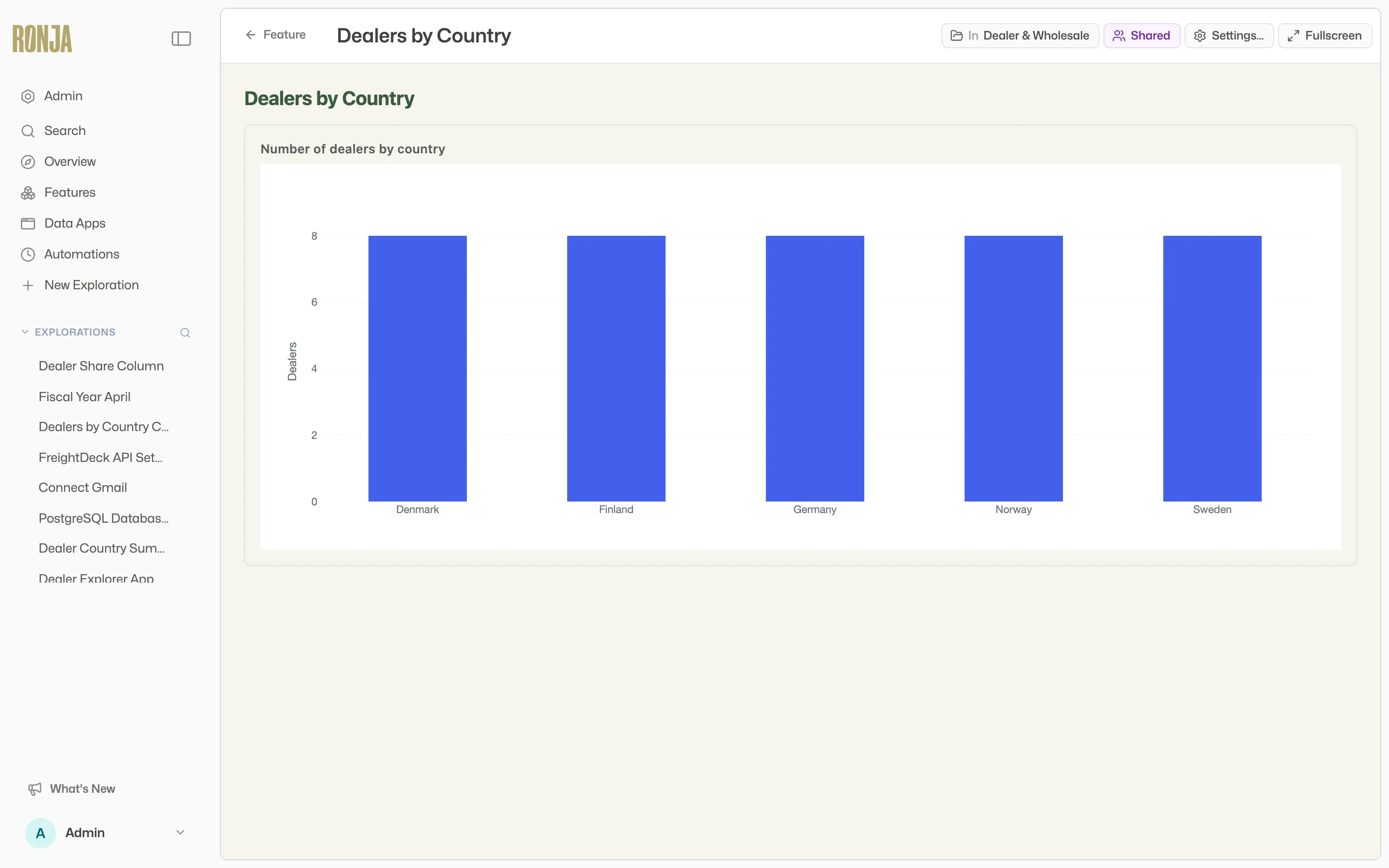 The standalone viewer.
If an app hits a runtime error, it shows “Something went wrong in this app” — in an exploration you can click Ask Ronja to fix, which hands the error straight back to the chat.
When a query returns more rows than the app loads, the app says so — wherever you have it open, not only here on its own page. Usually that is a notice across the top: Showing the first N rows of a larger result — totals computed from this data may be incomplete. So a total on the screen may be counting fewer rows than exist. Dismiss it with the × once you have read it, and tell Ronja if a number on the page needs to cover everything. An app that already states it in place — a list headed with its own “showing the first N” line — shows that line instead, and no notice across the top. Where a table’s row count says loaded rows, as in 1–25 of 5,000 loaded rows, it is counting the rows the app read, not every row that exists.
Its address
Section titled “Its address”An app’s address starts as its name plus a few random characters. To change it to something easier to say or remember, open the app’s Details, go to the Settings tab, type the new one under Address in App address, and click Save address.
- Use lowercase letters, digits and hyphens.
- It has to be free across all of Ronja, not just your organization. If someone already has it, you are told it is taken.
- Changing it breaks the old address straight away. Bookmarks and links to the old address stop reaching the app.
- It cannot be left empty. An app always has an address; to move away from one, type a new one.
- Your organization keeps every address it has used. No other organization can ever take one, so you can always change back. Another app in your organization can take it, though, and it then shares whatever the first app had stored in people’s browsers.
The people who can edit the app’s settings can change its address. Unlike the other settings, the change applies straight away, on a shared app too — it does not wait for review.
Show it on a screen
Section titled “Show it on a screen”An Admin can put a published app in a shared feature on a station: a wall screen or shared computer that shows the app with nobody signed in. The station keeps the app current by itself and records what it does as the station, for example Line 3 station.
Keep in mind what changes on a station:
- Nobody is signed in. Anyone at the screen can do whatever the app allows, so an app meant for a wall screen should not have buttons that change things.
- Everything the app shows and reads is shown to the room, including data from tables that the people at the screen could not open themselves. Put an app on a station only if its data is fine for everyone who walks past.
- An app that shows the signed-in person’s details needs to be asked to handle a station — a greeting with your name, a list of “my” items, a form filled in with your email. On a station there is no signed-in person, and such an app shows an error on the screen instead. Ask Ronja “Make it work on a station”, and try the app on the station before you leave it there: the screen is where the problem shows.
- The app can tell it is on a station, and which one. Ask Ronja to use that, for example “Show the station’s name in the header” or “Save the station with each entry.” If the app needs to know which person is at the screen, ask Ronja for a name picker or a badge field. The app keeps that answer in its own data, and it does not sign anyone in to Ronja.
- Links to pages in Ronja don’t work there, and neither do links to a file. Files the app shows itself still display and download.
- The chat panel works, but each conversation ends when the screen refreshes.
Link to a view inside the app
Section titled “Link to a view inside the app”A bigger app has more than one view — an overview, a list, a detail page. As you move around inside it, the link in your browser’s address bar updates to match, so it always points at the view you are actually on.
- Share the exact view. Copy the link while you are on it and paste it into a message: whoever opens it lands on that view rather than the app’s front page. They still need access to the app’s feature to see anything.
- Bookmark it. A bookmark saved from inside an app reopens on the same view.
- Use Back and Forward. Your browser’s Back and Forward buttons step through the views you visited inside the app, one press at a time. Back at the top of the app’s page skips those views and leaves the app in one press.
Ronja keeps your place while she works too: when she rebuilds an app you have open on its own page, it reloads on the view you were on.
A single-screen app has just the one view, and its link never changes.
To link from the app to a page elsewhere in Ronja — a metric, a table — see Link to a page in Ronja.
Look behind the app
Section titled “Look behind the app”Everything about an app — what it reads, who can open it, its source, its history — lives on its Details page, so the app itself stays uncluttered. Get there from Details in the app’s header, or the ⓘ button on its card on the Apps page. Open app in the header takes you back to the app at any time.
- Overview — a plain-language summary of what the app shows and lets you do, its owner, feature, visibility, and when it was last published; Dependencies, listing every table, metric, workflow, agent, secret, and knowledge base it uses, with View dependency graph for the full picture; and Version history (see Versions, drafts, and approvals).
- Access — who can open the app (the stations showing it are listed on the Stations page instead), then two lists: Data it can read and What it can call. Worth reading before you share an app: anyone who can open it reads its tables through it, whether or not they can read those tables directly. These lists are maintained by Ronja as it builds, and enforced on every request the app makes — they aren’t editable by hand.
- Source — the app’s files, read-only. An app is usually several files; pick one from the list on the left, or on a narrow screen such as a phone, from the menu above the code. The selector at the top chooses which copy you’re reading: Live (what everyone else sees), Your draft if you have unpublished changes, or any past version.
- Activity — who created, changed, and published the app, and when, and what was saved through it, by a person or by a station.
- Settings — the app’s name, description, address, reporting timezone and currency, plus deleting it. Editing these is available to an admin, to the owner of the Feature the app sits in, or — on a shared app — to its author, whose changes become a draft an admin reviews. Deleting a shared app is Admin only. On a shared app, saving creates a draft for an admin to review rather than changing it live — except the address, which changes straight away (see Its address). The reporting timezone applies to the queries the app runs itself; a metric it displays keeps its own calendar, so the two can differ on purpose. When a timezone change takes effect, anyone who has the app open sees it reload. Amounts follow the organization’s reporting currency, set once on the Organization rules page (see organization settings), so every app agrees without anyone configuring it. Use Amounts in this app are in only when this app’s data genuinely is in a different currency — a subsidiary’s ledger, a supplier’s price list. Numbers keep the organization’s formatting and only the currency changes, so a Swedish organization reading a dollar app sees
2 602,50 $. It states what the data already is and converts nothing. If no currency is set anywhere, Ronja asks which one to use before building anything that handles money.