
From answer to asset
An exploration answer is a moment in time. When an answer is worth keeping — a table that should stay fresh, a job that should re-run every week, an app your team should open on Mondays — you switch Ronja into Build mode and make it permanent.
What Build mode is
Section titled “What Build mode is”Ronja has three conversation modes: Standard, Deep analysis, and Build. Standard and Deep analysis answer questions; Build is where Ronja designs and creates durable resources — tables, workflows, and apps — writing a plan first and keeping the structure consistent as it goes.
Enter Build mode
Section titled “Enter Build mode”There are two ways in:
- From the start screen. On a new, empty exploration, an owner sees a mode control with the segments Standard, Build, and Deep analysis (Build appears only if you have Build access). Pick Build before your first message — the header stamps the session BUILDER, and the mode is fixed for that conversation.
- Mid-conversation. In a running Standard exploration, ask Ronja to build something. The agent requests Build mode itself, which arrives as an approval strip reading “Enter builder mode” — click Approve to switch. This is one-way: the session stays in Build mode from then on.
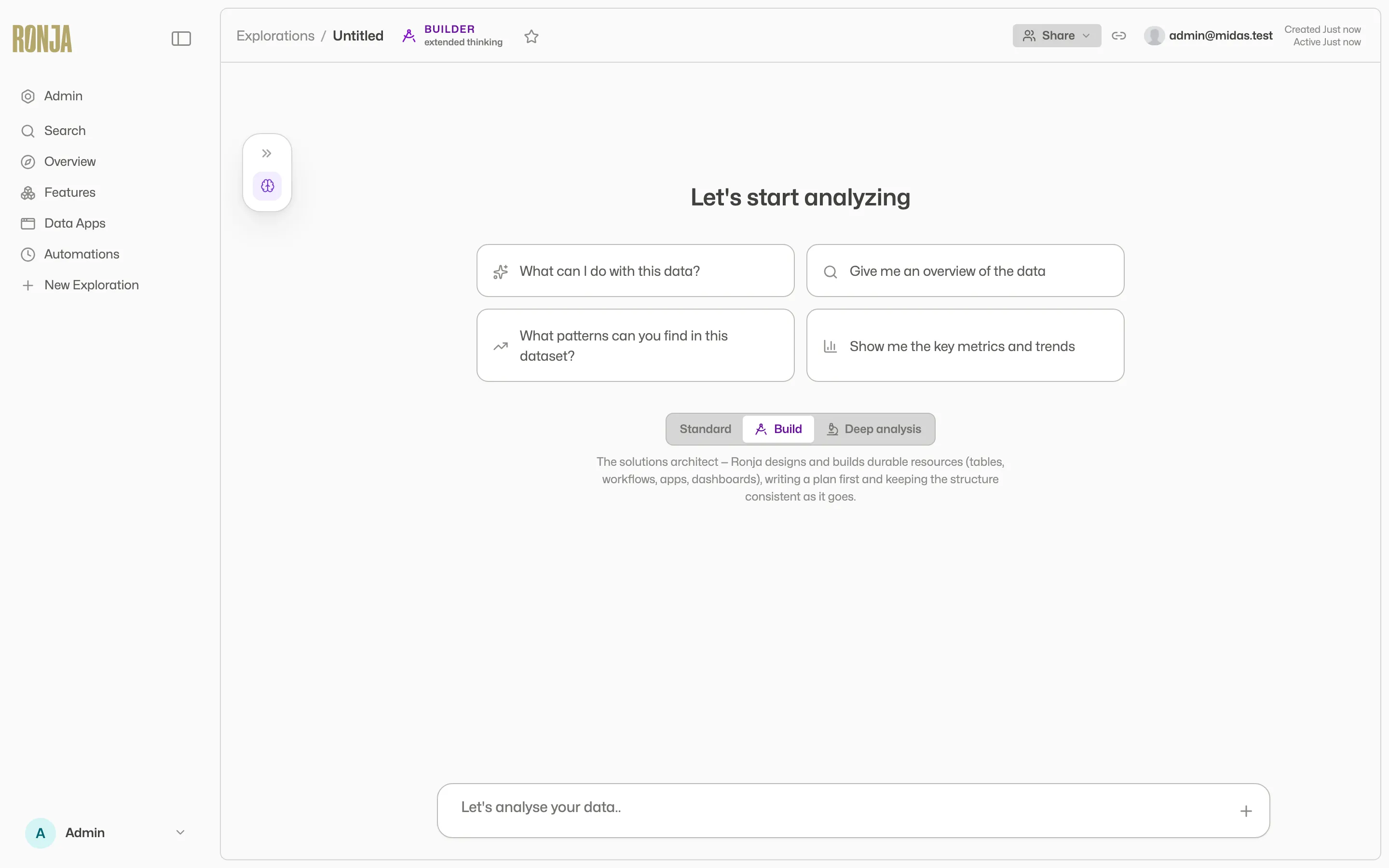 Pick the mode before the first message — Build is offered when you have Build access.
Watch the plan
Section titled “Watch the plan”Early in a Build session, Ronja writes an implementation plan. The build panel — a collapsible card just above the message box — opens by itself the moment she writes the plan and stays live as she revises it. A plan with more than a step or two carries a build-steps checklist, and you watch it tick off as each step lands. Collapse the card to a one-line status while Ronja works, or expand it to see the checklist, what’s been built, and the session History.
Approve what Ronja changes
Section titled “Approve what Ronja changes”Ronja never quietly changes things that matter. When it proposes a gated action, the conversation pauses and a gold approval strip appears above the composer with a plain-language summary of what’s about to happen.
- Read the summary. Expand the strip to inspect the details — draft diffs and review cards show exactly what will change.
- Choose a button: Approve (allow this action), Approve for session (“Approve this and don’t ask again for these tools in this session”), or Reject. A short list of actions — changing the organization policy, granting access, opening an Automation’s email trigger to any sender, and the managed-database dev copies among them — asks every time, so on those strips Approve for session is not offered and the choice is Approve or Reject.
- While the strip is up, the composer reads “Waiting for tool approval…” — the agent won’t proceed without you.
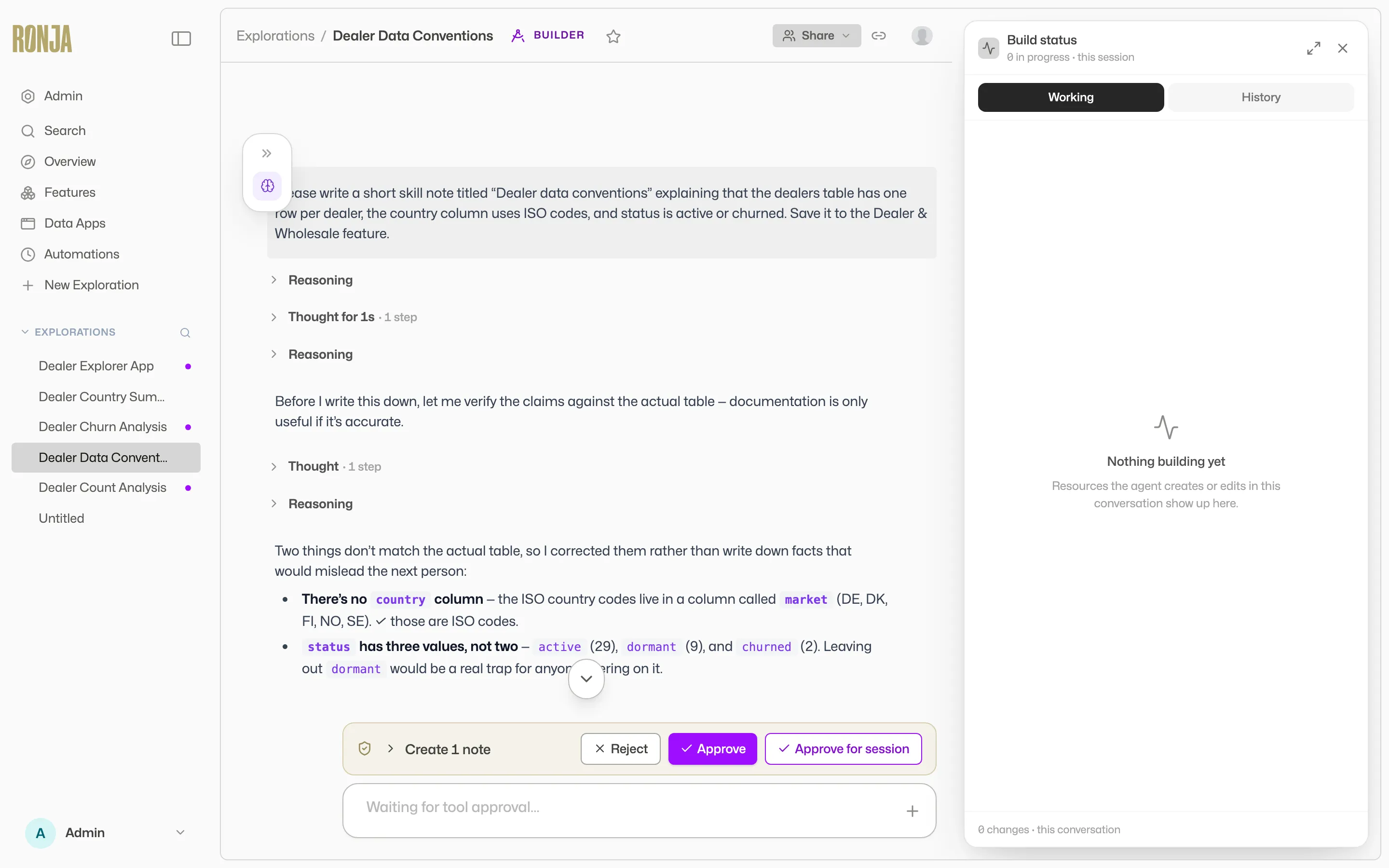 Nothing important happens without your say-so.
Where your assets live
Section titled “Where your assets live”Everything Ronja builds lands in a feature — the container that keeps a table, its workflows, and the app that uses them together. New builds start private — yours, and visible to your admins; sharing them with the whole organization goes through its own review lane, covered in Scopes and sharing and Versions, drafts, and approvals.
Next step
Section titled “Next step”Ready to go deeper? Try Create tables with Ronja or Build an app, or read more on the three modes in Standard, Deep analysis, and Build. If you’re the one setting Ronja up for others, continue to Set up your team.