
Curate Knowledge
The Knowledge page is your organization-wide knowledge base: everything Ronja recorded — and was told — about your business. KPI definitions, business rules, terminology, brand preferences, fiscal calendars, data exclusions. Ronja is given it at the start of every conversation, so what is written there is shaping the answers your organization gets today.
That makes two jobs worth doing, in this order: fix what is wrong, then move the rules out.
Read what is there
Section titled “Read what is there”- In the admin sidebar, open Data & Knowledge → Knowledge.
- Browse the tree on the left, or type in Search memos….
- Open an entry to read it.
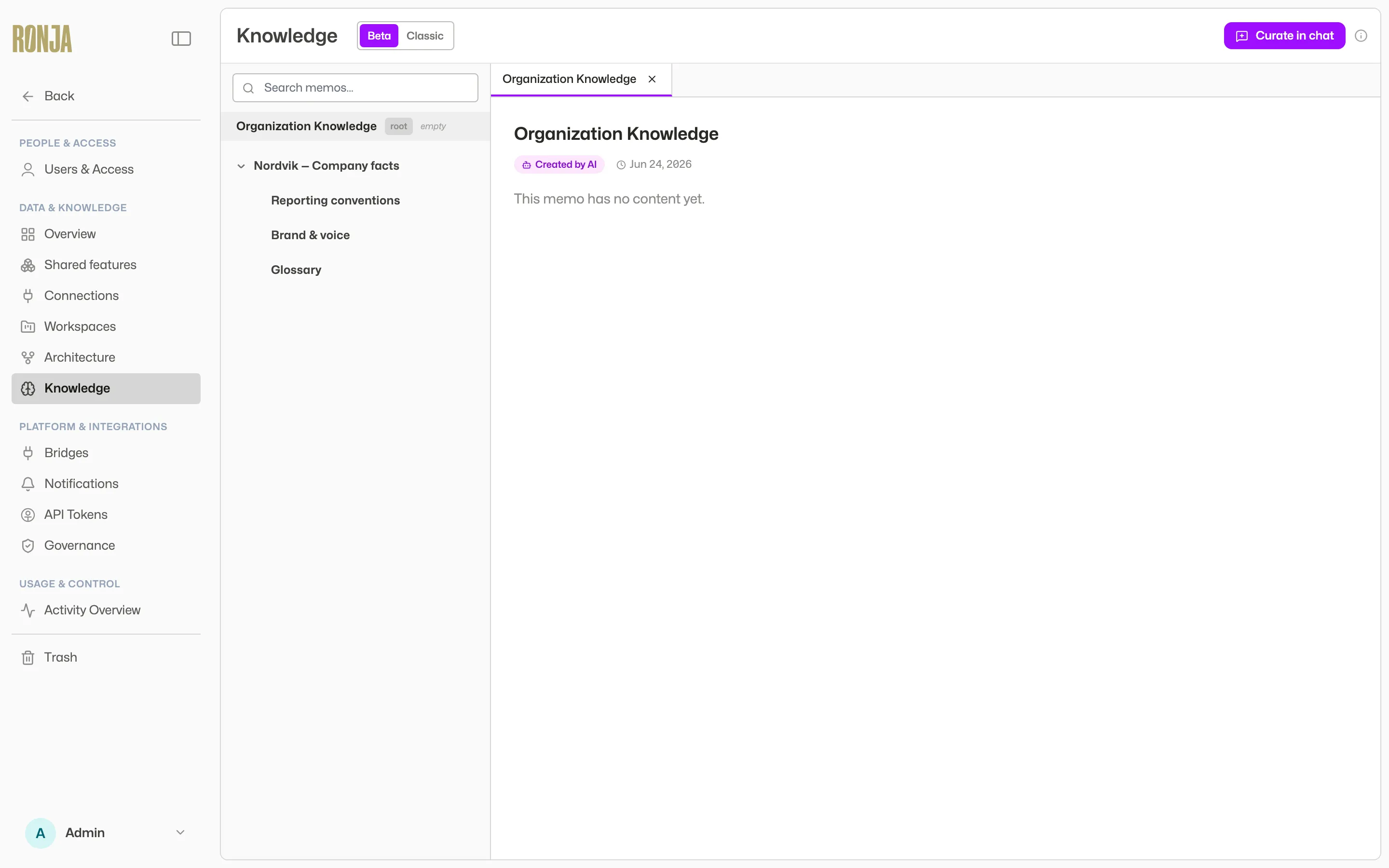 Everything Ronja recorded about your organization — and still reads.
Everyone can browse the page. Read it as what it is: instructions Ronja is following right now.
Correct what is wrong
Section titled “Correct what is wrong”Knowledge has no edit form, and never had one — you tell Ronja what is wrong and she rewrites the entry (“tell, don’t edit”).
- Open the entry and click Curate in chat. Ronja opens a new conversation with the entry beside it.
- Say what is wrong: “We stopped excluding the DE region last year — take that out.”
- She updates the entry, or retires it if it has stopped being true altogether.
This is the part not to put off. An entry nobody has read for a year is still being read by Ronja in every conversation, and a stale rule there is a wrong answer everywhere.
She cannot add a new entry, however you ask — that is what “frozen” means. Anything new goes in one of the two places below.
Move each rule to where it belongs now
Section titled “Move each rule to where it belongs now”Read each entry and ask which of two things it is.
- A rule everyone’s answers should follow — “always exclude internal test accounts”, “the fiscal year runs January to December” → write it in the Organization policy, under Data & Knowledge in the admin sidebar. It is a short document you edit directly, and it is read in every conversation and every automation. See Policies.
- A fact tied to one feature’s data — which table, which columns, the exact calculation → ask Ronja for a knowledge note in that feature. Say it in a chat in that feature and she writes the note; there is no form. See Write notes.
Two smaller cases:
- A personal preference (“I prefer tables over charts”) belongs in Your policy, from your account menu — yours alone, and edited directly.
- Anything out of date — a migration that finished, last quarter’s numbers, a system you no longer run — does not move: retire it through Curate in chat. It was never the kind of thing that should have been read as the present, and that is much of what policies exist to stop.
A rule that needs a paragraph of background is really two things: put the paragraph in a note and let the policy line point at it — “For revenue questions, read the revenue definitions note first.”
What you do not have to do
Section titled “What you do not have to do”You do not have to empty the page, and there is no deadline shown in the app. An entry you leave alone keeps working exactly as it does today. What is worth doing now is the reading: knowing what Ronja is being told is the point of the page.
Unsure which surface you need? See Note vs Knowledge and How Ronja learns.