
Fix data issues
When something goes wrong with your data, Ronja shows it where you already work: status badges on connections and banners on table pages.
Fix a failing source
Section titled “Fix a failing source”- Open Connections in the admin area and look for rows with a red Failed or Stalled status, or an amber Re-auth needed or Degraded.
- Open the connection — a red banner shows the exact error from the last sync.
- Click Re-authorize if the banner reads “Authorization expired. Please re-authorize this connection to resume syncing.”, then approve access again in the provider’s window.
- Check the server if the banner begins “Could not connect to the … database”. Ronja never reached your database on that run, so nothing was synced and your tables keep the data from the last successful sync. Make sure the server is running and reachable from the internet, that a firewall isn’t blocking the connection, and that the username and password still work — the line after “Details:” quotes what the server or network said. If the connection uses Use SSH tunnel, a line after “Details:” that begins “ssh tunnel: ssh dial” names the bastion host and port — that is the machine to check, not the database.
- An amber Degraded badge is not a failed sync: the connection is still working, but something about it will cost you if it is left. It appears on a PostgreSQL change capture connection and on a managed database mirrored into a feature — the connection page names the condition, and When something goes wrong lists the ones worth acting on. There is nothing to retry, so Sync is not the fix.
- Click Sync to retry. While a source still needs re-authorization, syncs are refused with “connection needs to be re-authorized before syncing”. A PostgreSQL change capture connection that fails sync after sync usually needs more than a retry — see When something goes wrong on its page.
- A Stalled connection has nothing to retry: Ronja paused it on purpose because it cannot continue from where it stopped, so a retry would meet the same wall and Sync is not the fix. It happens in two places, each with its own way out:
- A managed database mirrored into a feature, after hours of Ronja not being able to read new changes. Sync is unavailable there. Click Re-snapshot on the connection page — every table is copied fresh and replication resumes from there, as described under Mirror a database into a feature with CDC.
- A MySQL (CDC / binlog) connection, when the MySQL server deleted binary logs Ronja had not read yet. Sync is refused. First make the server keep binary logs longer than the time between syncs plus the time a full copy takes — Keep MySQL binary logs long enough says how — then click Reset on the connection page. Reset removes the files Ronja synced for this connection, then the next sync reads every table once from your server and replaces the change history Ronja held for it. Click it before the retention change and the connection will most likely stall again at the first sync after that full copy. If Reset answers that removing the previous files did not finish, the connection is still paused: click Reset again, and it continues where it stopped. If your server cannot keep binary logs that long, ask Ronja to switch the connection to the ordinary MySQL import instead, which reads no binary logs: she removes the connection’s previous files first, then you pick its tables again and the next sync copies them in full.
Fix a failed table build
Section titled “Fix a failed table build”- Open the table’s detail page from its feature hub.
- Read the banner. A failed build shows Build failed, Partial data — some corrupt source files were skipped, or Out of sync — showing data from last successful build — expand it for the full error. A table whose rebuilds keep failing while it still serves its earlier data says so directly: “Showing data from … Updates have failed since …:”, followed by the reason — see When a table stops updating. A table that simply hasn’t caught up with its inputs yet shows This table’s data is stale instead. A table one of whose inputs is gone shows This table can’t update: an input it reads was deleted., This table can’t update: an input it reads is in the trash. or An input this table reads is in the trash. — a rebuild won’t clear any of them: restore the input from Trash, or edit the table’s recipe and its inputs together (see Builds).
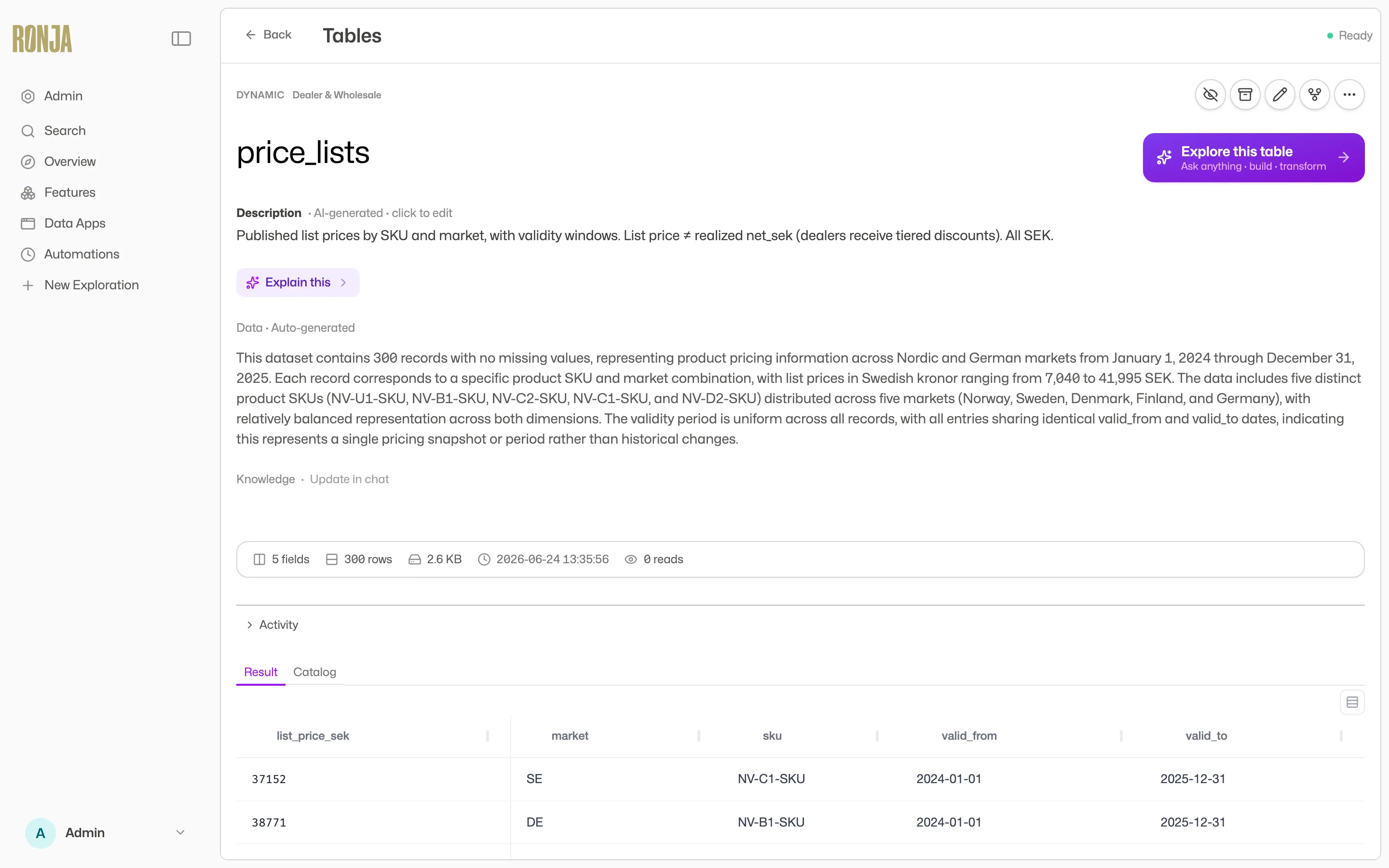 A failed build surfaces directly on the table page.
- Click the rebuild action (Admins). The page flips to “Building table…” and updates live until the build finishes. A Build failed error saying the table “would read itself through its inputs” won’t clear on a rebuild — break the loop instead, as described under Builds.
- Click Investigate with Ronja, just under the banner, if a rebuild doesn’t clear it. A new exploration opens in Build mode with the table’s structure, its status and the recorded build error already loaded, and Ronja already working out what broke. She explains the cause in plain language and confirms the fix with you before changing anything.
The Investigate with Ronja button appears on every state of that banner — Build failed, Partial data — some corrupt source files were skipped, Out of sync — showing data from last successful build, and Updates have failed since … — and on a missing-input banner once the table’s last update failed on that input; only for Admins who also have Build mode, since repairing a table edits it. For a question that isn’t a build failure, Explore this table opens an ordinary chat instead.
Fix a failing health check
Section titled “Fix a failing health check”A build can succeed and still produce wrong data, so a table can look healthy and not be. That is what health checks cover, and they announce themselves the same way a failed build does.
- Open the table. Every table with an active check carries a status marker in its feature’s table list and at the top of the table page, so you can spot the failing one without opening each in turn; when a check is failing, a banner at the top of the table page also says so and when it started. Clicking a table in an exploration opens a panel carrying the same marker and its own Checks tab, if you would rather not leave the conversation.
- Open the Checks tab to see which check is failing, what it asserts, and what was last observed.
- Fix the cause — the failing check names what it expected, which is usually enough to point at the source, the upstream system, or the query that built the table. The check clears itself at its next run — the table’s next rebuild, or the next background re-check for a freshness check.
- If the check is wrong rather than the data, ask Ronja to rewrite it in a Build-mode chat — or, if the check is kept in a pipeline folder, change it in that folder’s
checks/file and push it (see Keep a table’s health checks in the folder); a rewrite in chat would be flagged as changed in Ronja on the next push. If it is right but you can’t act on it today, click Silence in the Checks tab so the ones left on still mean something. If it no longer applies at all, ask Ronja in a Build-mode chat to remove it.
A check reading Couldn’t be evaluated is a different problem: the check itself broke, usually because a column it names was renamed or dropped. Your data may be fine. Ask Ronja, in a Build-mode chat, to update the check to match the table’s current columns — or, for a check kept in a pipeline folder, change it in its checks/ file and push it.
Nothing here blocks you — the table stays queryable throughout, and a failing check never stops a build or a query.
Ask Ronja about a table
Section titled “Ask Ronja about a table”Not every data problem shows up as a red banner. If a table’s numbers look off — unexpected gaps, a column that doesn’t mean what you assumed, a value in the wrong unit — click Explore this table and just ask. Ronja reads the table’s structure and its recent runs, surfaces what she sees, and can walk you through a fix in the exploration.