
Use Ronja in Slack and Microsoft Teams
A bridge connects Ronja to one chat surface — a Slack or Microsoft Teams channel, or a direct-message conversation. Bridges are managed on the Bridges page in the admin sidebar (under Integrations). The page has a left Providers sidebar — one row per provider, each with a status dot and a count of how many bridges it has. Selecting a connected provider opens three tabs: Channels, DMs, and Settings.
Install Ronja in Slack
Section titled “Install Ronja in Slack”- Open Bridges and click Connect Slack. A popup runs Slack’s sign-in — “You’ll only need to do this once.”
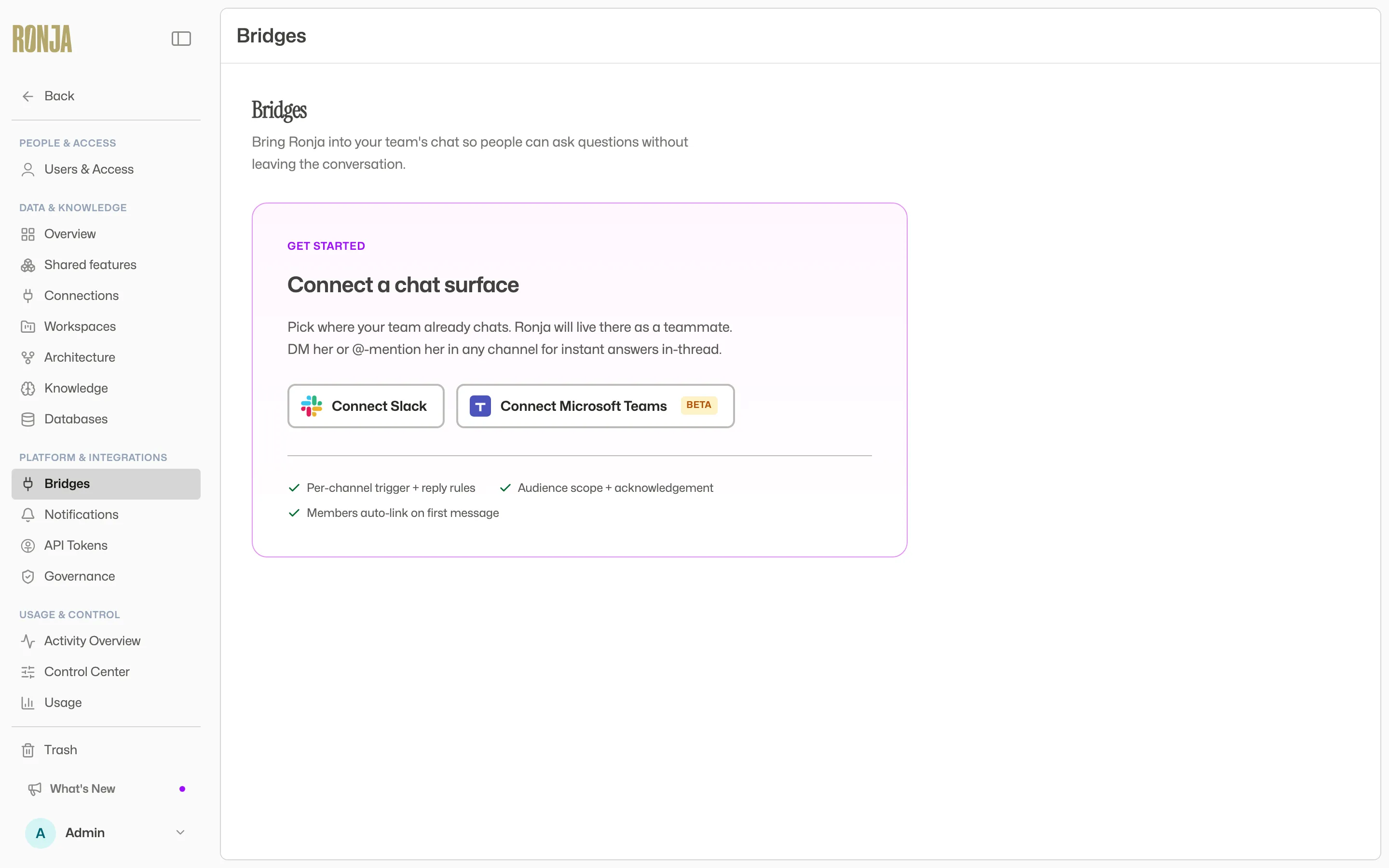 Start here: connect Slack or Microsoft Teams to bring Ronja into your team’s chat.
- Authorize the app. Ronja connects to your Slack workspace and sends the installer a welcome DM. Ronja does not join any channels automatically — you add her to channels deliberately (below).
After the install, the Slack provider shows as connected with no channels yet. Channels appear on the Channels tab only after you add Ronja to one. Each bridge lists its channel, trigger, 7-day activity, and status.
Add Ronja to a channel
Section titled “Add Ronja to a channel”No channel — public or private — is bridged automatically. There are two ways to bridge one:
- Invite her from Slack. Run
/invite @Ronjain the channel. Inviting her into a public channel bridges it immediately; some reverse-onboarding cases show as a pending bridge on the Channels tab for an admin to Set up (or Decline setup). - Add bridge in Ronja. On the connected provider’s pane, click Add bridge. To make a fresh private channel, choose Create a new private channel — Ronja creates the channel and invites the teammates you pick, or everyone.
A new bridge defaults to the @mention trigger with replies In a thread.
Admin-only connections (Slack)
Section titled “Admin-only connections (Slack)”By default, anyone in a channel can add Ronja to it. On the Slack provider’s Settings tab, an admin can turn on Admin-only connections — after that, only Ronja admins can add Ronja to a channel. Members can still use the bridges that already exist.
When the toggle is on and a non-admin tries to invite Ronja into a channel, she declines and leaves, posting: “Only a Ronja admin can connect me to a channel. Please ask a Ronja admin to invite me here.” This setting is Slack-only and only admins can change it.
Choose when and where Ronja replies
Section titled “Choose when and where Ronja replies”Each Slack bridge has two settings, editable on its detail page:
-
Trigger — when Ronja responds in the channel: Keyword “ronja” (the keyword is fixed — it can’t be customized), @mention, or All messages.
-
Reply — where the answer lands: In a thread, In the channel, or Match the message.
-
Triggers only gate the first message. Once a thread is Ronja’s, she answers every follow-up in it without another mention.
-
DMs never need a trigger. Ronja always replies to a linked account’s direct message. (Never messaged her? Start in a bridged channel so she can link your account first.)
-
While she works, she shows “On it…”, streams progress, then answers with clickable links to any tables or workflows she used. Those links carry the organization they belong to, so anyone in the channel who’s currently in a different organization is asked before switching. A message she lined up mid-answer is the exception: its answer arrives with no “On it…” and no progress.
-
Figures she checked arrive as plain numbers, and any short correction she adds follows the reply in the same message — see Checked numbers.
-
Changing a setting posts a notice in the channel so nobody is surprised.
Let Ronja message you first
Section titled “Let Ronja message you first”Everything above is you starting the conversation. Ronja can also start one: while she works, she can post a Slack message on her own — a direct message to a colleague, or a post into a bridged channel. It’s how an Automation tells the right people that a run found something, without anyone having to go and look.
Two destinations, and she picks exactly one per message:
- A direct message, addressed by email. The person must have a Ronja account in your organization; she can’t message someone who doesn’t.
- A bridged channel, addressed by name. Only channels Ronja is already in (above) — she can’t post into a channel nobody added her to.
Three things worth knowing:
- It’s one-way. Nothing is waiting for your answer. You can reply — she’ll respond — but that starts a new conversation, not a continuation of the run that messaged you. A direct message from Ronja also opens that DM for good: from then on you can message her there any time.
- Formatting is limited on purpose. Slack’s own
*bold*,_italic_andcodestill work, but links written in Slack’s link syntax are shown as plain text rather than turned into clickable links — so a message from Ronja can never hide a web address behind friendly-looking words. Paste the address itself. - There are daily limits on how many messages your organization sends and how many any one person or channel receives. They’re generous, and a run that hits one says so instead of quietly carrying on.
No files and no thread replies — for a report or an attachment, have her email it instead.
If you message her mid-answer
Section titled “If you message her mid-answer”This works the same wherever you talk to Ronja — Slack channels, Microsoft Teams channels, and direct messages.
- Send another message while she’s answering and she lines it up. She says so in the thread, finishes the reply she’s already writing, then usually answers the lined-up message right after, separately, in its own reply. If a restart interrupts her before she gets to it, she posts a note saying it’s still lined up — you don’t have to do anything, and she picks it up right after the next message in the thread. Occasionally she can’t hold on to it (someone else has since lined a message up in the same thread, say) and then she asks you to send it again. More rarely, an answer that stalls is cleared away and takes the lined-up message with it, silently. So if a second reply doesn’t turn up, just send the message again.
- One lined-up message per conversation, shared by everyone in it. The slot belongs to the thread, not to you: if a colleague already has a message lined up there, yours is turned away too. Ronja says so and asks you to resend it once she’s replied.
- Files attached to a lined-up message aren’t picked up. She’ll tell you in the thread, and you can resend them after her reply.
- A lined-up answer is quieter. It arrives without the “On it…” indicator or the progress stream, and if the message asked for something to be built, you get her explanation but no button into Ronja. Ask for the build on its own, once she’s replied, to get the button.
Install Ronja in Microsoft Teams (Beta)
Section titled “Install Ronja in Microsoft Teams (Beta)”Microsoft Teams setup has three steps, all inside the create-bridge modal:
- Click Download ronja-teams-app.zip.
- Upload the zip in Teams Admin Center (Teams apps → Manage apps → Upload new app). This step requires a Microsoft Teams admin.
- Click Authorize in Microsoft Teams and approve the Microsoft admin-consent popup.
The first time anyone opens a chat with Ronja in Teams, she introduces herself with a short card: what she does, a couple of questions worth trying, what she can’t do yet, and buttons for Open Ronja, Help and docs, Get an account and Contact support. Nobody has to message her first to see it.
Everything else works as it does in Slack, including what happens when you message her mid-answer.
How Ronja knows who’s asking
Section titled “How Ronja knows who’s asking”The first time you message Ronja from a bridged channel, she matches your Slack profile email to your Ronja account and links the two automatically — nothing to set up. If you don’t have a Ronja account, she tells you: “You don’t have a Ronja account yet — ask your admin to add you to Ronja, then try again.” Someone who invites Ronja without an account is offered a Request access button that notifies the admins.
Because Ronja links a chat account to a Ronja account this way, widening who may ask her in a channel widens who is acting in Ronja — so it is browser-only. Connecting a channel to Ronja is browser-only for the same reason — one channel, several at once from the Bridges page, completing a setup someone started by inviting Ronja from Slack, and the Slack setting that bridges every public channel at once. So are approving an access request, choosing who may ask Ronja on a bridge (Anyone in access group, or a list of Selected members), adding Slack members to an access group, and inviting people to the Slack channel. All of them refuse an API token, the CLI and automations. Taking one person off the Selected members list, and disconnecting a channel, narrow reach and stay scriptable. See Actions the API can’t take.
One boundary to know: building things — workflows, automations, apps — doesn’t happen in chat. Ask for one and Ronja posts a button that deep-links you into a fresh exploration in Ronja to build it there. The one case without a button is a request inside a message she lined up mid-answer: she still explains that the build belongs in the app, so ask again on its own to get the button.