
Credits and AI spend
Everything Ronja does on your behalf — answering questions, running automations, building tables — consumes credits, the single metering unit across the whole product. This page explains where credits go, where to see them, and what your team experiences when they run low.
The wallet and the billing cycle
Section titled “The wallet and the billing cycle”Your organization has a credit wallet: credits added minus credits used. Additions include automatic refills and credit purchases. Usage is measured per billing cycle — your organization’s own anniversary period, not the calendar month.
Two admin pages show the money side, and their names matter (the full name-vs-route disambiguation is on What’s the difference?):
- Usage (in the admin sidebar) — the “Usage & billing” breakdown: Usage this cycle (split into AI, Compute and Billed hours), Credits remaining, a cost-flow view of what drove spend, a cost explorer you can group by user, model, or mode, and AI and Compute tabs that break each down further. Visible to admins in organizations where billing access has been enabled.
- Billing (in the admin sidebar) — the wallet itself: Total available credits, Buy credits, and your top-up history — purchases, monthly subscription refills, and trial credits, each tagged in a Method column — titled Credit extensions in an organization billed by invoice and Receipts in one that pays by card. Super Admin only.
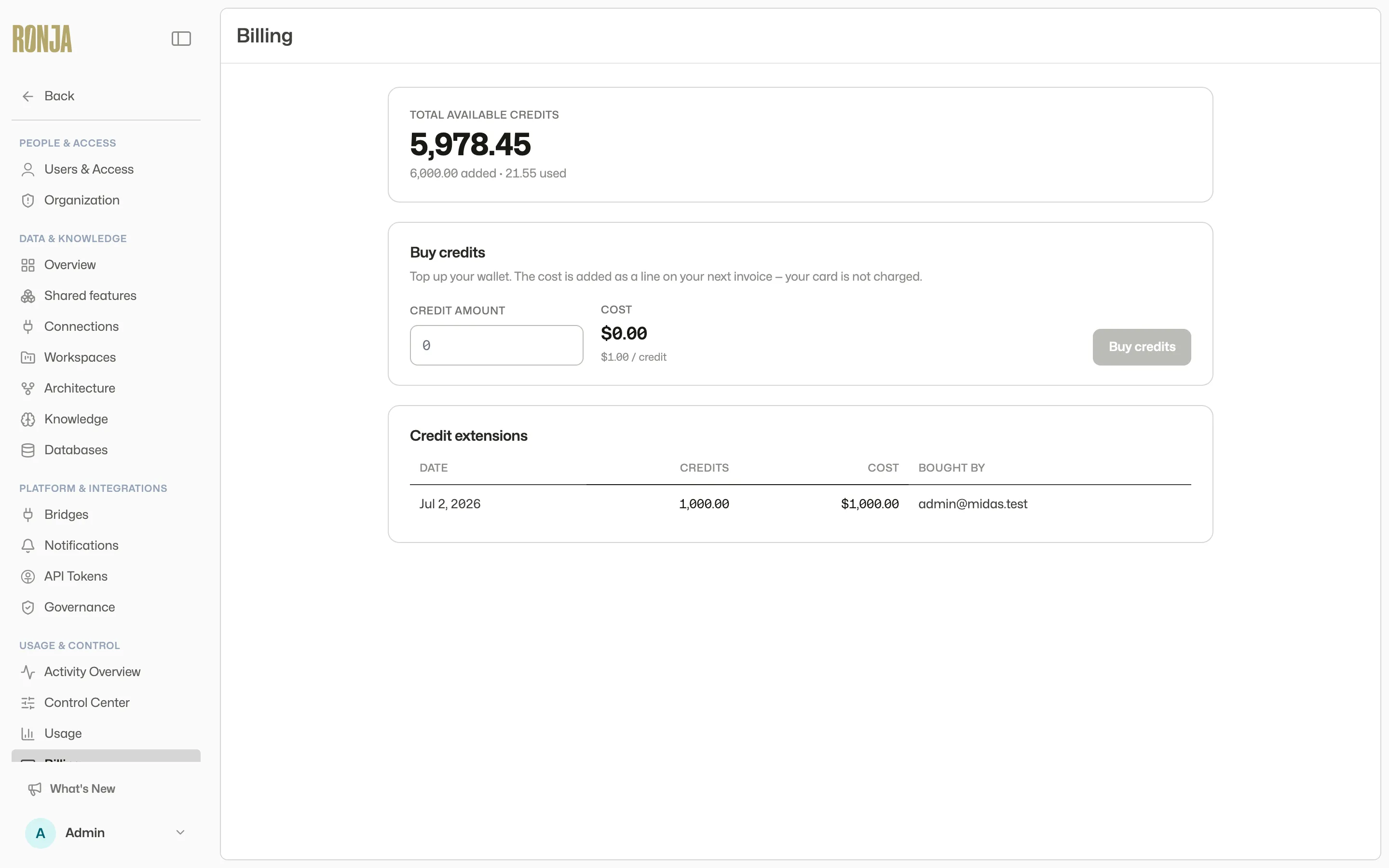 The Billing page: the wallet balance, credit purchases, and the extension history.
What consumes credits
Section titled “What consumes credits”The Usage page traces every credit “from the source that triggered the work down to the model and compute behind it”. Sources include your team’s conversations with Ronja (the Analyst and Builder lanes — Analyst covers the Standard mode, Builder covers Build and Deep analysis), Automations, Apps, and the Data platform itself; behind them sit three cost types — AI usage, Compute, and Billed hours (hands-on time from the Ronja team). Build-mode work (creating and editing workflows, notes, and apps) and Deep analysis run at high effort by default, so they tend to use the most credits.
Buying credits
Section titled “Buying credits”When the wallet runs low, the Super Admin tops it up from the Billing page. In an organization billed by invoice, the cost “is added as a line on your next invoice — your card is not charged.” An organization that pays by card buys with its saved card instead. For the step-by-step buy-credits flow, see Usage & billing.
Credits are priced in your plan’s currency, US dollars or euros, and a credit purchase, whether paid by card or added to your invoice, is in the currency your plan has when you buy it. Each billing cycle is invoiced in the currency your plan had on that cycle’s first day; anything on that invoice priced in another currency, such as usage after a mid-cycle currency change or a credit purchase added to your invoice, appears converted at the European Central Bank (ECB) rate. When Ronja changes your plan, the change can take effect from a date that has already passed, including the first day of the cycle you are in. That cycle is then invoiced in the new currency: credit purchases already added to your invoice in that cycle appear converted at the ECB rate, and card purchases, paid when you made them, are unaffected. Whenever this cycle or the last one was billed partly or wholly in another currency, the Usage this cycle tile on the Usage page reads Not comparable with last cycle instead of a percentage.
Running low: what your team sees
Section titled “Running low: what your team sees”Credit enforcement is optional per organization — if yours shows “Not activated” and “Exempt from credit enforcement” on the Credits remaining tile, none of the below applies. Where it’s on, Ronja degrades gracefully rather than failing abruptly:
- Warnings. If your admins have set spend steps on the Control Center’s Spend response tab, a Warn members in chat step shows every user a grey banner in chat — “Your organization is approaching its credit limit for this billing period.” — and an Email a warning step emails the people chosen in Notification routing (nobody, until someone is chosen there). Nothing is blocked.
- Reduced models. Past a Switch chats to the reduced models step, new chat turns use the reduced models your admins set, to protect the remaining credits. A user who picked their own model or effort in chat keeps it, and automations, Saved Agents and Slack or Teams conversations are not affected. The chat banner reads “Running applied model instead of requested model due to company policy”. Everything resets when the cycle resets.
- Low balance. At the organization’s low-balance limit, chat that would run on Opus or GPT-5.6 Sol runs on Sonnet instead (or, if Sonnet is turned off for you, on the nearest model listed before it that is available); this switch leaves other models alone. The banner reads “Running applied model instead of requested model — your organization is out of credits.” (Super Admins also see an Add credits link), and admins receive the “Credit balance low” email. The in-chat model/effort picker is hidden until credits are added. A model or effort a user had picked still applies when it is listed earlier, or is lower, than what chat would otherwise run on (models in order: Haiku, GLM, GPT-5.6 Terra, Sonnet, Opus, GPT-5.6 Sol). Still nothing is blocked.
On a monthly budget
Section titled “On a monthly budget”An organization Ronja bills by invoice can have a monthly budget instead of a wallet. Nothing above about the wallet running low applies to it: there is no balance to top up and no credits to buy. Its usage, counted as on your invoice without the platform fee, is measured against the budget each billing period. Spend steps act at percentages of the budget, admins are emailed at 80%, and when it is used up new chats and runs stop for everyone, admins included, until the next billing period or until an admin raises the budget on the Control Center’s Rules tab.
The daily AI safety limit is separate
Section titled “The daily AI safety limit is separate”The daily AI safety limit has nothing to do with your credits running low, and none of the above applies to it. It is a safeguard against an unexpected spike in AI use, such as a runaway agent or loop: Ronja sets a daily limit for your organization, any Admin can set a lower one on the Control Center’s Rules tab, and when today’s AI use reaches the lower of the two, AI pauses for everyone until 00:00 UTC, while workflows that don’t use AI keep running. Members see a grey banner telling them nothing is wrong with their account or billing. Raising the limit lifts the pause; buying credits doesn’t.
Keeping spend under control
Section titled “Keeping spend under control”Admins can shape spend long before any of this triggers, all in the Control Center: a per-person billing-period allocation (Credits per billing period, No limit, or Blocked), the spend steps above, and the default models. See Govern AI spend. Any Admin can also give each person a weekly AI budget, which applies to Admins too.
The spend steps measure the whole organization’s credits for the billing period. A person’s weekly budget or allocation only ever stops that person’s chats; neither switches their model. An allocation counts what a person runs (chats, Slack or Teams conversations, API and CLI calls, and older automations) but stops only their chats, and a limited allocation never stops an Admin; Blocked stops everyone. See What each limit does.
What counts toward a weekly AI budget
Section titled “What counts toward a weekly AI budget”Only a person’s own chats in Ronja count, including the work Ronja does with her tools during a chat. The runs of automations, workflows and Saved Agents, and conversations in Slack or Microsoft Teams, don’t count toward anyone’s weekly budget, and a weekly budget never stops them. Work a chat hands to a Saved Agent doesn’t count either.
Budgets are checked before each prompt, so a chat that started under the budget runs to the end. Spending can therefore go a little past a budget before the next prompt is refused.
Answering or skipping a form, or approving a step, in a chat continues Ronja’s work, so it’s checked too: once your weekly budget is used up, Approve, Skip for now and submitting a form are refused with the same message, and the form or step waits until your budget resets or a colleague who still has budget answers it. Reject still works: it ends the step without Ronja continuing, so it costs nothing. In a shared chat, the budget that counts is that of the person answering. Credentials you typed into a refused form stay in the form.
This is the same when an automation started the chat: answering or deciding in the chat itself counts toward your budget, and everything except Reject is refused once it’s used up. A decision made from an emailed or Slack approval link isn’t refused, and counts toward the chat owner’s budget. So does a request for approval that expires unanswered, which Ronja treats as rejected before carrying on.
When someone’s weekly budget runs out, your admins are told, and any Admin can give them extra credits for the rest of the week. Extra credits only lift the weekly budget: they don’t help against a billing-period allocation, an organization that has used all its credits, or a used-up monthly budget.
See also
Section titled “See also”- Govern AI spend — the admin levers that shape spend.
- Usage & billing — where credits actually went, in detail.
- Getting the most out of Ronja — habits that keep spend efficient.