
Propose and review changes
Changes to shared features by non-admins are staged, never direct. They come in two shapes:
- A proposal is a brand-new resource waiting to become shared — a note, a workflow, or an app. Its Inbox row reads “proposed as a new shared workflow”.
- An edit draft is your private copy of an existing shared resource. The live version is untouched until an admin commits your draft.
There is a third way out for Apps, and it skips all of this: if you want a changed version of an App only for yourself, click Make my own on its page and edit your own independent copy instead of proposing an edit to everybody’s — see Make your own copy.
Shared modules and Saved Agents go through the same two shapes. Both appear in the Inbox — as NEW AGENT and AGENT CHANGE, or NEW MODULE and MODULE CHANGE — but the Inbox only lists them: the row opens the Saved Agent or module page, and there is no Approve or Reject on it. A new Saved Agent is approved or rejected over the API, and a Saved Agent change is committed over the API. A new module is approved or rejected by an Admin, or a maintainer of its feature, over the API (“review over the API”), because the Ronja CLI has no approve command; a module change is published by an Admin or that maintainer with ronja module publish (“review with the Ronja CLI”). Admins also hear about them through notifications, which open the Saved Agent or module page — for a module, New module proposed and Module change submitted for review. Since that page can’t decide it, the notification’s first paragraph says how: the API call with the id, or for a module change ronja module clone followed by ronja module publish (or ronja module discard).
An item in the trash can’t take changes: restore it before its open draft can be submitted for review or committed. While it is in the trash, its submitted draft drops out of the Inbox.
See Versions, drafts, and approvals for the full model.
As the requester
Section titled “As the requester”- Make the change in chat. In a shared feature, Ronja files a non-admin’s new resources as proposals and their edits as drafts automatically. (Admins’ changes go live once they approve Ronja’s action in chat.)
- Submit the draft when it’s ready: click Submit for review on the resource’s draft banner (workflows and apps), or ask Ronja to submit it (notes). The chip flips from Draft to Review requested.
- Track everything under Account → Requests — your proposed notes, workflows, and apps, your open drafts, your Saved Agents and Modules proposals and drafts, plus a Recent promotions history of settled scope-change requests.
- Click Withdraw on a pending item you’ve changed your mind about. A Saved Agent or module proposal can be withdrawn here, but its edit draft has no Withdraw: ask Ronja to submit a Saved Agent draft, or discard it over the API; discard a module draft with
ronja module discard. Left alone, either draft is cleared 30 days after it was started.
Admins don’t see your draft at all until you submit it — and their Approve button won’t appear until you do.
When an admin decides one of your proposals, you get a notification. An approved one links to the resource, now live; a rejected one links to your Requests on the Account page.
As the reviewer
Section titled “As the reviewer”Start from the notification or from the Inbox — both open the same review.
From a notification. A request for review arrives in the Notifications bell, by email (its last line is Review it in Ronja, or Open it in Ronja for a Saved Agent or module) and, if your organization routes it there, in Slack.
- Click the notification or the link. It opens the item itself: a note, workflow, app, table or metric on its own page, a share or scope change on the feature’s page, a move request in the Inbox.
- On the item’s page, find the strip that reads Waiting for review, with who submitted it and when, and click Review. On a feature’s page, click Review next to the pending share.
- Continue from step 4 below.
If the page shows Committed version (tables and workflows show their own version banner) or says “It may already have been reviewed or withdrawn.”, someone got there first: Open current takes you to the live version, and Open the review Inbox to everything still waiting.
From the Inbox.
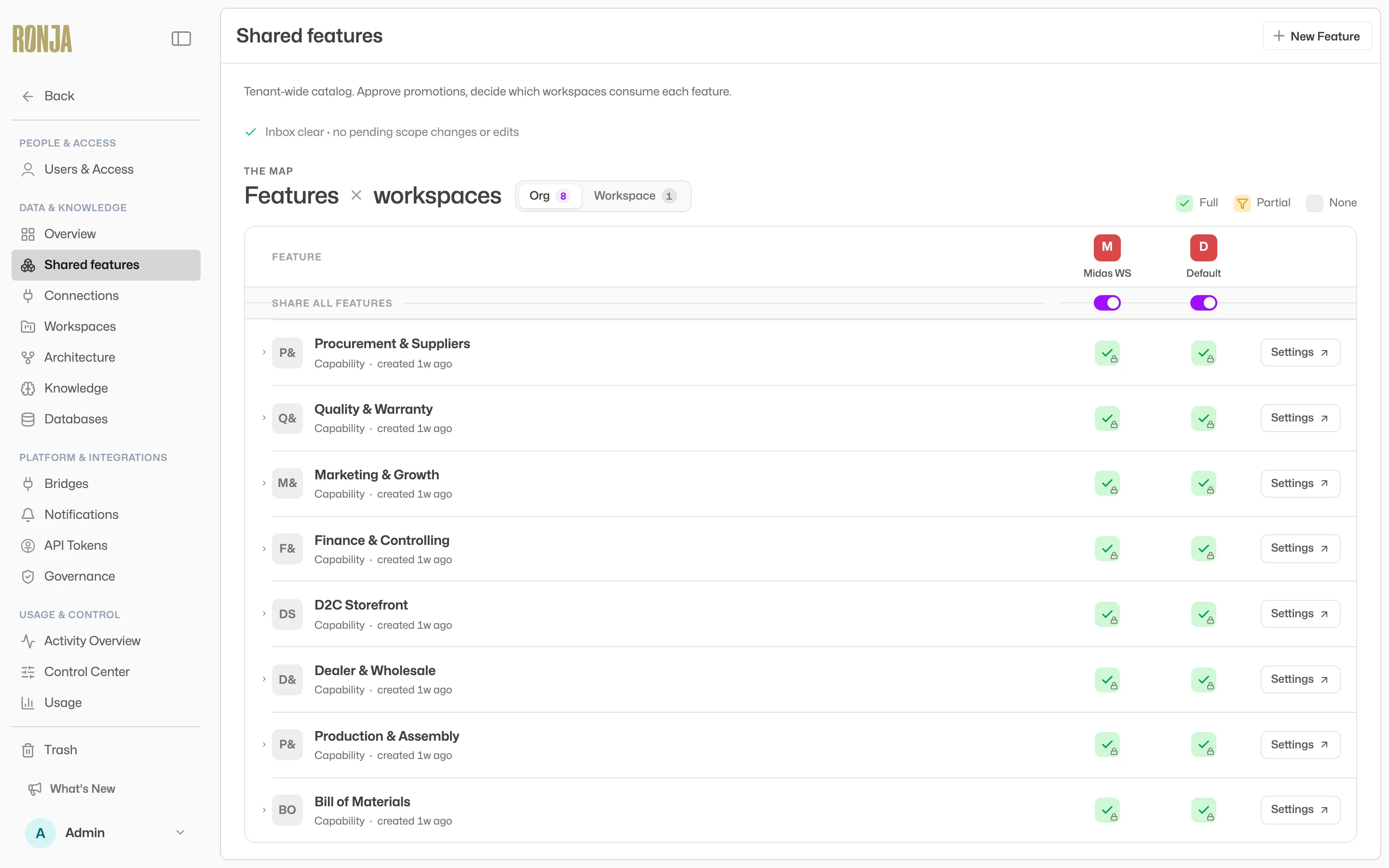
- Open the Shared features page (
/features). As a maintainer, open the feature you maintain instead and click the waiting for review chip at the top of its page: it opens the same Inbox, holding that feature’s proposals and drafts, and you continue from step 3. - Find the Inbox at the top of the page; narrow it with the Content filter pill to see proposals and drafts.
 The Inbox: note, workflow, app and table work — plus handovers and moves — waiting on a decision.
- Click Review on a draft or handover row; click a proposal row itself to open the full review (or use its inline Approve / Reject).
- Check the contents. Proposals show the full resource (“Review proposal”); drafts show a diff against the live version — workflow drafts add an AI-written Change summary, a metadata diff, an output preview, the code diff, and — when the workflow files its outputs into folders — an Access changes section listing the folders it will be allowed to write to. Table drafts show the SQL diff plus, when they changed, an Input tables section (which tables the draft reads from — a draft can repoint a table’s data source without the SQL changing at all) and a Details section for the table’s name and description. A styled (HTML) note draft shows the source diff under a Diff tab plus a Preview tab that renders the note the way readers will see it.
- Click Approve to commit — the change goes live and the previous version lands in version history — or Reject. Approving a workflow that files its outputs into folders also grants that folder access; approval is refused if the proposer doesn’t have access to a declared folder. Deciding a draft from its own page takes you to the live version it edits.
One row you decide somewhere else
Section titled “One row you decide somewhere else”The Inbox also carries RUN APPROVAL rows: “{workflow} run is waiting for a decision”, with how long is left and how many approvers were asked. These are workflow runs that stopped part-way through for a human decision — not proposals or drafts, and there is no inline Approve / Reject on the row.
Click the row and it opens the run page, where the decision is made on a card above the run’s activity: the question, the details behind it, an optional comment, and Approve or Reject. See A run that is awaiting approval. The row is here so an admin sees a run nobody has answered; the named approvers are emailed directly.