
Schedule an automation
An automation pairs one trigger with one action. Like most resources, you create automations by asking Ronja in an exploration; the Automations page is where you monitor and manage them.
Create one
Section titled “Create one”- Open an exploration.
- Ask for the automation — the product’s own suggestion: “Schedule a daily revenue summary every morning at 9 AM”.
- Let Ronja author or find the Workflow or Saved Agent first — the action must exist before it can be scheduled.
- Find the result on the Automations page, with run history and health at a glance. Narrow a long list with the All status, All cadences, All kinds, All senders and All owners menus above it — All kinds is what the automation runs, a Workflow or a Saved Agent; the menu’s Agent entry covers older automations that run a prompt written into the automation itself. All senders has one other setting, Open to any sender, which narrows the list to the email triggers that accept mail from anybody — see Accept mail from anyone.
Two pills can appear on a row in that list, and only on an email trigger that has been opened:
- Open to any sender — it accepts mail from anybody who learns its address, and its allowlist is not consulted at all.
- Open · org off — it was opened, but your organization currently does not allow open email triggers, so it is behaving like an ordinary allowlisted trigger right now. It re-opens the moment an Admin switches that back on, with nothing edited. This is the pill to look for after you turn the organization setting off.
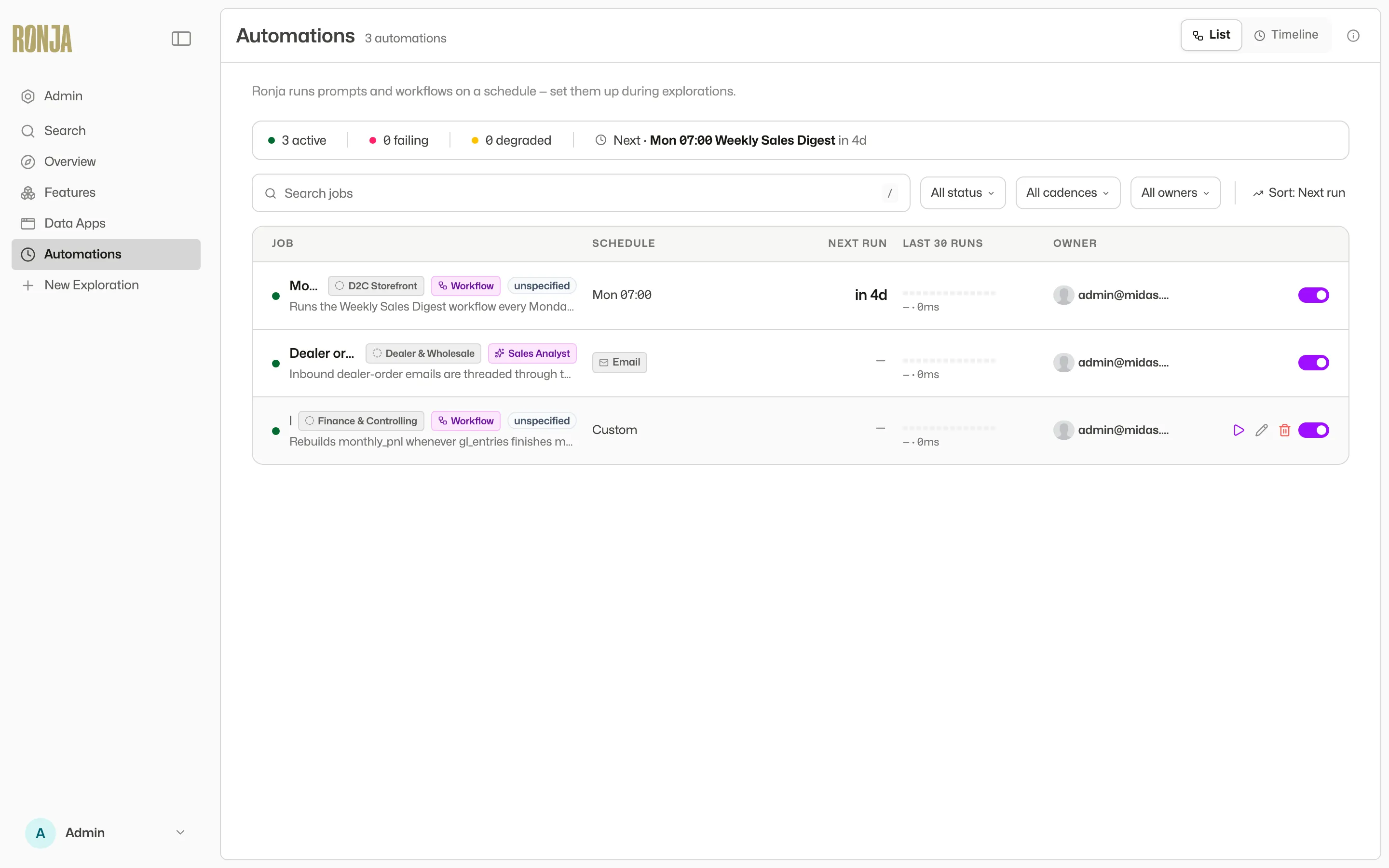 The Automations page: every automation with the feature it belongs to, its schedule, and its recent runs.
Triggers and their allowed actions
Section titled “Triggers and their allowed actions”| Trigger | Fires when… | Can run |
|---|---|---|
| Schedule | a cadence you set — minimum interval is 1 hour | Workflow or Saved Agent |
| mail arrives at the automation’s private Routable address | Workflow or Saved Agent | |
| Webhook | JSON is POSTed to the automation’s Receiver URL | Saved Agent only |
| Table | a watched table finishes rebuilding | Workflow or Saved Agent |
| Event | a custom event is emitted in your organization | Workflow or Saved Agent |
| Mailbox | new mail arrives in a connected mailbox | Saved Agent only |
The trigger kind is fixed at creation (“Trigger kind cannot be changed after creation.”). Field-by-field detail lives in Automation triggers.
Email. An admin must first set the organization’s Email-trigger ingest prefix (Governance → Organization rules). The automation then gets a private address — copy it from the Routable address chip — and you must allowlist sender domains or addresses; an email trigger can’t be enabled with an empty allowlist. Mail from anyone else is turned away and the automation doesn’t run; the refusal shows in Run history as Sender refused, naming a refused sender’s domain. At most one such entry is recorded per minute, so it tells you refusals are happening rather than how many, and the automation’s page sums the last 30 days up. You are also told — see When an email trigger turns a sender away. If the people writing in are the public rather than a known list, you have two options: open the trigger to any sender — a deliberate, admin-only change — or use a Mailbox trigger, whose sender filter is optional. A mailbox is an address your organization already owns and Ronja answers in-thread; an email trigger is an address Ronja minted, which fires a run and never replies.
Webhook. Copy the Receiver URL into the calling system. Add a Signing secret so requests must be signed (“Signed (HMAC)”); without one, “the URL is the secret”.
Clearing a signing secret is browser-only — it refuses an API token, the CLI and automations, because it drops the webhook back to the URL alone as its authorization. Rotating to a fresh secret keeps verification on and stays scriptable. See Actions the API can’t take.
Table. Pick the Watched tables — “The automation fires when any watched table finishes (re)building.” Up to 25 watched tables, capped at 50 runs per rolling 24 hours as a loop guard.
Mailbox. Pick the Watched mailbox, then optionally narrow what fires it under Filters (optional) — sender domains, sender addresses, subject terms, or attachments only. Sender domains match exactly (acme.com is not mail.acme.com), and if the mailbox has a Watched label set, only mail under that label reaches the trigger at all. Binding a mailbox requires Admin. Only mail that arrives after you enable the automation fires it; existing mail is never replayed.
Accept mail from anyone
Section titled “Accept mail from anyone”An allowlist is the right answer for almost every email trigger. When the senders genuinely are the public — a support address, a tender inbox — the automation can instead be opened to any sender. Two switches have to be on, and both start off:
-
An Admin allows open triggers for the organization. Open Organization rules in the sidebar’s Governance group and switch Open email triggers on. The line beside it says which way it is set — Automations may be opened to any sender, or No automation may be opened to any sender. It is one of the organization’s email settings, so it can also be set from the API or the CLI —
openEmailTriggersAllowedin themailgroup, see Change organization settings.Before it can go on, your Agent email policy — a setting on that same Organization rules page — must be off Anyone; set it to Members only or Members + allowed domains. Ronja refuses that combination in both directions, whichever you change first, and says which setting refused.
The section counts what is open. Under the switch, Ronja tells you how many automations are already open to any sender — “At least 3 automations are open to any sender” — with a Review them link to that list on the Automations page. It is the only place an Admin sees the blast radius before switching the key off, or before switching it on and re-opening everything that still carries the flag. Read it honestly: the count covers the automations you can see, and says so rather than claiming an all-clear when it cannot be sure.
-
The automation is opened. Open it from the Automations page and switch Open to any sender on under Configuration. The automation must also carry both of its own rate limits, per minute and per day, because once anyone can fire it those are the only bound left on what a stranger can spend — if it has none, the switch shows a per min and a per day box beside it, and the two save in the same step as the switch.
You can also ask Ronja to do it in a chat, and she stops to confirm with you before she does — that confirmation belongs to the chat; the switch on the page needs no approval.
Either way the requirement is the same: Admin, and a person doing it. Every machine caller is refused outright, whatever role it holds — an automation, a workflow, a Saved Agent, the CLI, and an API token including a personal access token bound to your own admin account. That leaves exactly two ways in: the switch on the automation’s page, and a chat.
Closing it again needs none of those things. One wrinkle: an automation that was opened and has no allowed senders cannot simply be closed, because that would leave it switched on with nothing to let mail through — so closing it also pauses it, and Ronja says so before you confirm. Add an allowed sender first if it should keep running. While it is open the allowlist is ignored, and the automation may have none.
References and pre-approved actions
Section titled “References and pre-approved actions”When an automation’s action is a Saved Agent, two settings decide what that Saved Agent can actually reach and do while it runs with no one watching:
- What it can reach. An unattended Saved Agent can only touch resources you hand it. Add them under Declared references when you build the Saved Agent: a table it should read, a connected mailbox it should answer, a secret it should use. Anything you don’t reference is out of reach for the run — this is the boundary that keeps a scheduled Saved Agent from wandering into data it was never given. You can only reference what you can already reach: an Admin can reference any live table, workflow, note, secret, app, MCP server, connected mailbox, other Saved Agent or feature in the organization; anyone else references what their access groups reach.
- What it may do without you. Some actions ask for your approval before they run in a chat — replying to or composing mail from a connected mailbox, for example. An automation has no one to approve each send, so you approve the specific actions it’s allowed to take on its own under Approved actions. Only those run unattended; anything else is refused. Approve only what you’re comfortable letting run without a person in the loop.
Concurrency
Section titled “Concurrency”An automation has no Concurrency setting of its own. A trigger is not a thing that runs — what runs is the workflow or the Saved Agent the automation’s action points at, and the setting lives there. Nothing to pick in the form, nothing to change on the detail page: whatever the action target is set to is what the automation gets.
So what happens when an automation fires while its own previous run is still going depends on that target:
- The target is on Allow overlapping runs — the default for every workflow and every Saved Agent — and the new fire starts a run of its own. Both go.
- The target is on Skip if a run is in progress, and the start is refused. The run already going is never touched; it is the late fire that is turned away.
A refused fire is recorded in the automation’s run history as a Skipped run — a neutral entry in the same muted grey as a rate-limited one, with the blocking run named in its summary. It is not a failure: it doesn’t count against the automation’s success rate and never counts towards a run of failures, so an automation that skips every second fire all week still reads as healthy, because it is. Every refused fire leaves its own entry, whichever trigger kind fired it. See A run that was Skipped.
A Table automation catches up by itself. For every other trigger a refused fire is simply turned away — the schedule comes round again, and an inbound email or webhook that was refused is not replayed. A Table automation that is skipped runs once more shortly after the run in its way finishes, however many changes arrived meanwhile. What that one catch-up run covers depends on the action: a workflow re-reads its tables live, so the work it does reflects every change that arrived while it was turned away; a Saved Agent is told about the most recently changed table only, so its catch-up names that table rather than the whole backlog. The exception is an automation that changes a table it watches: if its last three runs that actually ran were all such catch-up re-runs — a Skipped entry is not a run and doesn’t count here — the next refusal is not queued and the entry says so, rather than letting the automation chase its own writes.
That run history is the only place a refusal is written down. Start the same workflow or Saved Agent from anywhere else — its own page, an app, your own code — and the refusal goes back to whoever asked, with no run recorded at all.
Reach for it on the target whenever a run’s work can outlast the gap between two triggers: an hourly sync that sometimes takes ninety minutes, or a job that writes the same rows every time and would fight itself. Ask Ronja — “make the invoice sync run one at a time” — and she changes it on the workflow or Agent, where it belongs.
Run now is a separate check. Pressing it while one of the automation’s own runs is still going is refused — including while that run is only waiting, for an approval or for an answer to a question — and whether the action target is set to Allow overlapping runs or Skip if a run is in progress. Two presses of Run now in the same instant cannot both start a run either — from two tabs, or from two people — because the second one is refused rather than queued. What the check does not cover is a manual press landing at the same instant as the automation’s own schedule or an inbound trigger: those can still both start. See Pause, resume, run now, delete.
Approval emails
Section titled “Approval emails”A workflow that stops for a decision part-way through a run mails its approvers one Review and decide link to the run page, where the decision is made. Automations fire such workflows perfectly well: the run starts normally and only stops if it reaches the step that asks. See Mid-run approvals and Approve a workflow run.
Who hears that an automation broke
Section titled “Who hears that an automation broke”An automation runs when nobody is looking, so the failure has to come and find you. Automation run failed is on from the moment your organization starts using Ronja — there is nothing to switch on first.
It arrives in Ronja and by email — and in Slack as well, if an admin has set up Slack delivery on Notification routing and this notification is switched on there.
In Ronja. A notification appears under Notifications at the bottom of the sidebar, for the person who created the automation and for every admin. The bell shows a count of unread ones. This one is not configurable: it appears whatever Notification routing says, so an automation that breaks is visible to somebody inside Ronja even if no email address was ever added.
By email. Who it reaches depends on what an admin has set up:
- Before anyone sets up routing, the email goes to the person who created the automation.
- Once an admin has set up delivery on Notification routing — the Email row under Delivery channels, with the addresses listed on it — it goes there instead.
Either way it arrives once, when the automation goes from working to failing, and never more than once a day for the same automation. One kind of ending is deliberately quiet: a run on standard compute that was still going when the part of Ronja running it restarted is closed and marked timeout (a run on dedicated compute carries on through a restart and ends with its real outcome), and that sends neither the email nor the in-Ronja notification — nothing is broken, and the next run goes ahead normally. A fire your organization’s daily AI safety limit paused is quiet too, whether its Saved Agent was stopped or its workflow failed on an AI step the pause refused: it is recorded as Paused — daily AI safety limit, sends no failure alert (neither this one nor Workflow run failed), and is not run again later, while admins get the limit’s own notice instead. A fire your organization’s monthly budget stopped is quiet the same way: it is recorded as Paused — monthly budget used, sends no failure alert and is not run again later, and admins get the budget’s own emails. So is a workflow run someone cancelled: the automation records it as Cancelled, and neither alert is sent. If you are watching a particular automation closely, its run history is the complete record; the alerts are not. A job that breaks overnight sends one email, not one per failed run — and one that keeps breaking and recovering through the day still sends one, not one per break. The in-Ronja notification is not limited this way: every time an automation goes from working to failing it appears there, so the full picture is always in the panel.
When the email reaches an address an admin set up and nobody has changed this notification’s setting, it says so — a line at the end explains that these alerts are on by default and points at Notification routing, where an admin can change who gets them or turn them off.
To change who gets the email, an admin opens Notification routing in the sidebar’s Governance group and adds addresses to the Email row under Delivery channels. Click Set up or Edit, enter an address under Email recipients, and press Enter; changes save automatically. Use Search notifications and All, On or Off to find a rule, even before delivery is configured. To stop the email entirely, they turn the Automation run failed row off — it is one of the rows that start switched on, so an admin finds it already on and can switch it off even before any email address is added, and a run that fails after that sends no mail. The in-Ronja notification still appears.
What the notification tells you
Section titled “What the notification tells you”Besides which automation failed and when, the notification says when the automation was next due to run — unless the automation is paused, when there is no next run to name. For a scheduled automation that is its first scheduled time after the failure, in the time zone its schedule uses; for one that runs on a trigger, it says the automation would run again the next time the trigger fired. The email also carries a link — Open the automation’s run history in Ronja — that opens the automation with its run history showing, and so does the Slack message when this notification goes to Slack. When the automation runs a workflow, the alert also links the workflow run it started — Open the workflow run in Ronja. If you belong to more than one organization and are in a different one when you open either link, Ronja asks before switching. Only the first failure of a run of failures sends a notification, so the run history is where you see the rest.
Usually the notification quotes the error the run ended with. When the run failed on Ronja’s side instead, it says so rather than showing a technical error: the automation didn’t run to completion, and the notification names which of two causes it was. Either a Saved Agent couldn’t reach the AI model provider, or the run stopped in Ronja’s own machinery — Ronja couldn’t start the run or reach what runs it, or the run was interrupted part-way and recorded as failed. (A run closed as timeout after a restart, described above, sends nothing.) It may have done part of its work before it stopped, so check its run history before you run it again.
When an email trigger turns a sender away
Section titled “When an email trigger turns a sender away”An Email trigger only runs for senders its allowlist names, so mail from anyone else is turned away and the automation stays quiet. That used to be invisible unless you went looking. Now it is recorded in Run history as Sender refused, and a Refused senders panel appears on the automation, summing up the last 30 days: how many minutes had a refused sender, how many different sender domains were turned away, when the last one was, and the most recent entries. The panel names that window on the line itself, and refusals older than it drop out. The panel only appears once something has actually been refused.
Automation refused a sender tells you without your having to look. Like Automation run failed, it is on from the moment your organization starts using Ronja, it appears under Notifications in the sidebar whatever Notification routing says, and the email goes to the person who created the automation and to your admins. It arrives at most once a day for the same automation, and it carries the last 24 hours rather than a single incident: how many minutes had a refusal, how many sender domains were turned away, and which domains those were. The email ends with Open the automation in Ronja, a link to the automation’s page.
The fix it names is the allowlist — add the sender’s domain to the automation’s allowed sender domains, and their mail starts firing it. Read the minute figure as minutes that had a refusal: at most one entry is recorded per minute, so several people writing in within the same minute count once.
Some addresses simply attract strangers, and widening the allowlist is not the answer for those. Anyone who can edit the automation can turn the alert off for that one automation: in its Refused senders panel, switch Email the owner and admins when a sender is refused off. That stops both the email and the in-Ronja notification for that automation only; every other automation keeps its alerts, and the change shows in the automation’s history like any other setting. Turning the Automation refused a sender row off on Notification routing switches the email off for the whole organization instead. The in-Ronja notification still appears — this is one of the always-on alerts described under Read your notifications, and the per-automation switch above is the only thing that removes it from the panel.
Read your notifications
Section titled “Read your notifications”- Click the Notifications bell at the bottom of the sidebar. A count sits on it when you have unread ones.
- The panel lists unread first, then the rest newest-first, each with how long ago it arrived.
- Click a notification to open what it is about, and it is marked read as you go: an automation, the workflow a run belongs to, a table, a feature. A request to review a draft, a proposal or a share opens the thing waiting for review, and a move request opens it in the Inbox on Shared features (see Where approvals happen). A decision on something you proposed opens it once approved, or your Requests on the Account page once rejected, and a connection that needs re-authorizing opens that connection. Notifications with nothing to open — a credit warning, for example — only mark themselves read when you click them, and stay in the panel.
- Mark all read clears the count without opening anything.
Notifications are personal — you only ever see your own, and marking one read changes nothing for anybody else.
The panel is not only for failing automations. Most of what Ronja emails you also appears here — a decision on something you proposed, a table that has drifted since it was verified, a credit balance running low — as long as the email went to an address that belongs to your Ronja account. A notification sent to an address that is not a person in your organization, such as a shared alias or a distribution list, arrives as email only. Nothing appears in the panel when Notification routing stopped the email from being sent at all — except for a small number of always-on alerts, which appear whatever routing says. There are eight: a failing automation, described above; Automation refused a sender, also described above; a failed workflow run, described in Workflows and automations; a column of a table changing type; Table not updating, which reaches the maintainers of the table’s Feature once its updates have failed for 30 minutes, and is emailed or sent to Slack only once an Admin switches it on — see When a table stops updating; an approval of yours that could not be carried out, described in Approve a run; for Super Admins and Admins, a member of the Ronja team adding themselves as Super Admin, described in Ronja staff in your organization; and, for the owner of a private feature an Admin shared, An admin shared your private feature, described in Share a colleague’s private feature. Some of them behave differently from the rest. Automation refused a sender is the only one you can silence for a single automation — switching Email the owner and admins when a sender is refused off in that automation’s Refused senders panel removes its panel notification too, not just the email. The approval one and An admin shared your private feature have their email switched off until an Admin turns it on, as Table not updating does, so for most organizations the panel is the only place they appear.
Not everything, though: some messages arrive by email or Slack only and are never repeated in the panel. The one you are most likely to meet is a request to approve a workflow run — act on it from the link in that message, and see Approve a workflow run. A few admin-facing messages behave the same way, among them a request to set up a bridge and Ronja’s heads-up that she could not reach one of your sources. Treat the panel as the place your notifications collect, not as a guarantee that every email lands there.
Investigate a failing automation
Section titled “Investigate a failing automation”When an automation’s most recent run failed — or several in a row did — its detail page offers a hand-off straight into a chat that is already diagnosing it.
- Open the automation from the Automations page.
- Click Investigate with Ronja in the status strip at the top of the detail page.
- A new exploration opens in Build mode with the automation’s configuration and its recent runs already loaded, and Ronja already working out why it failed.
- Read what she found, then approve the fix she proposes — she confirms with you before changing the automation, and test-runs it afterwards.
The button appears only while the automation is failing, and only for Admins who also have Build mode — repairing an automation edits it, which is an admin action. Without it, the same run history is under Activity, and each failed run’s error is one click away.
A run sitting at Waiting is neither failing nor stuck: the automation fired a Durable workflow that paused mid-run — it handed work to a Saved Agent, or is waiting until a set time — and Ronja continues it by herself, then records the outcome on that same automation run. Nothing to investigate, and nothing to re-run. The duration on that run covers the whole time from start to finish, the wait included — so a run that waited a day reads as a day long, which is the honest number and not a sign of anything stuck. See Monitor runs and traces.
A run reading Awaiting approval is the one wait that does need somebody: the workflow reached a step it was told to check with a person on, and the named approvers have been emailed. It carries on the moment one of them approves, and fails if they reject it or nobody answers in time — see A run that is awaiting approval.
Open an automation
Section titled “Open an automation”Click an automation’s name or row to open its full page. Configuration holds its trigger, action, schedule, and instructions; Activity shows recent runs and execution traces. Tags stay editable below the title on either tab. Use Edit beside the title to change the automation.
Pause, resume, run now, delete
Section titled “Pause, resume, run now, delete”- Flip the on/off toggle on any row (or in the detail page) to pause or resume. Paused email, webhook and mailbox automations silently ignore inbound traffic — and a resumed mailbox automation starts from that moment, so nothing that arrived while it was paused is worked through.
- Open the row’s More actions menu — the button at the end of the row, beside the toggle — and pick Run now for an immediate manual fire. While a run is already going it is greyed out and reads Run now (in flight…). The detail page also has a Run now button beside Edit. If you press it anyway — from a second tab, say, or while the page’s view of the automation is a few seconds stale — nothing starts and a grey notice in the list or the detail page’s Activity tab says so, naming the run that is already going and when it started. That is not an error: the automation is already doing the work you asked for.
- Delete in that same More actions menu (the Delete automation confirm). The automation moves to the Trash for 30 days and is auto-paused; whoever could delete it can restore it from the feature’s Trash drawer — an Admin, a maintainer of a shared feature, or in a private feature the person who created it.
More actions holds three entries — Run now, Edit and Delete — and appears only if your role lets you change automations. The toggle stays visible either way, because it is also how the row shows you whether the automation is running at all.