
Managed databases
A managed database is a real Postgres database that Ronja provisions and runs for you on its own managed cluster. Unlike the tables that hold your analytics data, it is a live system you can build on — a CRM, an ops queue, application state — not just a place to analyze data. You can also mirror it into a feature so your analytics run on top of the live system.
This is the how-to companion to Managed databases — start there for the concept.
You manage databases from the Databases page — under Admin → Data & Knowledge → Databases. This entry is admin-only, so if you are not an admin, Search (⌘K) is how you reach a database: type its name, or something from its description, and the result opens its console. All the building happens by asking Ronja in an exploration.
Select a database name in the list to open its console. The name is a link, so you can also open it in a new tab. If the list cannot be loaded, Try again retries the request.
The console header shows the full database name, wrapping long names onto extra lines. As an admin, click the name to edit it, press Enter to save, or press Escape to cancel.
Provision a database
Section titled “Provision a database”The fastest way is to ask Ronja, but a console path also exists.
Ask Ronja (recommended): Open an exploration in Build mode and describe the system you want — “Set up a support-ticket system: ticket, customer, subject, status, assignee”. If your organization has no managed database yet, she provisions one and confirms in chat. If it already has one, she adds the new tables to that database rather than making another — one database holds many systems. She makes a second database only when someone outside your organization will get a login to it, or its data must be restored, copied or handed over on its own, and she tells you which; there is no approval step. See Where data lives. Asking again with the same name retries the existing database rather than creating a duplicate.
From the console:
- Open Databases and click New database.
- In the New database modal, enter a Database name and an optional Description, then click Create database.
- The row appears with a Provisioning status pill and a “Database provisioning started” toast. It flips to Ready on its own — no reload needed.
The console creates exactly the database you name; it does not check whether one you already have would do. Once your organization has a database, the modal also shows a When to create another link, which opens Where data lives.
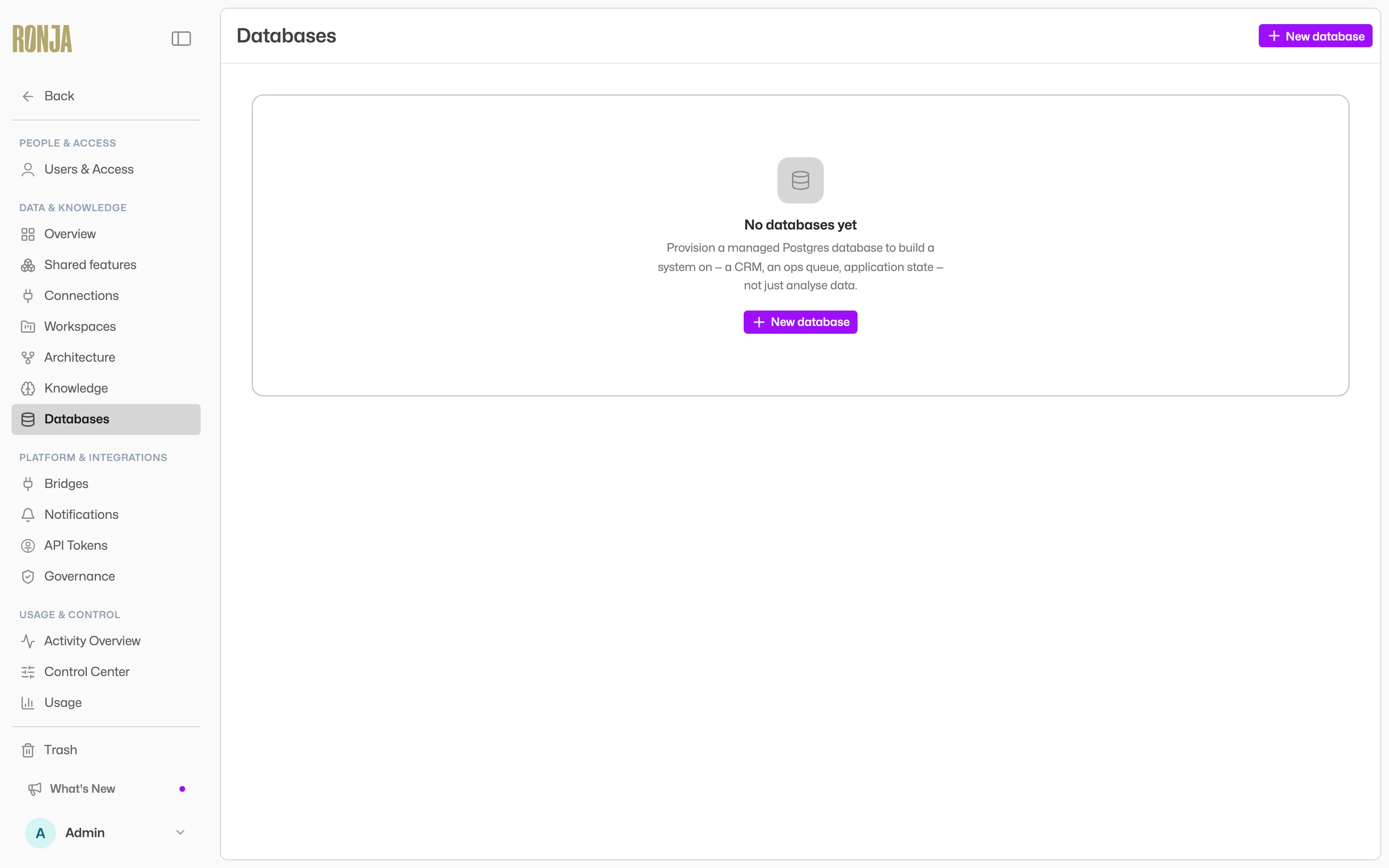 The Databases page — a managed Postgres database is a system to build on (a CRM, an ops queue, application state), not just a place to analyze data. Every database you provision is listed here with its status.
Build on a database
Section titled “Build on a database”Once a database is Ready, Ronja does the building. In Build mode you can ask her to:
- Design and evolve the schema. Each change is applied as a migration — a forward-only schema change recorded in the database’s own ledger. The Migrations timeline on the console shows every one.
- Create a database login. Ronja creates a
read,write,admin, orcustomlogin on demand — just ask her for the level of access you want. The password is server-generated and never shown — it is stored as a secret in a feature, and the login appears in the console’s Connection card as a role pill. Asking for aread,writeoradminlogin that already exists replaces its password in place rather than creating a second one — the chat card says Database credential rotated — and the secret keeps its name and its feature, so everything already using it keeps working. Because the feature is part of what the login keeps, asking for one “in” a different feature does not move it — move the secret itself if it belongs somewhere else. - Write data. Ronja runs
INSERT/UPDATE/DELETEand reads through the write role — or through a login you name, such as acustomone, which is how you check what that login can do before handing it to a Saved Agent. For a plainINSERT/UPDATE/DELETE, the chat card says how many rows it changed — 0 rows affected means the write ran and matched nothing (the row had already moved on, or the condition was never true), which is a different thing from failing. The count is for the statement Ronja ran as a whole, so if she folds a change into aWITHclause the number describes the outer step, not the change inside it. Whenever a statement returns rows the card reports rows returned instead, which covers a read and equally a write ending inRETURNING.
There is no interactive SQL console in the browser, and no database password ever reaches it — a real security property: the write boundary is a governed secret carrying the database’s identity, so writes are only ever mediated against a database you own. The console shows the connection details — Host, Port, Database, and Cluster SSL mode — plus the role pills, but never a credential.
Give something access to just a few tables
Section titled “Give something access to just a few tables”The first three logins are whole-database: read sees every table, write can change every table, admin can change the schema as well. A custom login is scoped instead — you name the tables and what may be done to each.
Ask Ronja for it in the same sentence you would use to describe the job: “Create a database login that can read leads and add rows to scoring_runs, and nothing else.” She mints it and stores it as a secret like any other login.
Three things worth knowing before you hand one out:
- A custom login can never change the schema. There is no level of custom access that allows it —
CREATE,ALTERandDROPstay with migrations no matter what you ask for. That is what makes a custom login safe to give to a workflow, an app or a Saved Agent. - Naming tables is a snapshot. The login covers the tables you named and nothing added later. If you want one that keeps up with new tables, say so — “everything in the database, read-only” — and Ronja grants it schema-wide instead. The Connection card tells you which kind you got: a schema-wide login is labelled also covers tables created later.
- It is per login, not per person. A custom login is a credential, so anything holding it has exactly that access. Mint one per job rather than sharing one widely.
Each login in the Roles list shows its level, the secret holding its credential, and the login’s own name on the database. A custom login also lists the tables it can reach and what it may do to each — read back from the database itself, so it is what the login can do right now, not what was asked for when it was created.
Revoke a custom login
Section titled “Revoke a custom login”Revoke (the trash icon beside a custom role in the Connection card) removes the login from the database and deletes its stored credential. Admin only.
Before you confirm, Ronja checks which workflows, apps, and notes use that credential and names them in the Revoke database user dialog, so you can see what stops working. Click Revoke to go ahead, or Cancel.
Build on a database from your own tools
Section titled “Build on a database from your own tools”Everything above is also available to a script, a CI job, or an AI coding agent, over the API and the CLI. It is the same governed path: Admin only, credentials still never leave Ronja, and schema changes still go through migrations.
ronja db sql <database ID> "SELECT * FROM leads LIMIT 10"ronja db migrate status --database <database ID>ronja db migrate push --database <database ID>ronja db migrate keeps a folder of .sql files in step with the database’s own migration history, which is what makes a database’s schema something you can keep in version control and apply from a pipeline.
The same operations are plain HTTP if you would rather call them directly — POST /api/v2/database/<id>/sql and POST /api/v2/database/<id>/migrations. Two boundaries hold everywhere:
- SQL cannot change the schema. It runs as the database’s write role, which has no privilege to create or alter anything, so
CREATE,ALTERandDROPare refused by Postgres itself. No other login SQL runs through can either — acustomlogin named by Ronja or a Saved Agent included. That is what keeps the migration history an accurate record of the schema. - Migrations are idempotent and drift is loud. Sending the same set twice applies nothing the second time; editing a migration that has already run is refused, naming the file.
Ask for each login once and reuse it. Asking again replaces that login’s password, so a script or pipeline step that requests the write login every time it runs changes the password every time it runs — everything inside Ronja follows the change, but anything holding the old password outside Ronja stops working.
If you would rather try a schema change somewhere it cannot do damage, give the database a dev copy — a second database with the same structure, and either none of its rows or all of them. See Dev copies.
Ask about a database in chat
Section titled “Ask about a database in chat”You don’t need a mirror to answer a one-off question. In an exploration, ask Ronja something that needs both the database and your tables — “Which of last month’s orders came from customers our CRM marks as enterprise?” — and she joins them in a single query, reading the database live.
- She reads the database through one of its logins —
read,write,adminorcustom— and you need access to that login’s secret. The question only reads: the database is opened read-only and the query must be a single read, but only thereadlogin makes a change impossible at the database itself. So she uses thereadlogin when there is one; if there isn’t, an Admin can create one — for example by asking her in Build mode. - To ask the same question of a dev copy instead of production, say so — she reads the dev copy, and refuses rather than falling back to production if there isn’t one.
- Each question reads the live database again, and a chart she draws from such a query is shown in the conversation only — it is not saved as a chart.
- Keep questions narrow. Each read of the database stops after 60 seconds and is not retried — she tells you, and narrows the question: filtering the database side by fixed values (a region, a date range, a status) lets the database do that work instead of sending every row. A question that needs most of a large table pulls all of it across on every ask. One question can join up to five databases. For a recurring report, ask Ronja for a workflow that joins the database each time it runs; for large tables, mirror the database into a feature (next section) and build on the mirrored tables.
Ronja says so when a question is stopped before it reads anything. Among the reasons:
- A login whose password can’t be used. A login whose password was set by hand to something Ronja cannot pass safely to the query is refused, saying so. Ask Ronja to create that login again — which replaces its password — or to use another of the database’s logins. A login Ronja created always works.
- Your tables are too large. The Ronja tables a question joins must hold under about 1 GB; past that, Ronja aggregates them into a smaller table first, or you mirror the database.
- Too many questions at once. Ronja reads a limited number of databases at the same time. When that is full, she says she could not run the question just now; ask again when one finishes.
When an AI assistant connected to Ronja runs a read-only join, Ronja can keep that database login connected after the join answers, so the next join with the same login starts faster: it stays connected while idle for up to 3 minutes, and for at most 10 minutes in all. It never does this for a database role or database with a connection limit of 32 or fewer, so it cannot use up a small connection allowance. Ronja’s own joins in a conversation always connect fresh.
Mirror a database into a feature with CDC
Section titled “Mirror a database into a feature with CDC”Change data capture (CDC) mirrors a managed database into a feature so you can build analytics on the live system. It uses log-based replication, so it picks up every change, deletes included, once an hour, and follows tables added or dropped on the source automatically.
- Make sure the database is Ready.
- In Build mode, ask Ronja to enable CDC and name the target feature — “Mirror this database into our Support feature”. (There is no console button for this today; it is enabled by asking Ronja.)
- The first sync runs a full snapshot of every table, then collects the changes made since the last sync once per hour. Each source table appears in the target feature as a table named after it.
- Manage replication from the console’s Replication card via Manage replication: pause and resume, run a manual Sync, watch health (Live / Snapshotting / Awaiting first sync / Re-snapshot queued / Degraded / Failing / Stalled / Streaming paused), and Disable CDC.
Failing means the last hourly sync did not complete; the reason is shown under the health tiles, and Ronja tries again on the next hour. Stalled means Ronja could not read new changes from the database for several hours — usually because one change on the source is too large to read in the time Ronja allows. Replication pauses, the feature’s tables stop updating, and a Replication stalled notification goes out. This one is on by default: your organization’s admins are emailed unless someone chooses different recipients — or turns it off — in the Connections & bridges group on Notification routing. The remedy is Re-snapshot on the connection page, which an admin can click from the stalled notice: every table is copied fresh and replication resumes from there. Anything that changed on the source while replication was paused appears in the mirrored tables as that fresh snapshot, not as individual changes. Sync is unavailable while replication is stalled.
Every table is mirrored as an append-only changelog; Ronja handles current-state reads for you when you query the mirrored tables. A database can have only one active mirror at a time — to point it at a different feature, disable CDC and re-enable it (which re-snapshots). Disabling CDC stops replication and keeps the mirrored tables frozen at their last state; you can re-enable later.
Delete and restore
Section titled “Delete and restore”Delete on the console marks a database for deletion — it stays recoverable and nothing is dropped immediately. Restore it from Trash while it is still there. The permanent, irreversible drop happens later on its own; there is no “delete permanently” button for a managed database.
See also
Section titled “See also”- How Ronja replaces your stack — where managed databases and CDC fit the bigger picture.
- Dev copies — a copy of a database to try changes against, with or without its data.
- Connect a data source — bring in data from a system Ronja doesn’t host.