
Share and promote
If what you actually want is a version of somebody’s App for yourself rather than for the organization, you do not need any of this: click Make my own on the App’s page and you get an independent copy in your own private feature, no approval involved — see Make your own copy.
Every feature has a scope — Private or Organization — that controls who can see it. Sharing a feature means requesting a scope change, called a handover. Unless you are an Admin who can approve the change yourself, it is staged until an admin approves it, and the current scope stays in effect until then. See Scopes and sharing for the model, and the self-approval policy for when an admin has to hand their own change to someone else.
One feature is never shareable: My Private Feature, your own, where a Saved Agent you create without choosing a feature lands, along with every copy you take with Make my own and every SharePoint key you create. Sharing it would hand the organization every one of those things at once, so Ronja refuses it and offers no Share button there. To share something sitting in it, create a feature and move that thing into it.
Request a promotion
Section titled “Request a promotion”-
Open the feature and click Share at the top of the feature page. (Or open Settings → Privacy and click Request promotion.)
-
Confirm the target in the Share feature modal:
- Organization — “Available to every access group via current data-access rules.”
-
Wait for the dependency preview. “No dependency conflicts — this scope change is safe to request.” means you’re clear; amber warnings list reasons an approving admin might reject.
The feature’s name also has to be free among the organization’s features — a private Sales can’t be promoted while a shared Sales exists. That’s checked when the promotion is applied, not when you request it, so a clash surfaces as a refused approval naming the feature that has the name. Rename yours and request it again.
-
Optionally, add a note in Note for the approver. The approving admin sees it with your request.
-
Click Request scope change.
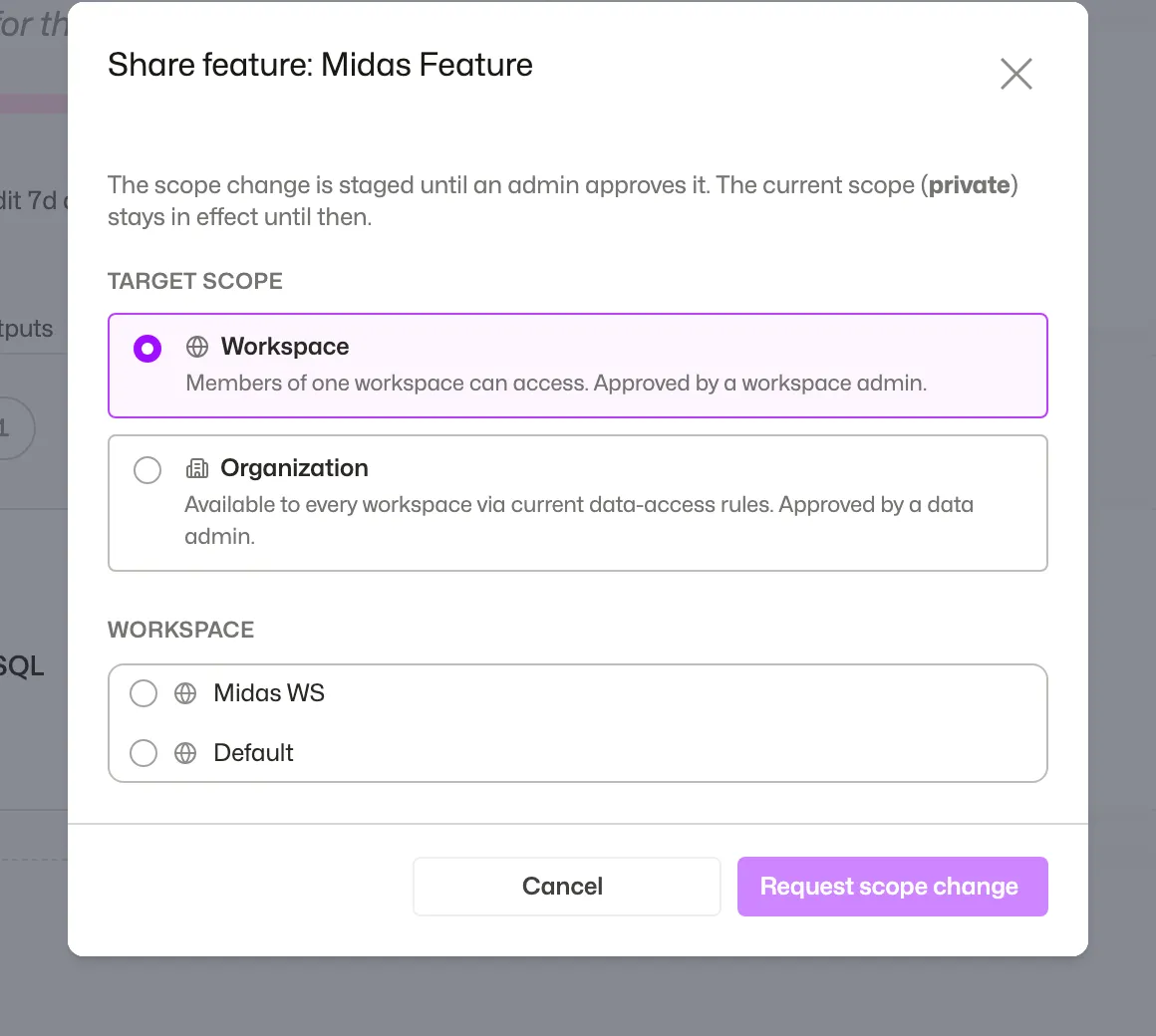 Promote the feature to Organization; unless you are an Admin who can approve it yourself, the request is staged until an admin does.
If you’re eligible to approve it yourself, the button reads a direct verb instead — Promote to organization — and applies immediately, and the note field is labelled Note. The guided Hand over dialog is the other route to the same scope change, in numbered steps (what changes for you, where it should go, who must accept) plus a Note for the approver (optional) field — but it always files the staged request for an admin to approve, even when you could have approved it yourself. Use Share if you want the direct verb.
While it’s pending
Section titled “While it’s pending”- The feature shows an amber Share pending pill; Settings shows the pending target next to a Withdraw button.
- Track it under Account → Requests (“Feature promotions”, with an “awaiting review” chip).
- You can withdraw the request any time until an admin accepts it.
Who approves — and where
Section titled “Who approves — and where”Approvers find the request on the feature’s own page, where Review sits next to the Share pending pill, and in the Inbox at the top of the Shared features page (/features), as a HANDOVER row. The notification an approver gets for the request opens the feature’s page. Either Review opens the scope-change review: the current → requested transition, a “What approving means” summary, a dependency re-check, and an optional reason for the audit log — then Approve or Reject. See Propose and review changes for the reviewer’s side in full, and the scopes reference for the who-approves-what table.
Share a colleague’s private feature
Section titled “Share a colleague’s private feature”As an Admin you can share another member’s private feature with the organization: for example, when they have left, or when their feature holds a secret that shared work needs. You don’t need their agreement, but they are told.
As an Admin you see every colleague’s private features: search for one (⌘K), where it is shown with its owner’s name — for example “Q3 forecast (Anna Berg)” — or open it from a link. A secret’s page names its feature in its header, as a link to it, so from Integrations you can open the credential and click the feature’s name.
- Open the feature and click Share at the top of the feature page.
- Read the callout at the top of the Share feature modal. It starts with “This feature belongs to
.” (or “a former member” when the owner has left). Once the dependency preview has answered, it says what the share will do: - “Sharing it makes everything in it usable by the organization, including 2 secrets.” Everything goes with the feature, its secrets included.
- When no access group would reach the feature, it says instead: “Sharing it moves everything in it, including 2 secrets, to the organization, but until it is added to an access group only admins and
can open it.” When the owner has left, it says “only admins can open it”, since they don’t become its maintainer. - Then: “
will be notified and becomes its maintainer.” When another Admin has to approve your change, this sentence starts with “Once approved,”.
- Optionally, say why in Why are you sharing it?. The line beneath it says “Shown to
.” When the owner won’t be told (the feature is in the Trash, or the owner has left), the field is Note, or Note for the approver when another Admin has to approve. A note over 4,000 characters is refused, with a message saying so. - Click Promote to organization. If your organization needs a second Admin to approve your changes, the button is Request scope change, and the share waits for that Admin.
What the owner is told. They get a notification titled An admin shared your private feature in their Notifications. It names the admin who asked for the share and gives the reason, or “no reason given” if there was none. It also says how many secrets the feature holds and that they are now its maintainer: “You are now its maintainer, so you keep full access to it; some changes still need an admin.” Clicking it opens the feature. The notification always arrives in Ronja. It is also emailed or sent to Slack, but only once an Admin switches it on in Notification routing (under New proposals). If you ask Ronja in a chat to share the feature, no reason is sent, so the notification reads “no reason given”.
The owner becomes its maintainer. When a private feature is shared, its former owner becomes its maintainer, so they keep full access to it, whether or not an access group reaches it; some changes still need an Admin. This happens on every share, including when owners share their own feature (they get no notification for that, since they asked for it). An Admin can remove it like any other maintainer. If the owner of a feature shared before this rule existed needs to edit it, an Admin can make them a maintainer.
There are two exceptions, and in both the share still goes through: a feature in the Trash, and an owner who has left the organization. Neither gets a notification, and neither gets maintainer access.
Shared, but no access group reaches it. When the callout says only admins and the owner can open the feature, the notification says it too: “It is shared, but until it is added to an access group only admins and you can open it.” This happens with a sub-feature (a feature nested inside another), or when no access group in your organization has All features turned on. Until then its contents aren’t listed to other members: admins and the feature’s maintainers, the former owner included, keep full access. Attach the feature to an access group on the access map to give it its audience.
A colleague’s My Private Feature can’t be shared either, by you or by anyone. To share something in it, move that item into a feature of its own and share that feature.
Sharing one resource instead of a whole feature
Section titled “Sharing one resource instead of a whole feature”Promotion shares the entire bundle — when you share an app from its page (Share…), the dialog warns “N other resources will share this scope.” If only one item should be shared, move that resource into an already-shared feature instead.