
A tour of Ronja
Ronja has one main surface — the conversation — and a small set of pages around it. Ten minutes here and you’ll know where everything lives.
The sidebar
Section titled “The sidebar”The sidebar on the left is your map. From top to bottom:
- Admin — visible to admins only; switches into the admin area (more below).
- Search — opens global search (same as pressing ⌘K).
- Home — the home page.
- Features — your hub of features, the named bundles that hold related tables, workflows, and other resources.
- Metrics — your defined business metrics.
- Apps — interactive tools built on your data.
- Files — chat saves, workflow outputs, and documents Ronja writes, organized in folders. See Files.
- Automations — scheduled and event-triggered work. Admins find this one under Advanced instead (below).
- New chat — starts a fresh conversation.
Below the entries come the collapsible sections:
- Advanced — admins only, and collapsed until you open it: the builder’s tools in one place. Workflows (the reusable jobs — see Workflows and automations), Automations, and Data map — every table in the Space you’re in and what flows into what, as a graph or a searchable catalog. See Data map.
- Favorites — everything you’ve starred, pinned to the top.
- Projects — your projects, each one expanding to the chats filed into it.
- Chats — your own recent conversations (the last 50), minus any filed into a project.
- Shared — recent conversations others have shared with you.
Chats and Shared each start with six recent conversations. Show less keeps your current conversation in the list if it was included in the expanded section. Use Show more and Show less to expand or shorten either list; the sidebar scrolls as one area. Favorites and expanded Projects keep their full lists.
Rows in these lists are live: a purple dot means “New activity” since you last looked, and a breathing shimmer means Ronja is working in that conversation right now. Hover a row to star it or open its menu — on conversations you started it holds Move to project, Rename, Share… and Delete.
At the bottom sit a Setup button (it reopens the welcome screen with a task composer and starting ideas), a row of icons, and your account menu, with Weekly AI budget (how much of your own weekly AI budget is left, shown only when a weekly budget limits you), Your policy (your own standing rules — see Policies), Settings, Organizations, Help & Support, and Log out. It also holds Spaces, if you can enter more than one — the line under your name says which Space you’re looking at, and everything in the lists above shows that Space. The bell in that row is Notifications — your own feed of things Ronja needs you to see, such as an automation that has started failing or most of what Ronja has emailed you, with a count of the unread ones on the icon. Beside it, the megaphone opens What’s New, and carries a dot when there is something you haven’t read.
If you belong to more than one organization
Section titled “If you belong to more than one organization”Organizations in the account menu lists every organization you’re a member of and switches between them. You’re only ever in one at a time, and it applies to every tab you have open.
That matters when someone sends you a link to a table, workflow, app, or any other resource. Links Ronja produces herself — one she posts in Slack or Microsoft Teams, one in a notification email, one from the API or the command line — carry the organization they belong to, so opening one while you’re in a different organization stops on a short screen headed This link opens in the organization the link belongs to, offering Switch to it or Stay in the one you’re in. Nothing switches until you click, because switching moves every tab you have open with it.
Every notification email Ronja sends names the organization it is about: the subject is tagged with it, as in [Ronja · Acme AB] Workflow run failed, and the email ends with Sent by Ronja for Acme AB. The name is the one you see under Organizations. To filter these emails in your inbox, match on [Ronja, which every one of them contains.
A URL a colleague copies out of their browser address bar doesn’t carry the organization, so it can’t offer you that choice. If a link like that lands on a “not found” page, check which organization you’re in under Organizations in the account menu.
If you haven’t picked an organization yet — straight after signing in, say — the same screen offers Switch to the link’s organization or Choose another organization, which takes you to the picker.
If the link belongs to an organization you’re not a member of, the screen reads You don’t have access to this link instead. Ask whoever sent it to invite you, or to share it from an organization you’re both in.
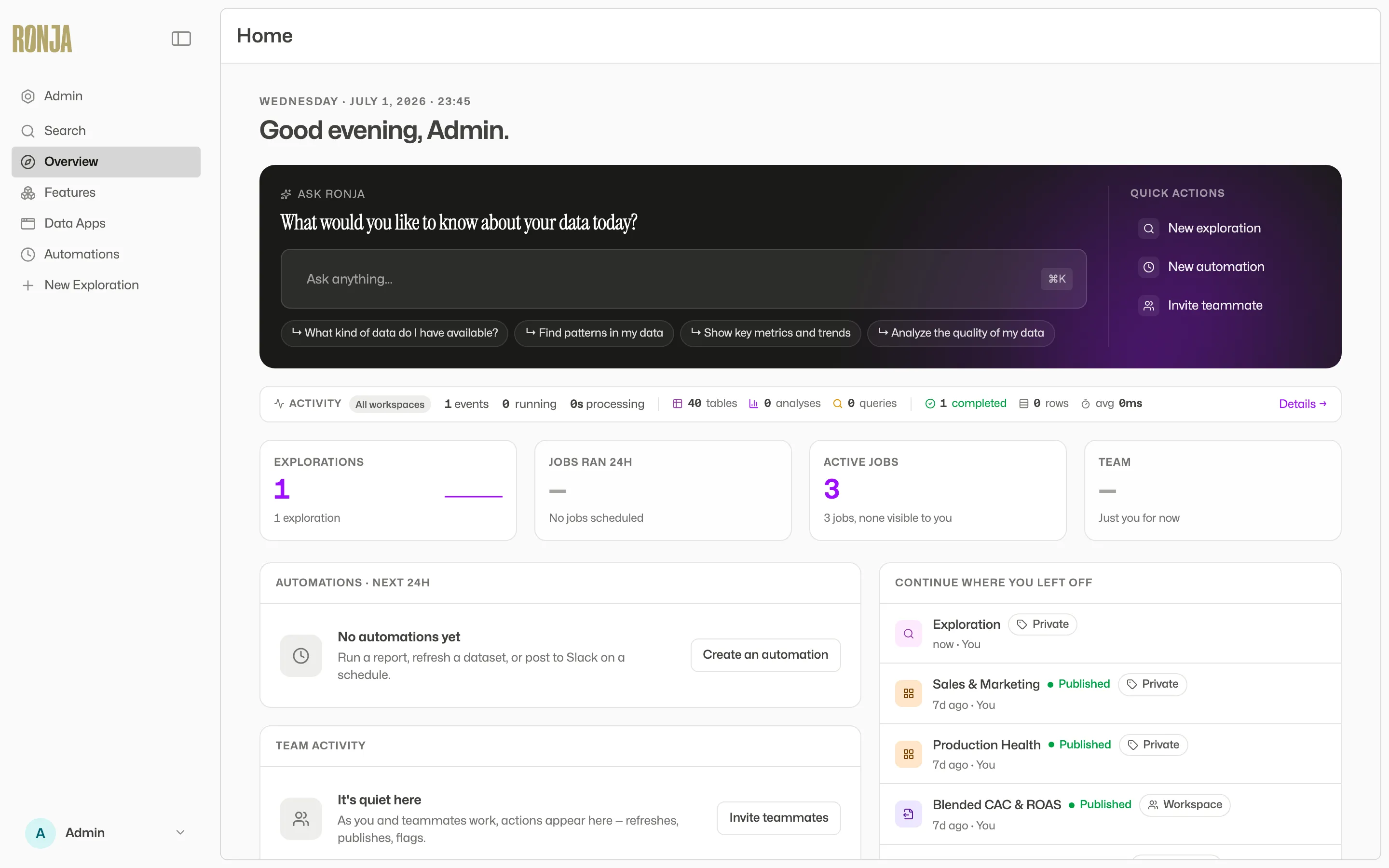 The home page and sidebar — the two things you’ll use most.
Resizing and collapsing the sidebar
Section titled “Resizing and collapsing the sidebar”Drag the sidebar’s right edge to make it wider or narrower — worth doing if your conversation titles keep getting cut off. It nudges into place at the default width as you pass it, and double-clicking the edge snaps back there.
Keep dragging left and the sidebar collapses to a narrow strip of icons; drag the strip’s edge right to bring it back. The panel icon at the top does the same thing in one click — when collapsed, hover the strip, or Tab to it, to bring that icon back. Either way the width you chose is remembered, so the sidebar returns the size you left it. It’s remembered per browser, so setting it on your laptop won’t change it on another machine.
In a narrow window, such as a phone, the sidebar shows as the strip of icons and its edge can’t be dragged. The panel icon opens it over the page, without changing the size you chose for a wider window. Tap beside it, press Escape, or pick a page to close it again.
The home page
Section titled “The home page”Home takes you home. It has two jobs:
- Start a chat. Type into Ask anything… and press Enter or Start chat. You can attach files or tables before sending: drop files onto the composer, paste a screenshot, or use the + button. Attachments appear as chips and travel into your new conversation.
- Open an app. Switch between Recent, Trending, and Favorites. Recent shows up to six published apps you opened in the last 90 days. Trending shows up to six shared apps used most widely by your team in the last seven days. Favorites shows your existing app favorites. Every view only includes published apps you can still access, in the Space you are in. Click an app to open it, or use View all apps to browse the full list.
Home starts with Abisko until you choose another landscape. Use Change background in the top-right to choose a landscape. Golden mist and Violet dawn appear first. Västmanland and Abisko bring Swedish lakes and mountain landscapes to the collection. Violet dawn pairs an open pink-violet sky with a detailed mountain panorama. Ronja remembers your choice for your account and organization in this browser. On a slower connection, a soft preview of your chosen landscape appears first, then the photo comes into focus softly from behind the message box when it finishes loading. The clock shows your local time.
If you’re an admin, Your notifications appears between the message box and apps. It highlights up to two unread notifications from your own inbox. Use View all to open the full inbox; when you’re caught up, this stays a quiet status line. Your recent chats remain in the sidebar.
Search everything
Section titled “Search everything”Press ⌘K anywhere (or click Search in the sidebar). Type at least two characters into “Search features, tables, reports, notes…” and results arrive grouped by kind — features, tables, skills, knowledge, apps, managed databases, your own past chats, and more. Searching a tag name surfaces everything carrying that tag, too. A chat result opens that conversation, and you only ever see the chats you could already open from the sidebar — your own, the ones shared with you, and the chats in a project you belong to. Use the arrow keys and Enter to jump straight to a result.
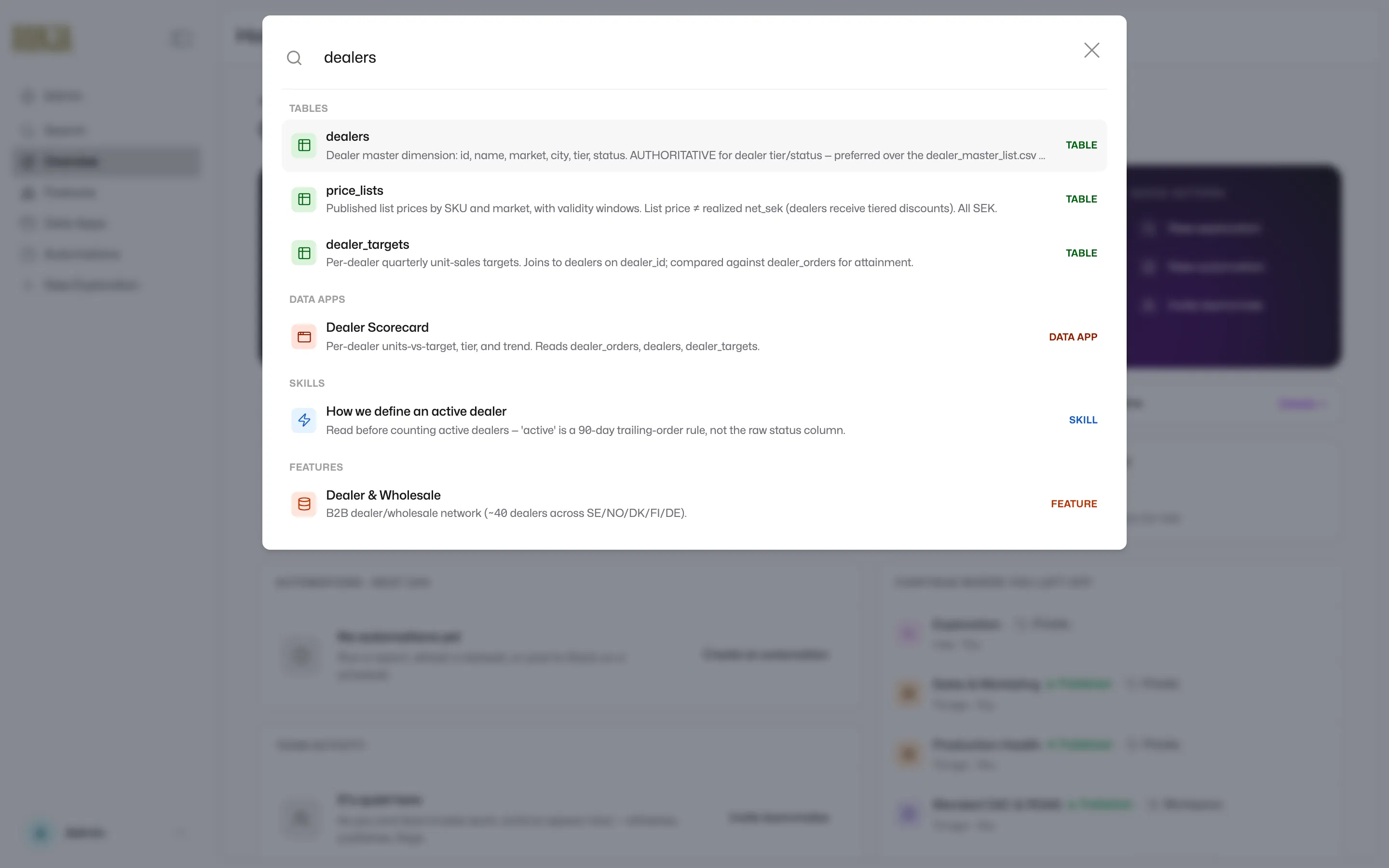 Global search finds anything you have access to, grouped by kind.
Favorites
Section titled “Favorites”Star an exploration or an app and it’s pinned into the sidebar’s Favorites section. You can pin up to 10 of each type in each Space — going over shows “Max 10 favorites in your Space — unfavorite one there to add another”, naming the Space that is full. List pages call the same concept “Pinned”.
Where admin lives
Section titled “Where admin lives”If you’re an admin, the Admin entry at the top of the sidebar switches you into the admin area. The sidebar swaps to a Home landing followed by a grouped admin menu — activity (Overview, Runs & Traces, Audit log), people and access (Users & Access, Spaces, Organization, API Tokens), data and knowledge (Shared features, Access Groups, Databases, Organization policy, Knowledge), integrations (Integrations, Connections, Bridges, Mailboxes), governance (Organization rules, Notification routing, Trash), and billing and control (Usage, Control Center, Automation limits, Billing). Some entries have additional role or billing-access requirements.
Admin Home uses your chosen landscape and opens with Needs attention: pending approvals, integrations to check, failed automation runs in the past 24 hours, and credit warnings. Pending approvals opens the Inbox in Shared features; the other available links take you to the relevant page. All clear appears only after all checks succeed; a check that cannot load shows Try again.
For you shows up to four items from your own inbox, unread first. It is separate from the organization’s audit log. Open a notification to see its resource, or use View all to read the full inbox and Mark all read. Notifications without a resource page open in the inbox so you can read their details. If the feed cannot load, choose Try again.
What changed highlights recently published or updated apps and workflows, new features, automations, and connections. Repeated changes to the same resource appear together. Open an item to see its resource, or choose View all for the audit log.
Team activity shows how many current members used Ronja this week, how many returned on two or more days, and the three apps the most members opened. Pending invitations remain in the total member count. The comparison uses the same point in the previous week and today’s membership. Select the participation figure to see everyone on the Activity page’s People tab, or an app to see who opens it on Apps. When there are any, What people are working on shows this week’s two busiest topics; select one to open it on Topics. Choose Explore activity for the full breakdown — see Monitor activity and usage.
Click Back at the top of the admin sidebar to return to the member view. Non-admins never see any of this.
Getting help
Section titled “Getting help”The account menu’s Help & Support opens a support form that reaches the Ronja team by email.
Next step
Section titled “Next step”Time to get real data in: connect your data.