
Features
If you remember one organizing idea in Ronja, make it this: everything lives in a feature.
A feature is a named bundle of resources — tables, workflows, notes, and more — that together deliver one outcome. Think “Sales Intelligence”, “Customer Health”, or “Onboarding Funnel”: not a folder of files, but a working capability your team can use, share, and improve.
Why features exist
Section titled “Why features exist”They’re the unit of building. When Ronja creates something durable — a table, a workflow, an app — it lands inside a feature. The feature hub shows everything the bundle contains, grouped by kind. See The resource types for the full map.
They’re the unit of access and sharing. Features carry a scope — Private or Organization — and who can see a resource is decided by whether they can reach its feature through their access groups. You never share a single table with a colleague; you share the feature it belongs to.
They’re context for the agent. The Explore button on any feature starts a new exploration scoped to it, and a feature’s description is, in the product’s own words, “Shown in listings and used by the agent when choosing which feature to use.” A well-described feature makes Ronja smarter.
Anatomy of a feature
Section titled “Anatomy of a feature”On your Features page, use search and the Kind selector to narrow the list, or choose a tag. Each row shows its description, editable tags, resource counts and last update.
Open a feature and you land on its hub: the name, editable description, scope, kind and tags; then three tabs — Inventory (every resource, filterable by kind), Activity (the audit feed), and File outputs (files produced by workflow runs). A Data Explorer toggle swaps the body for a table browser, and each feature has its own Trash drawer (on shared features, visible to admins and the feature’s maintainers) for restoring recently deleted items.
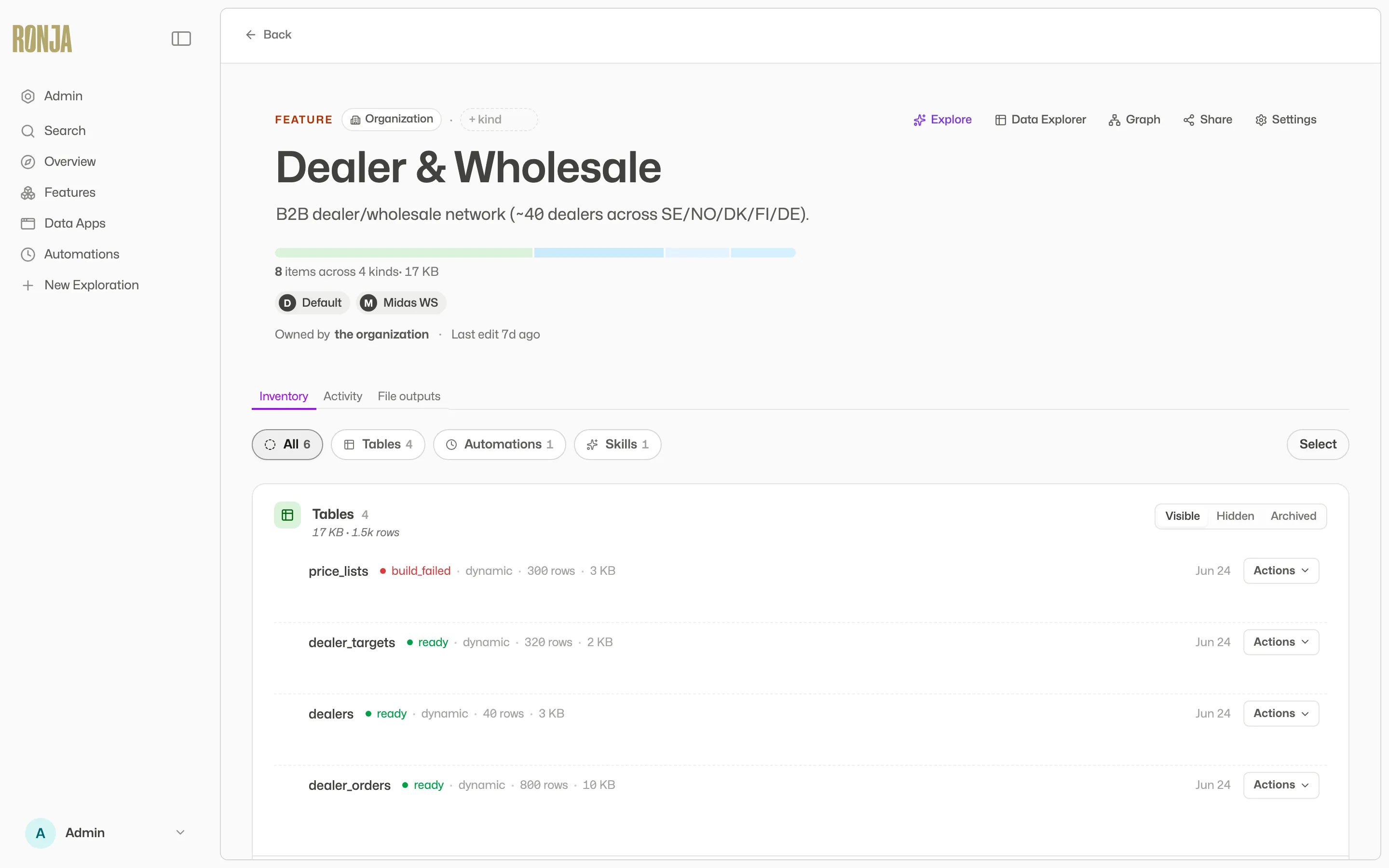 The feature hub — one page showing everything a feature contains.
Features have a kind describing their shape: Integration, Report, Pipeline, or Database. Two more are set by Ronja rather than picked: Connection, on a feature a connector creates, and Organization — an organization can also have one of these, a single feature holding the organization’s own knowledge notes, which appears once Knowledge has been moved across for that organization (see Policies).
The header keeps Explore, Data Explorer and available sharing actions close at hand. More also contains Settings and, when available to you, Access for seeing who maintains the feature. In an Inventory row, Actions → Explain this opens an inline explanation.
See how everything connects
Section titled “See how everything connects”Choose More → Graph in the feature header to open a cross-feature dependency graph for the whole feature. It lays out how the feature’s resources — its tables, workflows, automations, notes, and apps — relate to one another, and it doesn’t stop at the feature’s edge: dependencies that reach into other features are drawn too, so you can see the real shape of the work rather than one feature in isolation. (From any resource row in the Inventory, “View in graph” opens the same graph focused on that one resource.)
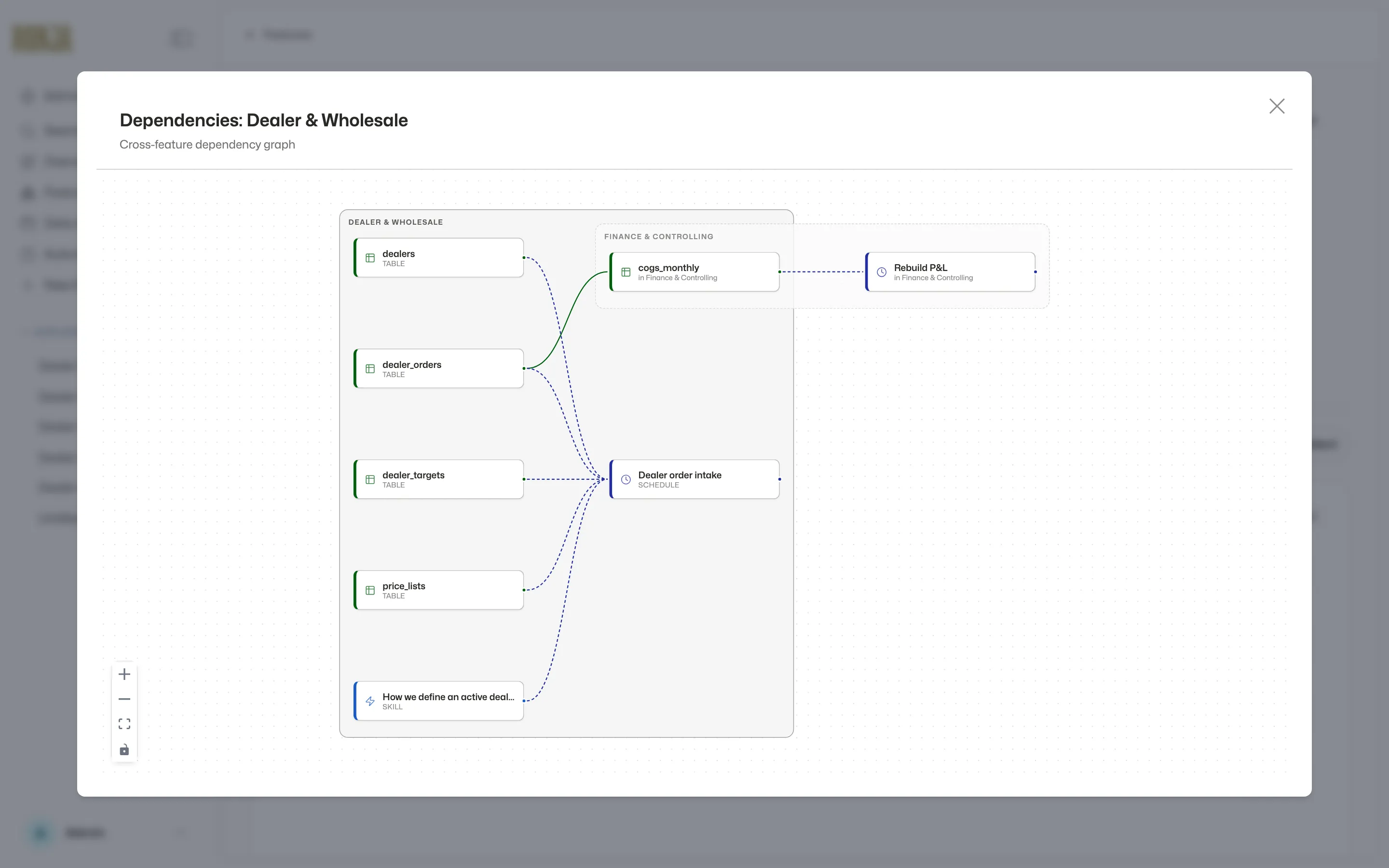 The Graph action shows how a feature’s resources connect — including edges that cross into other features.
The scope lifecycle
Section titled “The scope lifecycle”Features are born small and grow deliberately:
- Private — only you and your organization’s admins can see it. This is where you draft.
- Organization — the org-wide catalog. An Admin approves.
Moving up is a request, not an act: click Share (or Request promotion in settings), and an amber “Share pending” pill marks the feature until an admin decides — unless you are an Admin and your organization allows self-approval, in which case the change applies at once. You can withdraw a pending request at any time. Moving down is admin-only: Request demotion in settings applies at once on the same terms, while “Hand back to creator” always goes through the staged flow.
Creating features
Section titled “Creating features”Members create private features by describing them. On your Features page, “New private feature” asks one question — “What do you want to build?” — then opens an exploration where Ronja creates the feature and starts building inside it. You can name it yourself or let Ronja pick the name.
Shared features combines the shared catalogue and access management. Browse shows features with their purpose, maintainers and sharing summary. Access compares grants across access groups and opens an inspector for deliberate changes. Both views share their search and filters. An Admin reviews a handover on the feature’s own page, with Review next to its Share pending (or Scope change pending) pill, or in the Inbox. Build features with Ronja, then request promotion to Organization scope when they are ready to share.
Where you’ll find them
Section titled “Where you’ll find them”Two pages share a similar name, so note the difference: Features in the member sidebar is your home — a Private lane of your own private features and a Shared lane of the shared features you can reach. An Admin finds colleagues’ private features through search, pickers and the admin area, not here. Both lanes share Search features and kind filters. The Tags list beside the catalog, or chip row above it on narrower screens, filters both lanes by tag; All clears it and Untagged finds features with no tags. Shared features is the admin console — the org-wide catalog, the approval Inbox, and the access matrix.
Lifecycle and safety nets
Section titled “Lifecycle and safety nets”Deleting a feature moves it to the Trash, restorable for 30 days before permanent purge — see Restore from trash. While a feature is in the Trash its tables disappear from search, table lists and the Data map, can’t be opened by anyone (Admins included) or added to apps, workflows, automations or Saved Agents, and apps and workflows that already read them stop working until you Restore the feature; its other items stay listed until the purge. A workflow that already reads one keeps its reference and stays editable: saving the file that still mentions the deleted table is refused, telling you which references are broken and offering both ways out — restore the table, or remove the reference. Every other save of that workflow goes through and tells you what is still broken, so you can always clear the references one file at a time. Its runs keep failing until you do — editing your way out is never blocked, but it is the restore or the removal that fixes the workflow. You no longer have to try an edit to find out: opening the workflow or the Saved Agent shows a Broken references panel naming each deleted item, what happened to it, and — for a workflow — the file the reference is in, and for an app the same panel is on its Details page. Restoring the feature clears the message and the panel with nothing else to do. A Derived table in another feature that is built from one of its tables shows a banner saying its input is in the trash; once the purge deletes that table for good, it stops updating, and for a table that has held data the people responsible are told — see Builds. A feature can also be exported as a zip of its contents from settings; secret values are never included in exports. The download stays available for 1 year, after which the export is removed from the feature’s list — export again for a fresh copy.
For day-to-day housekeeping — renaming, moving resources between features, archiving — see Organize features.