
Roles and permissions
Every member of your organization holds one role (assigned when they’re invited), and the role decides what they can do everywhere in Ronja. The in-product Role guide states the philosophy in one line: “Pick the role that matches what someone actually needs — you can change it later.”
The four roles
Section titled “The four roles”Super Admin — the organization owner, assigned automatically to whoever creates the organization. Has every permission, and is alone in a few of them: promoting members to Admin or Super Admin, buying credits, registering a login domain, renaming the organization, and deleting the organization.
Admin — runs the organization day to day: invites members and assigns roles, manages access groups and settings, and owns the data layer — connects data sources, builds and edits tables, schedules data jobs, and acts as the approver for governance requests (handovers, edit drafts, and note, workflow, and app proposals); a maintainer of a feature decides that feature’s drafts and proposals too. An Admin can also open any member’s explorations for support and governance.
User — everyday use: runs explorations, asks Ronja questions, creates features (private until shared), and proposes changes to shared resources through drafts and proposals.
User Read-Only — view-only access, ideal for stakeholders: browses shared content and the member directory, and can hold their own chats with Ronja, or take part in a chat shared with them with Full access, to ask questions and run analyses over the data they can already see, including files they attach to those chats. Ronja can make documents and files for them, which go to their private My Files, and update Your policy for them. They can’t change or create anything shared. Read-only chats are on by default; an admin can turn them off for the whole organization from Users & Access with the Read-only AI access setting.
The exact capability × role matrix — every action, verified against the product — lives in the roles matrix reference.
Rules worth knowing
Section titled “Rules worth knowing”- Invited members start as User Read-Only, the least-privileged role. Assign the real role right after inviting — you don’t need to wait for them to accept.
- You can only hand out roles below your own (Super Admins are the exception — they can hand out any role, including Super Admin). An Admin can assign User or User Read-Only — but only a Super Admin can make someone an Admin or Super Admin.
- You can’t demote yourself into a locked-out organization. Ronja refuses a self-demotion when you’re the only member at your level or above — promote someone else first, then change your own role.
- “No role” is a real state. A member (or API token) without a role fails every permission check until one is assigned.
- You can only change the role of, or remove, people below your own role (Super Admins can act on anyone). An Admin can’t change another Admin’s or a Super Admin’s role, and can’t remove them. Your own role you can lower, within the next rule. The one exception is for removal only: any Admin can remove Ronja staff, whatever their role.
- The organization always keeps a Super Admin. Nobody can demote, remove or delete its last Super Admin — make someone else Super Admin first.
- Ronja staff are marked. A member of the Ronja team in your organization carries a Ronja staff chip on Users & Access. Their role works like anyone else’s, and you remove them with Remove from organization; see Manage users and roles and Ronja staff in your organization below.
Ronja staff in your organization
Section titled “Ronja staff in your organization”A member of the Ronja team sometimes joins your organization to help you — during onboarding, or to look into something you asked about. They add themselves as Super Admin from Ronja’s own tools, and they have to give a reason. Someone from Ronja who is already a member with another role can make themselves Super Admin the same way. No role in your organization can do this for them, and they can only ever add themselves.
- Your admins are told. Your organization’s own Super Admins and Admins (Ronja staff are left out) each get a notification in Ronja, under Notifications in the sidebar, titled with their name and “from the Ronja team is now a Super Admin”. It says who they are, the role they had before, if any, and the reason they gave, and it opens their page on Users & Access. It is created whatever your notification settings say.
- They are emailed too. The same message goes out by email, with a Review them in Users & Access link. It is on from the start: until an admin sets up notification routing, it goes to your Super Admins and Admins — never to Ronja staff. To send it somewhere else (other people, or Slack), or turn it off, an admin uses the Ronja staff joined as Super Admin row, in the Members & access group on Notification routing; a person in your organization it is sent to gets the notification in Ronja as well. Turning it off stops the email (or Slack message) only; your admins’ notification in Ronja still appears.
- They are marked. They carry a Ronja staff chip on Users & Access.
- Any Admin can remove them, whatever their role: open them on Users & Access and select Remove from organization. The one exception is your organization’s last Super Admin — if they are the only one, make someone else Super Admin first.
- If they are your only Super Admin, the notification says so. When your organization had no other Super Admin, the one who joined is its only one, and nobody can remove them until someone else is Super Admin. Only a Super Admin can make someone Super Admin, so ask them to make one of you Super Admin; then you can remove them.
- Removing them does not stop them adding themselves again. Each time a member of the Ronja team adds themselves, your admins are notified again.
Roles are only half the picture
Section titled “Roles are only half the picture”A role says what someone may do; for members, access group membership and feature scopes say what they can see. A User who isn’t in the Finance access group won’t see a feature shared only to Finance (one attached to that access group, when the default access group isn’t set to share all features), or a colleague’s private feature.
Admins see everything in the organization, whatever their access groups — every organization feature, and every member’s private features and My Private Feature, with everything in them. It is in the admin area’s lists and Trash, in pickers and search (⌘K), and in the API, and they can open it. In pickers, search and on the feature’s page, a colleague’s private feature is shown with their name, for example “Anna Berg’s private feature” or “Q3 forecast (Anna Berg)”.
Seeing is not changing. In a member’s private feature an Admin can edit, delete, restore or attach what is already there, and can move things into it from an organization feature, but can’t create anything new there. Nobody can move something between two people’s private features.
Ronja’s chat and AI assistants connected to Ronja find what a member would, plus the feature you open the chat in and anything you link them to; the admin area, search (⌘K) and the API you call yourself show everything. That keeps an instruction planted in something they read from sending them through colleagues’ private work.
No screen, list or export ever shows a secret’s value. Anyone who may write code that uses a secret can make that code reveal it.
See Scopes and sharing.
Where you manage roles
Section titled “Where you manage roles”Roles are assigned on the Users & Access page — a matrix of members against access groups, with a role control on each member’s row. The Role guide button there opens the full “What each role can do” matrix inside the product, so you can compare roles before picking one.
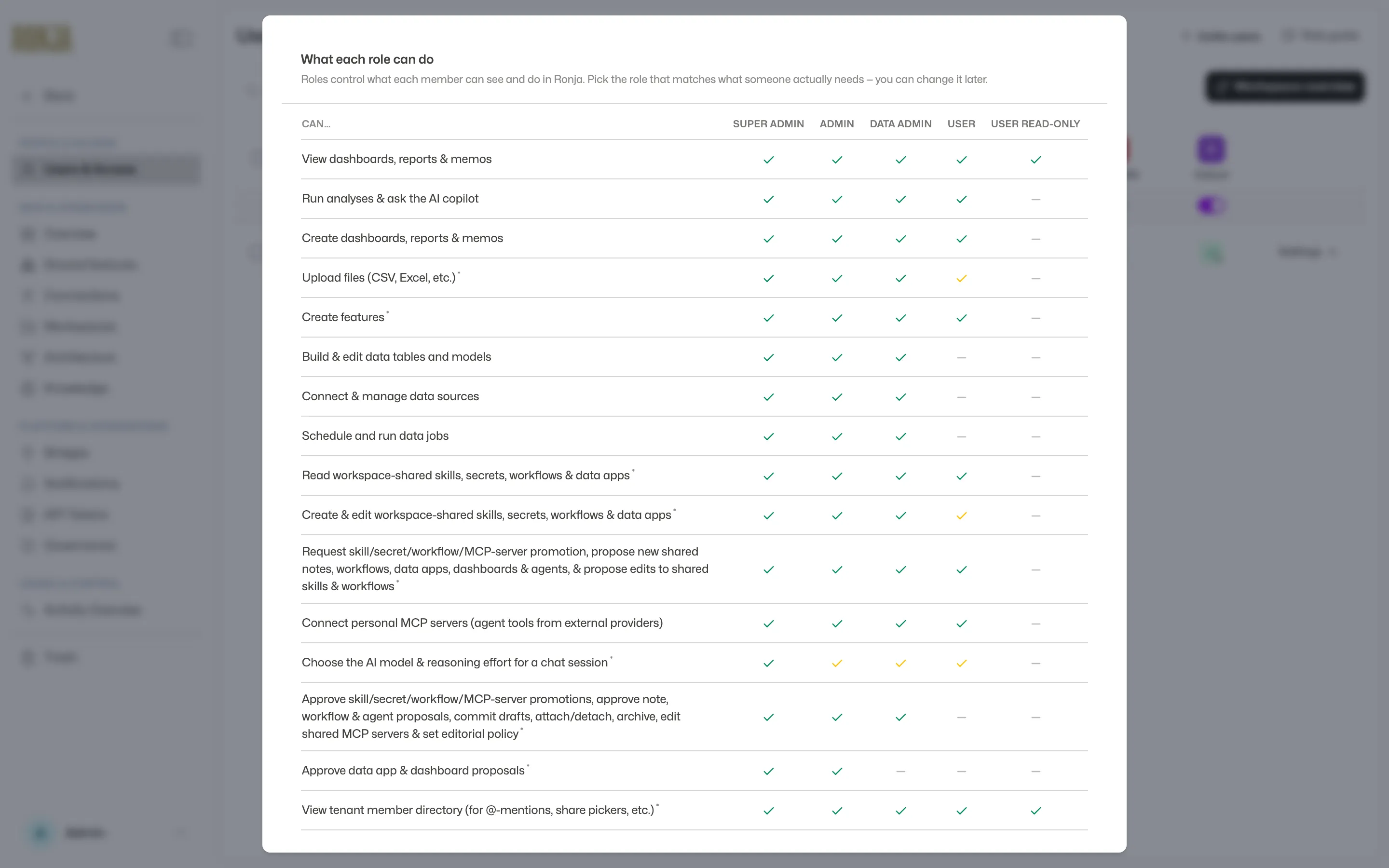 The Role guide on the Users & Access page — the same matrix the docs reference is built from.
For the step-by-step on inviting people and changing roles, see Manage users and roles.