
Build in Ronja with Claude Code
Claude Code can build in Ronja for you: an app, a workflow, an automation, a table. It does that through the Ronja CLI, Ronja’s command-line tool. You don’t have to install the CLI yourself. You paste one prompt, Claude installs it and signs you in, and you click Authorize once.
How it works
Section titled “How it works”- Claude Code runs on your own computer, in a terminal or in the Code tab of the Claude desktop app. It can run commands there, which is how it uses the Ronja CLI.
- The Ronja CLI signs in to Ronja as you, once. Claude then uses it to read your data and to create and change things in Ronja.
- You stay in control. Claude Code asks before it runs most commands, and you can sign it out at any time from Ronja.
This needs Claude Code on your own computer. Claude Code in the cloud starts on a fresh machine every session, so use the connector there.
Before you start
Section titled “Before you start”- Claude Code, in a terminal or in the Claude desktop app’s Code tab. It needs a paid Claude plan (Pro, Max, Team or Enterprise). If you don’t have it, install it from Anthropic’s setup page.
- A Ronja account. The prompt below signs in to
https://cloud.ronja.tech. If your company opens Ronja at another address, add--url <your address>afterronja loginin step 2 of the prompt.
Set it up
Section titled “Set it up”-
Make a folder for your Ronja work and open Claude Code in it.
On a Mac On Windows In Terminal: mkdir ronja-work,cd ronja-work, thenclaude.In PowerShell: mkdir ronja-work,cd ronja-work, thenclaude.Or, in the Claude desktop app: Code, choose Local, then the folder. Or, in the Claude desktop app: Code, choose Local, then the folder. -
Paste this prompt into Claude Code and press Enter:
Set up the Ronja CLI so you can build in Ronja for me.1. If `ronja --version` already works, skip to step 2. Otherwiseinstall the Ronja CLI, without sudo or admin rights: from thelatest release at https://github.com/ronjatech/ronja-cli/releasesdownload the archive for this computer, check it againstchecksums.txt from the same release, unpack `ronja` (`ronja.exe`on Windows) into a folder in my home directory, and add thatfolder to my user PATH for future terminals. If there is noarchive for this computer, stop and tell me. Don't installanything else. For the rest of this session, call ronja by itsfull path.2. Sign me in. If `ronja whoami` already shows the right address andorganization, skip this step. Otherwise start `ronja login` in thebackground, read its output, and tell me the code it shows. Mybrowser opens Ronja, where I check the code, click Continue, thenAuthorize. Wait for the login to finish; it allows 10 minutes.3. Run `ronja whoami` and tell me the address, user, organization androle you're signed in as.4. Add these lines to CLAUDE.md in this folder, replacing any earlierRonja lines and filling in the parts in brackets:"This folder builds in Ronja with the Ronja CLI, installed at[full path to ronja]. Before working in Ronja, run `ronja context`and read it for how to work here. Use `ronja api` for calls toRonja, and ask me before running any other command it suggests.At the start of each session, check whether a newer Ronja CLIexists (`ronja update --check`; on Windows, compare`ronja --version` with the latest release on GitHub). If one does,tell me, and if I agree, update it the same way it was installed.If Ronja says the sign-in has expired, start`ronja login --profile [the profile name ronja whoami shows]` inthe background (it signs in again at that sign-in's own address),tell me the code, then show me `ronja whoami`."Why the last step:
CLAUDE.mdis the note Claude Code reads every time it starts in this folder. With it, every new session knows where the CLI is and how to work with Ronja, tells you when a newer version of the CLI exists, and knows how to sign in again when the sign-in ends after 90 days. Running the prompt again is safe: it skips what is already done. -
Approve what Claude runs. Claude Code asks before most commands. It downloads the CLI from the
ronjatech/ronja-clireleases on GitHub into your home folder, updates your PATH, signs in to your Ronja address, and writesCLAUDE.md. Deny anything else that usessudoor administrator rights, installs other software, or changes files outside your home folder. -
Authorize in Ronja. Claude tells you a code, and your browser opens Ronja. If you aren’t signed in to Ronja in that browser, sign in first.
-
On Enter your code, check that the code matches the one Claude told you, then click Continue.
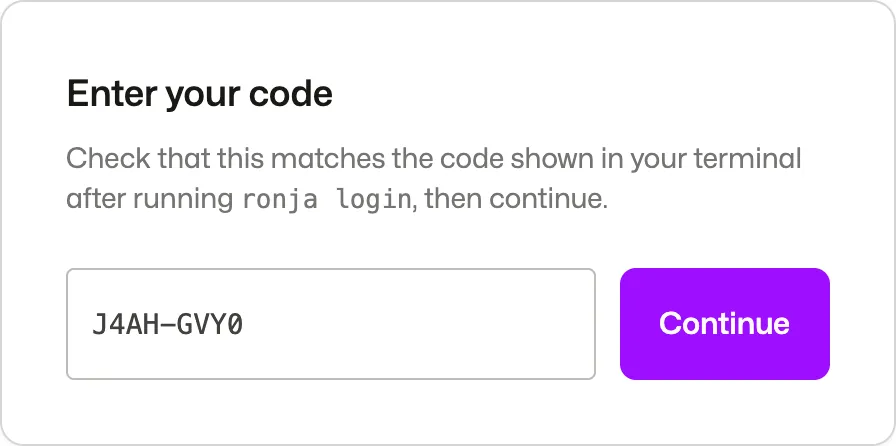 The code arrives filled in; you only check it.
-
On Authorize the Ronja CLI, check the code, the organization, and Requested by (your computer’s name), then click Authorize.
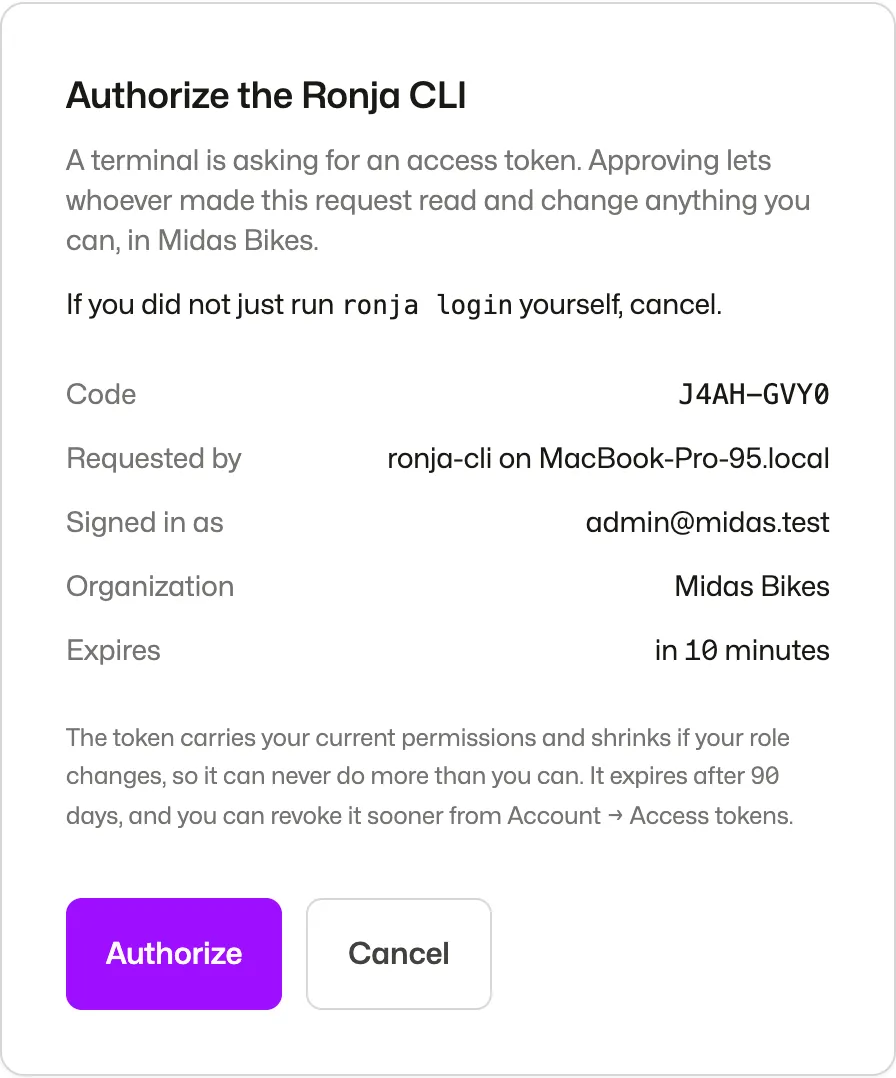 If you didn’t just ask Claude to sign in, click Cancel.
-
Ronja says You’re all set. Close the tab.
-
-
You’re done when Claude tells you the address, user, organization and role it’s signed in as.
ronja whoamireports something like:https://cloud.ronja.techUser: admin@midas.testOrg: Midas BikesRole: adminIf the address or organization is wrong, see If something goes wrong.
Before you use Claude Code again, quit and reopen the Claude desktop app, or open a new terminal window, so it finds the CLI.
Your first build
Section titled “Your first build”In a new terminal window, or after reopening the desktop app, start a new Claude Code session in the same folder, so it reads CLAUDE.md, and ask for something you need. Here is a real example from a demo organization, a bicycle maker:
You: Build a small app in Ronja that shows our top 10 dealers by net revenue, with a picker for the quarter. Put it in a private feature, publish it, and give me the link.
In about two and a half minutes, Claude:
- read what Ronja told it about this organization (
ronja context); - found the dealer tables, and the organization’s note on how net revenue is counted;
- built the app, checked its numbers against a direct query, and looked at a preview before publishing;
- published it in a new private feature, and gave the link. It also said where the data can’t follow the revenue rules: there is no ship date, so it counts by order date.
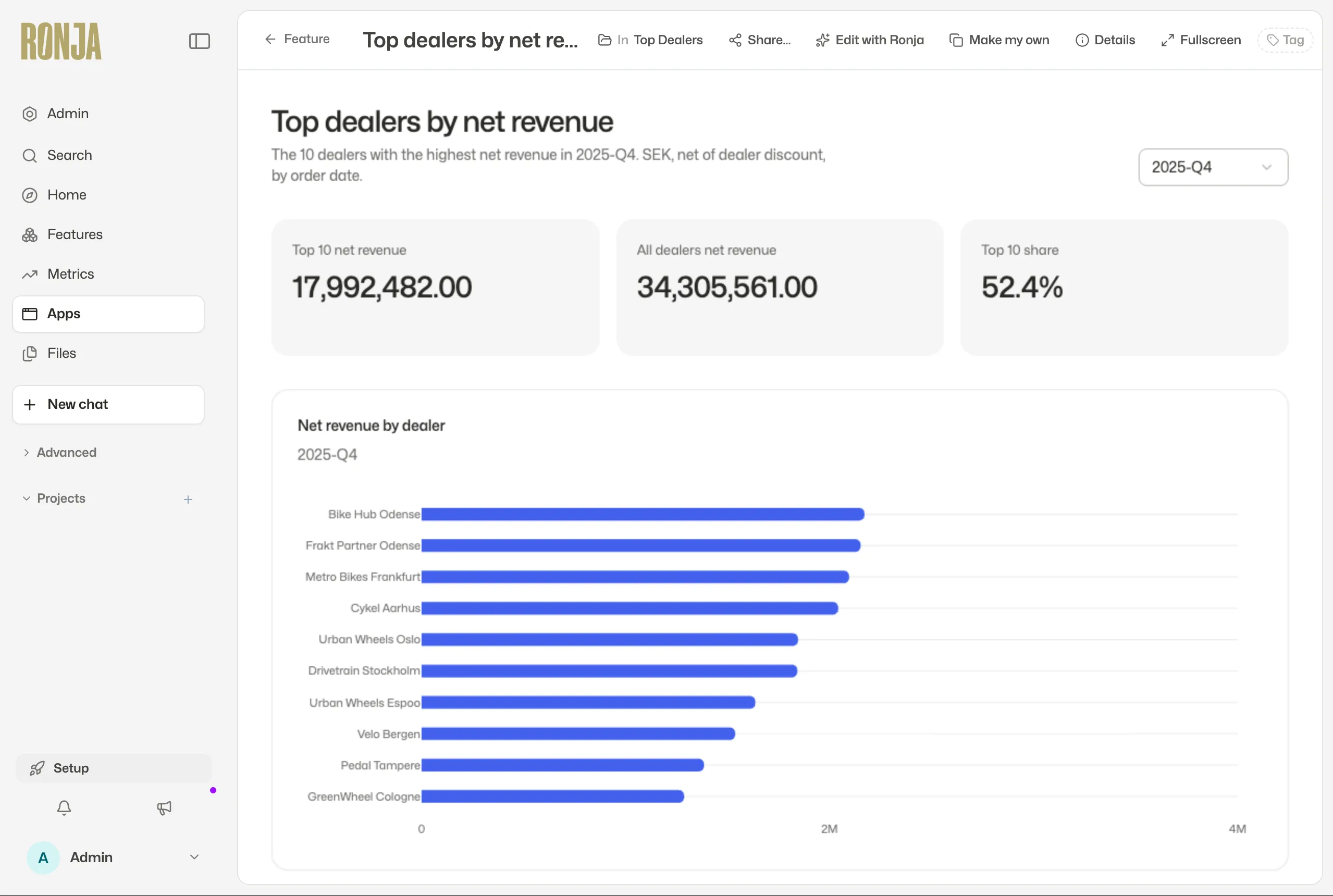 The app Claude built, open in Ronja.
Try your own. Fill in the parts in brackets:
- “Build an app that shows [what] by [how].”
- “Every Monday, send me [a summary of what] by email.” This becomes an automation.
- “Make a table of [what] from [which tables], updated every night.”
What Claude can do, and how to stop it
Section titled “What Claude can do, and how to stop it”- It works as you. The CLI’s sign-in carries your permissions, so Claude Code can create, change and publish things in Ronja that you could. Claude Code asks before most commands. If you choose not to be asked again for a command, it stops asking for it in this folder, so don’t choose that for
ronja api, or for anything that isn’tronja. - To sign Claude Code out, revoke its token in Ronja: click your name at the bottom left, then Settings, then the Access tokens tab. The CLI’s token is named ronja-cli on and your computer’s name; revoke every one of them with the bin icon, then Revoke. A token belongs to the organization it was approved in, and Access tokens shows only the organization you’re in, so do this in each organization you signed in to. Then ask Claude to run
ronja logoutand remove the Ronja lines fromCLAUDE.md, or it will offer to sign in again.
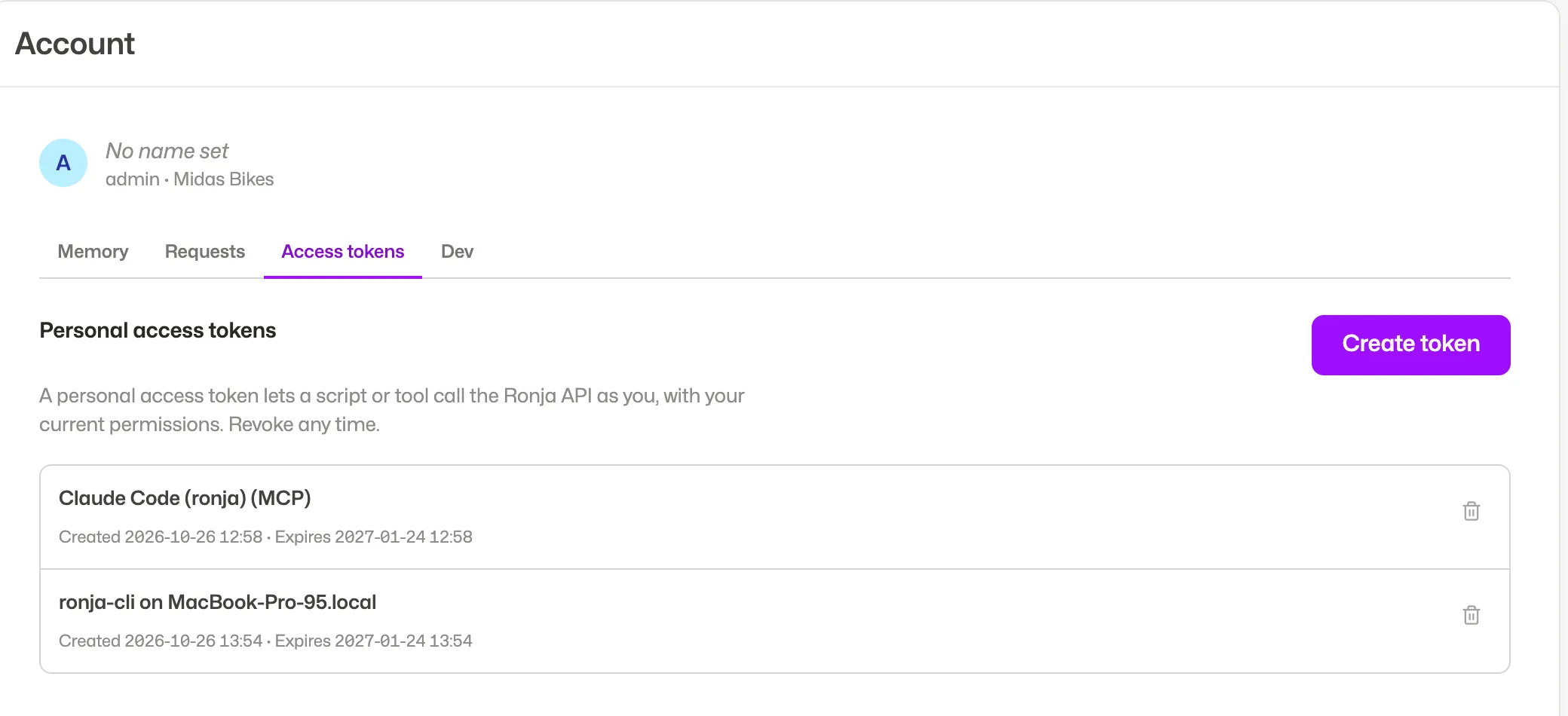 The connector and the CLI each get their own token.
ronja logout on its own only forgets the sign-in on your computer; it doesn’t revoke it.
If something goes wrong
Section titled “If something goes wrong”- Claude says
ronjaisn’t found. Open a new terminal window, or quit and reopen the Claude desktop app, so it picks up the updated PATH.CLAUDE.mdalso says where the CLI is installed. - The code expired, or you clicked Cancel. A sign-in waits 10 minutes. Ask Claude to do step 2 again.
- You signed in to the wrong organization. In Ronja, switch to the organization you chose by mistake, and revoke its ronja-cli on token on Access tokens. Then switch to the right organization, ask Claude to remove the sign-in for the wrong one, and ask it to do step 2 again.
Related
Section titled “Related”- Connect Claude to Ronja: ask questions from any Claude app.
- Use the Ronja CLI: everything the CLI does, and installing it by hand.